Introduction
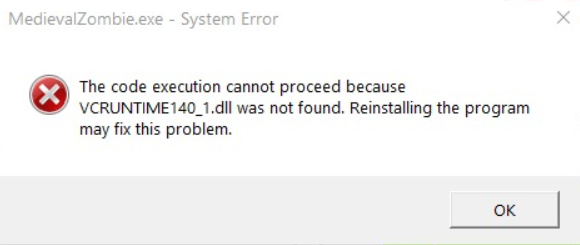
Encountering a vcruntime140_1.dll error can be frustrating, especially when it appears during the startup of Windows applications or games. This DLL (Dynamic Link Library) file is essential for running programs built with certain versions of Microsoft Visual C++, and missing or corrupted files can lead to application crashes, error messages, or even system instability. Understanding the origin of this error and knowing how to fix it promptly are crucial for maintaining smooth operation of your computer and ensuring your applications run seamlessly. In this comprehensive guide, we will explore the causes behind the vcruntime140_1.dll error and provide practical solutions to resolve it effectively.
Understanding vcruntime140_1.dll and Its Role in Windows
What is a DLL file?
A DLL (Dynamic Link Library) is a file that contains code and data used by multiple programs simultaneously. Instead of embedding the same code within each application, Windows uses DLLs to promote code reuse, save memory, and facilitate updates. When an application needs a particular function—say, for graphics processing or network communication—it loads the corresponding DLL.
Why vcruntime140_1.dll is critical for application operation
vcruntime140_1.dll is a core component of the Visual C++ runtime libraries. It provides essential functions and routines that many Windows applications and games depend on, especially those developed with Microsoft Visual Studio 2015 and later versions. When this DLL is missing or corrupted, applications cannot access the functions they require, leading to errors such as "The program can't start because vcruntime140_1.dll is missing." Ensuring this DLL is present and functioning is vital for stable application performance.
Common Causes of the vcruntime140_1.dll Error
Missing or corrupted DLL file
One of the most frequent reasons for this error is that the vcruntime140_1.dll file is either missing from your system or has become corrupted due to improper shutdowns, malware infections, or accidental deletion. When the DLL cannot be found or is compromised, applications relying on it fail to launch.
Outdated or incompatible Visual C++ Redistributable packages
Many applications require specific versions of the Microsoft Visual C++ Redistributable packages. If these are outdated, incompatible, or improperly installed, they can trigger DLL errors. Over time, updates or software conflicts may lead to version mismatches, making the runtime libraries incompatible with current applications.
System file corruption and malware impact
System files can become corrupted as a result of improper shutdowns, disk errors, or malware infections. Such corruption may impair critical DLL components, including vcruntime140_1.dll, leading to persistent errors. Malware can also specifically target DLL files, rendering them unusable or causing alterations that result in errors.
Effective Solutions to Fix the vcruntime140_1.dll Error
Fixing the vcruntime140_1.dll error involves several methods, ranging from simple reinstallations to advanced system repairs. Here are step-by-step strategies to help you resolve the issue:
Step 1: Reinstall Visual C++ Redistributables
Since vcruntime140_1.dll is part of the Visual C++ runtime libraries, reinstalling or updating these redistributables often resolves missing or corrupted DLL errors.
- Visit the Microsoft Visual C++ Redistributable download page.
- Download the latest supported versions, particularly Visual C++ 2015, 2017, and 2019, as they share redistributables.
- Run the installers and select Repair if the packages are already installed.
- Restart your PC and check if the error persists.
Step 2: Manual DLL replacement
If reinstalling Redistributables doesn't work, you can manually replace the DLL file:
- Download vcruntime140_1.dll from a reputable source or extract it from a trusted Microsoft package.
- Copy the DLL file to the affected application's directory or directly into the C:\Windows\System32 folder.
- If you're using a 64-bit version of Windows, also copy it into C:\Windows\SysWOW64.
- Restart your computer and verify if the error is resolved. Note: Be cautious when downloading DLL files from third-party sites. Always prefer official Microsoft sources to avoid malware risks.
Step 3: Using System File Checker (SFC) and DISM
Corrupted system files can cause DLL errors. Run built-in Windows tools to repair system integrity:
- Open Command Prompt as administrator.
- Enter the command:
sfc /scannow - Wait for the scan to complete and follow any prompts to fix found issues.
- Next, run DISM to repair the Windows image:
DISM /Online /Cleanup-Image /RestoreHealth - Restart your computer and check if the error persists.
Step 4: Employing DLL repair tools
If manual methods fail, consider using reputable DLL repair tools that scan your system for missing or corrupted DLL files and restore them automatically. Some popular tools include DLL Files Fixer or DllSuite. Important: Always download such tools from official sources and ensure your antivirus is active to avoid malicious software.
Prevention Tips and Best Practices
Prevention is better than cure. To minimize the risk of encountering vcruntime140_1.dll error in the future, follow these best practices:
Regular system updates
Keep your Windows system up-to-date. Microsoft regularly releases updates that fix bugs, patch security vulnerabilities, and update runtime libraries, reducing chances of DLL errors.
Using reliable antivirus software
Malware infections are a common cause of DLL corruption. Employ a reliable antivirus program, run regular scans, and avoid downloading files or software from untrusted sources.
Creating system restore points
Before installing new software or making significant system changes, create restore points. This practice allows you to revert your system to a healthy state if errors occur later.
Conclusion
The vcruntime140_1.dll error can disrupt your workflow, gaming experience, and overall system stability. Understanding its causes—from missing or corrupted files to outdated redistributables and system corruption—is crucial in selecting the right fix. Reinstalling Visual C++ Redistributables, manually replacing DLL files, repairing system files with SFC and DISM, or using trusted repair tools can effectively resolve the issue. Proactive maintenance, including regular updates, malware protection, and creating restore points, helps prevent future DLL errors. If all solutions fail or you're unsure about performing system repairs, don't hesitate to seek professional support or consult official Microsoft resources to ensure your system remains healthy and functional.
Remember: Keeping your system updated and maintaining good security habits are key to avoiding DLL-related headaches. When in doubt, turn to trusted sources and tools designed for system repair and recovery.