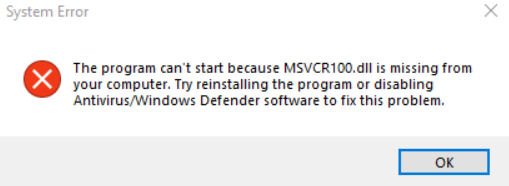
DLL errors can be frustrating—especially when they interfere with your ability to run applications or games smoothly. One of the most common DLL-related errors Windows users encounter is the 'msvcr100.dll' error. Whether you're a casual user, gamer, developer, or IT technician, understanding and resolving this problem is essential to maintain system stability and optimize application performance. In this comprehensive guide, you'll learn everything about the 'msvcr100.dll' error, including its causes, troubleshooting methods, manual repair techniques, and preventive strategies to keep your system running smoothly.
Understanding the 'msvcr100.dll' Error and Its Causes
What is msvcr100.dll?
The msvcr100.dll file is part of the Microsoft Visual C++ 2010 Redistributable package. It contains key runtime components for programs written in C++ that rely on Visual C++ libraries. Essentially, this DLL provides essential functions and code libraries that many Windows applications, especially games and professional software, depend on to operate correctly.
Common causes of the error (missing, corrupted, version conflicts)
The 'msvcr100.dll' error typically manifests in several ways, such as:
- "The program can't start because msvcr100.dll is missing from your computer."
- "Error loading msvcr100.dll. The specified module could not be found."
- "The code execution cannot proceed because msvcr100.dll was not found." Several issues can lead to this error:
- Missing DLL File: The DLL might have been accidentally deleted or not installed correctly.
- Corrupted DLL File: Malware infections, improper shutdowns, or incomplete software updates can corrupt the DLL.
- Version Conflicts: Installing incompatible or multiple versions of the Visual C++ Redistributable package can cause conflicts.
- Software Reinstallation: Sometimes, uninstalling or reinstalling programs without updating dependencies can lead to absent DLL files.
Impact on system and applications
Missing or corrupted msvcr100.dll files can prevent applications from launching, crash games mid-play, or cause system errors, leading to instability and potential data loss. Ensuring this DLL file functions correctly is vital for maintaining smooth system and application performance.
Effective Troubleshooting Steps for Fixing 'msvcr100.dll' Error
Resolving this error involves multiple troubleshooting steps. Start with simple fixes and progress to more advanced solutions if necessary.
Checking for Windows updates
Before diving into complex fixes, ensure your Windows OS is fully up to date: 1. Go to Settings > Update & Security > Windows Update. 2. Click Check for updates. 3. Install any available updates and restart your computer. Updating Windows often replaces missing system files and patches security vulnerabilities that may cause DLL errors.
Reinstalling Visual C++ Redistributable
Since msvcr100.dll is part of Visual C++ 2010 Redistributable, reinstalling this package can resolve the issue: 1. Visit the Microsoft Visual C++ 2010 Redistributable download page. 2. Download the appropriate version (x86 or x64) matching your system architecture. 3. Uninstall any existing Visual C++ 2010 Redistributable packages via Control Panel > Programs and Features. 4. Install the freshly downloaded package. 5. Restart your system and check if the error persists.
Manual replacement of the DLL file
If you trust a reliable source, you can manually replace the msvcr100.dll file: 1. Download the DLL from a reputable source or extract it from a clean install of Visual C++ Redistributable. 2. Place the DLL in the application's directory or the System32 folder:
- For 32-bit systems: C:\Windows\System32
- For 64-bit systems: C:\Windows\SysWOW64
- Register the DLL via Command Prompt:
regsvr32 msvcr100.dll - Restart your computer. Note: Always back up your current DLL files before replacing them, and use caution with third-party sources.
Using system repair tools like SFC and DISM
System File Checker (SFC) and Deployment Image Servicing and Management (DISM) can repair corrupted system files:
- Run SFC:
- Open Command Prompt as administrator.
- Execute:
sfc /scannow -
Wait for the process to complete and follow any on-screen instructions.
-
Run DISM:
- In Command Prompt, run:
DISM /Online /Cleanup-Image /RestoreHealth - Restart your system after completion. These tools scan and fix system files, often resolving DLL issues without manual intervention.
Manual Repair and Prevention of Future DLL Errors
Manual DLL replacement
As mentioned earlier, manual replacement involves copying the proper DLL file into system directories. To do this:
- Ensure the DLL is sourced from a trusted location.
- Use safe-mode if necessary to replace files that are in use.
- After copying, run regsvr32 msvcr100.dll to register it properly.
Registry cleanup and repair
Sometimes, registry issues can cause DLL loading errors:
- Use built-in tools like Regedit to check for invalid entries related to 'msvcr100.dll'.
- Employ reliable registry cleaners cautiously, as they can sometimes cause more harm than good.
Preventative practices to avoid DLL problems
- Keep your Windows OS updated consistently.
- Reinstall redistributables only from official Microsoft sources.
- Use reliable antivirus software to prevent malware infections.
- Avoid manual editing of system files or registry unless you fully understand the risks.
- Regularly back up your system with restore points.
Additional Solutions and Tips
Updating drivers and Windows
Outdated drivers can conflict with system files, including DLLs:
- Regularly update your graphics, audio, and device drivers via Device Manager.
- Maintain up-to-date Windows patches and service packs.
Running virus scans
Malware can corrupt or delete DLL files:
- Use trusted antivirus programs like Windows Defender, Malwarebytes, or Norton.
- Perform full system scans periodically to prevent DLL issues caused by infections.
Compatibility considerations
Sometimes, newer Windows updates or incompatible programs cause DLL conflicts:
- Run applications in compatibility mode:
- Right-click the program executable.
- Select Properties > Compatibility.
-
Choose an appropriate older Windows version.
-
Avoid installing multiple versions of Visual C++ redistributables unless necessary.
Conclusion
The 'msvcr100.dll' error may seem daunting at first, but with systematic troubleshooting, you can resolve and prevent most issues related to this vital DLL file. Regularly updating your Windows system, reinstalling or repairing redistributables, and maintaining good security practices are key to avoiding future DLL problems. Remember, always source DLL files from trusted sources and back up your system before making significant changes. Taking proactive steps not only fixes current issues but also fortifies your system against future errors, ensuring smoother application performance and greater stability. If problems persist, consult official support channels or IT professionals for tailored assistance.
Stay vigilant, keep your system updated, and enjoy a smoother computing experience!