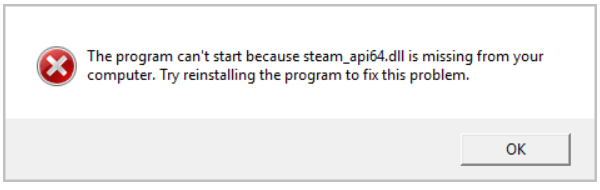
Have you ever launched a game only to be met with the frustrating message: "The code execution cannot proceed because steam_api64.dll was not found"? If so, you're not alone. This error can abruptly halt your gaming session and impede your enjoyment. The missing or corrupt DLL (Dynamic Link Library) files, particularly steam_api64.dll, often cause such issues, especially when launching Steam-dependent games. Rest assured, this guide will walk you through understanding the roots of this error, troubleshooting methods, manual fixes, and preventive tips to keep your gaming experience smooth and error-free.
Understanding the 'steam_api64.dll Not Found' Error
What is steam_api64.dll?
To resolve this error effectively, it's important to understand what steam_api64.dll is. In simple terms, steam_api64.dll is a crucial dynamic link library used by Steam and many games to facilitate communication between your computer and the game or Steam client itself. It essentially acts as a bridge, enabling various functions such as game launching, updates, and multiplayer features.
Common Causes of the Error
Several factors can lead to the "steam_api64.dll not found" error:
- Missing DLL file: The file might have been accidentally deleted or misplaced.
- Corrupt installation: An incomplete or corrupted installation of Steam or the game can result in missing or damaged DLL files.
- Software conflicts: Antivirus or security software might mistakenly quarantine or remove essential DLLs.
- System file corruption: Windows system errors or malware infections might corrupt necessary files.
- Update issues: An unsuccessful game or Steam update can leave DLL files missing or outdated.
Impacts on Game Launching
When this error occurs, the affected game or Steam client usually fails to launch, or crashes unexpectedly. It hampers your gaming experience, leading to frustration and loss of gaming time. Therefore, addressing the issue promptly is vital for uninterrupted gameplay.
Troubleshooting Steps to Resolve Missing steam_api64.dll
Before diving into complicated fixes, follow these basic troubleshooting procedures to identify and potentially resolve the error:
Check for Missing DLL Files
- Locate the DLL file: Navigate to the installation directory of your game or Steam (typically in "C:\Program Files\Steam" or similar folders).
- Verify presence: Ensure that steam_api64.dll exists in the game's folder or the relevant program directory.
- Prompt reinstallation: If the DLL is missing, the next step would be to repair or reinstall the game or Steam.
Verify Game and Steam Installation Integrity
- Use built-in verification tools:
- For Steam games: Right-click on the affected game → Properties → Local Files → Verify Integrity of Game Files.
- For Steam itself: Steam has a similar 'Verify Integrity' feature in its settings.
- Reinstall the game: Corrupted files can often be fixed by uninstalling and reinstalling the game via Steam.
Run System Scan for Corruption
- Use Windows built-in tools such as System File Checker:
- Open Command Prompt as Administrator.
- Run:
sfc /scannow - This scans and repairs corrupted system files that might affect DLL functionality.
- Run antivirus or antimalware scans to rule out malware interference, which could delete or corrupt DLL files.
Manual Replacement of steam_api64.dll
If troubleshooting didn't resolve the issue, manually replacing the DLL might be necessary. Here’s a safe approach:
Find a Reliable Source for steam_api64.dll
- Official channels only: Never download DLL files from unknown or third-party websites, as they can contain malware.
- Best source: Obtain the DLL from a legitimate installation of Steam or the game itself.
Steps to Manually Replace the DLL File
- Locate a valid source: Copy
steam_api64.dllfrom an intact, working version of the game or Steam, if available. - Navigate to the installation directory: Usually at
C:\Program Files\Steam\or within the game's folder. - Replace the existing DLL: Backup the current file (if present), then delete or overwrite it with the new one.
- Register the DLL (Optional): Use Command Prompt as Administrator and run:
regsvr32 path\to\steam_api64.dll - Restart your computer and try launching the game again.
Precautions During Manual Replacement
- Always backup existing DLL files before replacing.
- Download DLLs from trusted sources to avoid security risks.
- Avoid copying DLL files from unverified sources or unknown websites.
Using Repair Tools and Reinstallation
In cases where manual replacements and verification don’t work, automated repair tools or reinstalling Steam and the affected game can be more effective.
Recommended DLL Repair Tools
- CCleaner: Can repair registry issues related to DLL errors.
- DLL-files.com Client: Offers DLL repair features, but ensure you verify files before use.
- Reimage PC Repair: Helps fix system corruption affecting DLL files.
Reinstalling Steam and Games
- Uninstall the game and Steam:
- Use Windows Settings → Apps to uninstall.
- Delete remaining files in installation directories.
- Reinstall from official sources:
- Download Steam from official website.
- Install your game again via Steam.
Ensuring Proper System Updates
- Keep Windows updated by navigating to Settings → Windows Update.
- Update your graphics drivers and other system components for optimal compatibility.
Prevention and Best Practices
Prevention is better than cure. To minimize the chances of encountering DLL errors like "steam_api64.dll not found" in the future, keep these habits:
Keep Software Updated
- Regularly update Steam, your games, and Windows OS.
- Enable automatic updates to stay current with patches and security fixes.
Perform Regular System Scans
- Use antivirus and anti-malware software consistently.
- Schedule periodic scans to detect and remove threats.
Backup Important Files
- Regularly back up game saves, system images, and critical data.
- Use cloud storage services or external drives for extra security.
Additional Tips
- Avoid downloading DLL files from unofficial sources. They can be outdated or contain malware.
- Disable or configure antivirus software to avoid false positives affecting Steam or game files.
- Maintain sufficient disk space to prevent installation or update failures.
Conclusion
The "code execution cannot proceed because steam_api64.dll was not found" error can be a significant hurdle for gamers, but with a systematic approach, it’s manageable. Start by verifying the presence and integrity of game files, run system scans, and consider manual replacements from trusted sources if necessary. When issues persist, repair tools or reinstalling Steam and your games often do the trick. Remember, proper maintenance—like timely updates, backups, and ensuring system health—can prevent this problem from recurring. If you’ve tried all these steps and still face issues, don’t hesitate to seek professional help or reach out to Steam support for dedicated assistance. Enjoy smooth gameplay without interruptions!
Ready to fix your DLL errors? Follow these steps carefully, and your gaming experience will be back on track in no time!