Introduction
Encountering the "msvcp140.dll not found" error can be frustrating, especially if you're trying to launch a game or run important software on your Windows PC. This error indicates that the system cannot locate the necessary DLL (Dynamic Link Library) file vital for running many applications. Since DLL files are crucial for program operation, missing or corrupted ones can cause application crashes, system instability, or prevent software from opening altogether. Promptly resolving this issue is essential—not only to restore functionality but also to maintain overall system health. This comprehensive guide will help you understand, troubleshoot, and fix the "msvcp140.dll not found" error efficiently.
Understanding the 'msvcp140.dll Not Found' Error
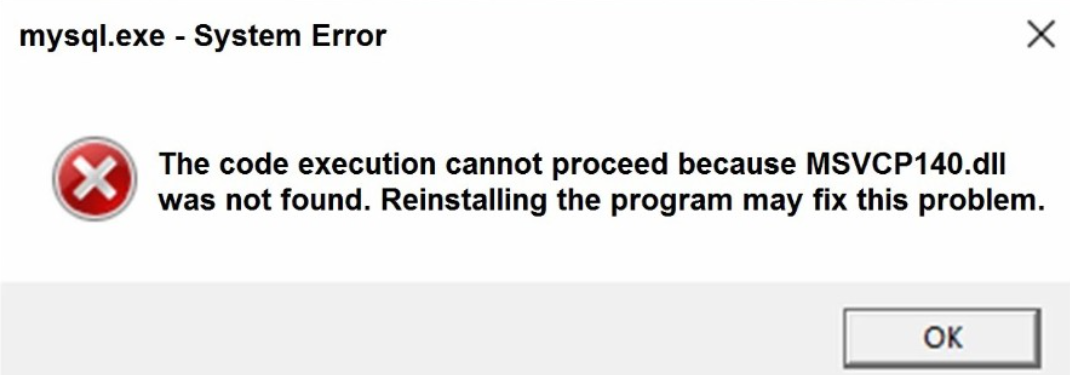
What is msvcp140.dll?
The msvcp140.dll file is part of the Microsoft Visual C++ Redistributable package—specifically, Visual C++ 2015, 2017, and 2019. It functions as a support library that enables Windows applications to perform specific functions. Without this DLL, certain applications relying on Microsoft’s Visual C++ libraries may fail to launch or operate correctly.
Common Scenarios Leading to the Error
This error can appear in various situations, including:
- During startup of a game or software that depends on Visual C++ libraries.
- After installing or updating Windows or third-party software.
- When transferring or copying files between systems.
- Following malware infections or system crashes that damage DLL files.
- Due to incomplete or failed software installations or updates.
Impact on System and Applications
The absence or corruption of msvcp140.dll can lead to:
- Application crashes or failure to launch.
- Error messages stating that the DLL is missing or not found.
- Reduced system stability—other dependent applications may also malfunction.
- Frustration and productivity loss for users and professionals. Understanding the root cause is essential before applying specific fixes. Now, let’s explore how to resolve this common issue.
Tips and Methods to Fix the Error
Reinstall the Visual C++ Redistributable
Why: Since msvcp140.dll is part of the Visual C++ Redistributable package, reinstalling or repairing this package often resolves missing DLL errors.
How:
1. Visit the Microsoft Visual C++ Redistributable downloads page.
2. Download the latest versions compatible with your system (x86 for 32-bit, x64 for 64-bit).
3. Run the installer and select "Repair" if the option appears.
4. Restart your computer and check if the error persists.
Download and Manually Replace the DLL File
Why: If only the DLL file is corrupted or missing, manually replacing it can be effective.
How:
1. Search for a reliable, official source or trusted DLL download site (e.g., DLL-files.com). Be cautious to avoid untrustworthy sites.
2. Download the correct version matching your system architecture.
3. Copy the file into the directory where the application expects it, often C:\Windows\System32 for 64-bit or C:\Windows\SysWOW64 for 32-bit.
4. Register the DLL using Command Prompt:
regsvr32 msvcp140.dll
- Restart your PC and test the application.
Run System File Checker (SFC) and DISM Tools
Why: These built-in utilities scan and repair corrupted Windows files, including DLLs. How: 1. Open Command Prompt as Administrator. 2. Run the System File Checker:
sfc /scannow
- Wait for the scan to complete and repair any issues.
- Then run Deployment Image Servicing and Management (DISM):
DISM /Online /Cleanup-Image /RestoreHealth
- Reboot your PC and check whether the error persists.
Update Windows and Device Drivers
Why: Outdated Windows or drivers can cause DLL errors. How: 1. Open Settings > Update & Security > Windows Update. 2. Click "Check for updates" and install all available updates. 3. Visit your PC or motherboard manufacturer’s website to download the latest drivers. 4. Install and restart your system.
Use DLL Repair Tools
Why: Specialized tools can automatically detect and fix DLL issues. Popular Tools:
- Restoro
- DLL Suite
- Advanced SystemCare Note: Use reputable software and ensure you download from trusted sources.
Step-by-Step Troubleshooting Guide
How to Download the Correct msvcp140.dll
- Always prefer official Microsoft packages or trusted sources.
- Ensure the DLL version matches your system architecture:
- 64-bit Windows:
C:\Windows\System32 - 32-bit Windows:
C:\Windows\SysWOW64
Registering the DLL with RegSvr32
- Open Command Prompt as Administrator.
- Enter:
regsvr32 C:\Path\To\msvcp140.dll
- Press Enter and restart your computer.
Performing System Restore
When to use: If the error started after recent updates or changes. How: 1. Search for "System Restore" in the Start menu. 2. Select "Create a restore point." 3. Click "System Restore" and choose a point before the error occurred. 4. Follow prompts and restart your system after restore.
Running Antivirus and Malware Scans
Sometimes, malware can delete or corrupt DLL files. How: 1. Use your preferred antivirus program. 2. Run a full system scan. 3. Remove any detected threats. 4. Restart and verify if the error is resolved.
Prevention and Best Practices
Keep Windows and Software Updated
Regular updates patch security vulnerabilities and fix known issues that can lead to DLL errors.
Avoid Downloading DLLs from Unofficial Sources
Downloading DLL files from untrusted sites risks introducing malware or corrupt files into your system.
Maintain a Good Antivirus Program
An active security solution prevents malware infections that can corrupt DLL files.
Regular System Maintenance
- Use built-in tools like Disk Cleanup.
- Keep drivers updated.
- Perform periodic system scans.
Conclusion
Dealing with the "msvcp140.dll not found" error can be straightforward once you understand its cause and the available solutions. Whether reinstalling the Visual C++ Redistributable, manually replacing the DLL, or running system scans, these steps help restore your application's functionality and maintain your system’s stability. Remember, proactive folder maintenance, keeping Windows updated, and practicing safe downloading habits are key to preventing such DLL errors in the future. By following this guide, you’re well-equipped to troubleshoot and resolve the issue quickly, ensuring your PC remains reliable and efficient.
Take Action: If you’re encountering this error, start with reinstalling the Visual C++ Redistributable and moving through the outlined steps. Fixing DLL errors now saves time and frustration later!
Keywords: msvcp140.dll not found, fix DLL errors, Windows troubleshooting, missing DLL, Visual C++ Redistributable