Dealing with unityplayer.dll errors can be frustrating for gamers, developers, and everyday users alike. These errors often prevent Unity-based games or applications from launching properly, disrupting your experience. Whether you're encountering a missing DLL message, a failed load, or an entry point error, understanding how to troubleshoot effectively and safely download the necessary DLL file is essential for smooth gaming and development workflows. This guide provides a comprehensive, step-by-step approach to resolve unityplayer.dll issues, emphasizing safe practices and official sources to ensure your system remains secure and functional.
Understanding unityplayer.dll and Common Errors
Role of unityplayer.dll in Unity Games
unityplayer.dll is a dynamic link library vital for running Unity-based games and applications. It acts as a bridge between the Unity engine and your computer's operating system, enabling interactive graphics, physics calculations, and gameplay logic to function smoothly. Without this DLL file, Unity applications cannot execute properly, often resulting in errors or failure to launch.
Common Error Messages and Their Meanings
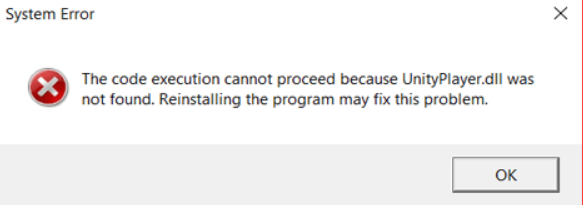
Many users encounter various error messages related to 'unityplayer.dll'. Some of the typical issues include:
-
"The program can't start because unityplayer.dll is missing from your computer."
Indicates the DLL file is absent or not correctly installed. -
"Failed to load unityplayer.dll."
Usually points to corruption or incompatibility issues. -
"Entry Point Not Found."
Suggests the DLL version is incompatible with the application or missing specific functions. Understanding these messages helps target the appropriate troubleshooting methods and reduces unnecessary steps.
How to Download unityplayer.dll Safely
Official Sources for DLL Downloads
The safest way to obtain unityplayer.dll is directly from official sources:
-
Unity Download Archive:
While Unity doesn’t provide standalone DLL downloads, you can ensure your Unity engine installation is complete and up to date from Unity's official download page. -
Game or Application Installers:
If DLL errors occur with specific games, reinstalling or updating the game from official platforms like Steam, Epic Games, or the application's official site usually restores the necessary DLL files correctly.
Verifying System Architecture (x86 vs. x64)
Before downloading or replacing DLL files, identify your system's architecture:
-
For Windows:
Go to Settings > System > About and check System Type (32-bit or 64-bit). -
Match the DLL version accordingly:
- 32-bit DLL files are intended for x86 systems.
- 64-bit DLL files are for x64 systems. This ensures compatibility and prevents further errors caused by architecture mismatches.
Precautions When Downloading DLL Files
-
Avoid third-party websites:
Many unreliable sites host malware-infected DLL files. Always stick to official sources or first-party installers. -
Scan downloaded files:
Use reputable antivirus software to scan any DLL files before placing them in your system folder. -
Use System File Checker:
Instead of manual downloads, consider built-in tools like System File Checker (SFC) to repair missing or corrupted DLLs safely.
Troubleshooting Common unityplayer.dll Errors
Manual Replacement of unityplayer.dll
If you have a clean, verified DLL file:
1. Backup existing DLL:
Navigate to C:\Windows\System32 (or SysWOW64 for 64-bit systems) and locate unityplayer.dll.
- Copy it to a backup folder.
-
Replace the DLL:
-
Paste the downloaded, verified DLL into the same folder.
- Ensure that you have Administrator privileges to overwrite system files.
-
Register the DLL:
-
Open Command Prompt as Administrator.
- Enter:
regsvr32 unityplayer.dlland press Enter.
Using System File Checker (SFC) and DISM Tools
For Windows users, these tools automatically scan and repair system DLLs:
- Run SFC:
- Open Command Prompt as Administrator.
- Type:
sfc /scannowand press Enter. - Wait for the process to complete and follow any guidance.
- Run DISM:
-
In Command Prompt, type:
DISM /Online /Cleanup-Image /RestoreHealth -
After completion, rerun
sfc /scannow. This method repairs system files, including DLLs, without manual downloads.
Reinstalling Unity or Related Software
Corrupted DLL files may stem from faulty Unity installations:
- Completely uninstall Unity via the Control Panel.
- Download and install the latest Unity version from Unity's official site.
- For specific games, reinstall through the official client to restore necessary DLLs.
Additional Fixes and Tips
Updating Drivers and Windows
Outdated drivers can cause DLL load failures:
- Regularly update your graphics, sound, and other drivers through the manufacturer's website or Windows Update.
- Keep your Windows OS current to ensure compatibility and security.
Checking for Windows Updates and System Restore
-
Windows Updates:
Update your system to patch vulnerabilities and fix known issues. -
System Restore:
If recent changes caused DLL errors, revert your system to a previous restore point to resolve conflicts.
Running Antivirus Scans and Permissions Settings
- Perform thorough antivirus scans to eliminate malware that may corrupt DLL files.
- Set correct permissions for DLL files:
- Right-click the DLL file → Properties → Security tab.
- Ensure your user account has Full Control permissions if necessary.
Conclusion
Addressing unityplayer.dll errors involves understanding the executable's role, sourcing the DLL safely from official channels, and employing effective troubleshooting techniques. Always prioritize user safety by avoiding sketchy download sites and using built-in Windows tools like SFC and DISM for repairs. Reinstalling Unity or games from trusted sources often resolves missing or corrupted DLL issues effortlessly. By following these step-by-step instructions, you can minimize downtime, protect your system, and enjoy seamless gaming or development experiences. Remember, regular updates, backups, and cautious downloads form the cornerstone of maintaining a healthy operating environment when working with Unity-based applications.
Need further assistance?
If you continue experiencing issues after following these steps, consider seeking help from official Unity support forums or contacting your software provider for personalized guidance.