If you're a Windows user, encountering the error message "mdnsnsp.dll blocked from loading" can be frustrating and confusing. These DLL (Dynamic Link Library) errors not only disrupt normal system operations but can also lead to system instability if left unresolved. Understanding the root causes of such errors and knowing how to troubleshoot effectively is essential to maintaining a healthy, smooth-running Windows environment.
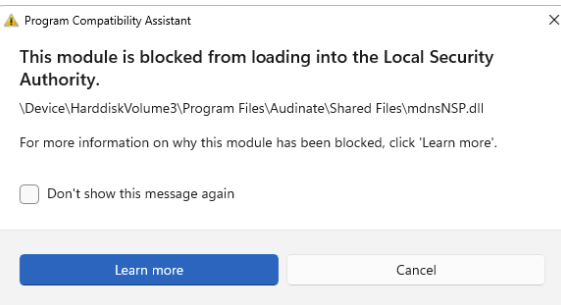
In this comprehensive guide, we'll explore what mdnsnsp.dll is, the common reasons it might get blocked, and step-by-step methods to resolve these issues swiftly. Whether you're facing runtime errors, system crashes, or network problems, this article aims to equip you with practical solutions to restore your DLL functionality and prevent future errors.
Understanding mdnsnsp.dll and Its Role in Windows
What is mdnsnsp.dll?
The file mdnsnsp.dll is a Dynamic Link Library component tied to Bonjour or mDNSResponder services, which facilitate multicast DNS (mDNS) and zero-configuration networking on Windows systems. These technologies are primarily used by Apple devices and applications that require automatic network discovery—such as printers, shared storage, or iTunes. Essentially, mdnsnsp.dll helps Windows computers discover and connect smoothly with compatible network devices without requiring manual configuration.
Why Windows Blocks Certain DLLs
Security is a primary reason why Windows might block a DLL like mdnsnsp.dll from loading. If the operating system detects that a DLL might be malicious, tampered with, or originates from an untrusted source, it could prevent it from loading to protect the system. This blocking mechanism helps prevent malware, ransomware, and other threats from exploiting system files. However, false positives or corrupted DLL files can also trigger blocking errors despite the DLL being legitimate. That is why it’s critically important to understand the causes before applying fixes.
Common Causes of mdnsnsp.dll Blocked Errors
Understanding the root causes of the "mdnsnsp.dll blocked from loading" error can help you target your troubleshooting efforts effectively. Below are some typical reasons this DLL might be blocked:
1. File Corruption or Deletion
Over time, system files or application-specific DLLs can become corrupted or accidentally deleted due to improper shutdowns, disk errors, or faulty updates. When mdnsnsp.dll is damaged or missing, Windows may block its loading or generate errors during startup or when certain applications try to access it.
2. Security Software Blocking
Antivirus or anti-malware programs sometimes flag DLL files as suspicious, especially if they are modified, outdated, or part of software considered potentially unwanted. This false positive can result in the DLL being quarantined or blocked, preventing it from loading properly.
3. Registry Errors
Incorrect entries in the Windows Registry can prevent DLLs from loading correctly. Registry corruption may happen due to improper software uninstallations, malware infections, or failed updates, leading to errors like "mdnsnsp.dll blocked from loading."
4. System Updates or Software Conflicts
Applying system updates or installing new software can sometimes introduce conflicts. Incompatibilities or incomplete updates may prevent certain DLL files from functioning as intended, leading to blocking errors.
Step-by-Step Troubleshooting and Repair Methods
If you're encountering this DLL error, don’t panic. Systematic troubleshooting can usually resolve the issue. Here are some practical methods:
1. Manual Replacement of mdnsnsp.dll
Note: Before replacing any system file manually, ensure you have a reliable backup.
- Search for a clean copy of mdnsnsp.dll from a trusted source or another healthy Windows system.
- Copy the file to the appropriate directory, typically
C:\Windows\System32\. - If you need to replace an existing file, delete or rename the current one, then place the new copy.
- Restart your computer and check if the error persists.
2. Using System File Checker (SFC) and Deployment Image Servicing and Management (DISM)
These Windows built-in tools help repair corrupted or missing system files. Run SFC:
- Open Command Prompt as Administrator.
- Type:
sfc /scannowand press Enter. -
Wait for the scan to complete; it will automatically repair corrupt files where possible. Run DISM:
-
In the same elevated Command Prompt, type:
bash DISM /Online /Cleanup-Image /RestoreHealth -
Press Enter and wait for the process to finish.
- Restart your PC afterward and see if the DLL error is resolved.
3. Re-registering DLLs with RegSvr32
Re-registering the DLL can sometimes fix loading issues:
- Open Command Prompt as Administrator.
-
Execute the command:
bash regsvr32 /u mdnsnsp.dll // Unregisters the DLL regsvr32 mdnsnsp.dll // Re-registers the DLL -
Restart your system and verify if the error persists.
4. Scanning for Malware
Malware infection can corrupt DLL files or cause them to be blocked:
- Use a reputable malware scanner, such as Windows Defender, Malwarebytes, or other trusted tools.
- Perform a full system scan.
- Remove any threats detected, then restart your PC.
Preventative Measures and Best Practices
Prevention is always better than cure. Here are some effective tips to reduce the chances of encountering mdnsnsp.dll or similar DLL errors:
1. Keep Windows and Drivers Updated
Regularly update your Windows OS and device drivers to ensure compatibility and security patches:
- Use Windows Update settings.
- Visit hardware manufacturer sites for latest driver downloads.
2. Conduct Regular Antivirus Scans
Schedule periodic scans with your antivirus software to detect and remove threats early.
3. Backup and Create System Restore Points
Create regular backups and restore points so you can roll back to a stable system state if errors occur:
- Use Windows Backup and Restore.
- Manually create restore points via System Properties.
4. Reinstall Related Software
If the error is linked to specific applications (e.g., Bonjour, iTunes), consider reinstalling or updating those applications to ensure proper DLL integration.
Conclusion
Encountering a "mdnsnsp.dll blocked from loading" error might seem alarming at first, but with a clear understanding of its causes and systematic troubleshooting, you can resolve it efficiently. Key steps include verifying system file integrity, scanning for malware, addressing registry issues, and maintaining good security practices. Proactive system maintenance and timely updates go a long way in preventing such DLL-related errors, ensuring your Windows PC remains stable, secure, and performative. Should you experience persistent problems despite these efforts, consulting with IT professionals or specialized forums can provide additional insights. Remember, prompt action helps safeguard your system's health and your digital peace of mind.
Stay proactive—keep your system healthy, and don’t hesitate to seek expert help when needed!