Introduction
Encountering an msVCR71.dll error can be frustrating, especially when you're trying to run an application, launch a game, or work on software development projects. This common DLL (Dynamic Link Library) error often manifests as messages indicating that the file is missing, corrupted, or failed to load, causing disruptions in your system’s operation. Understanding what msVCR71.dll is, why these errors occur, and how to resolve them can help restore stability and performance to your Windows environment. This comprehensive guide provides practical solutions for troubleshooting msVCR71.dll errors, whether you're a casual user, gamer, or developer.
Understanding msVCR71.dll and Its Importance
What is msVCR71.dll?
msVCR71.dll is a component of the Microsoft Visual C++ 2003 Redistributable Package. DLL files like msVCR71.dll contain shared code, routines, and functions utilized by multiple Windows programs. Specifically, msVCR71.dll provides vital runtime libraries that developers embed into their applications to ensure consistent performance across different systems.
The Role of DLL Files in Windows Applications
Dynamic Link Libraries are essential for modular programming in Windows. Instead of bundling all code directly into applications, developers rely on DLLs to segment reusable functions. This approach reduces file size, promotes code reuse, and simplifies updates. When an application runs, Windows loads the necessary DLLs into memory, enabling the program to function properly.
Common Causes of DLL Errors
DLL errors like those involving msVCR71.dll typically arise from various issues, including:
- Corrupted or Missing Files: The DLL file may be accidentally deleted, corrupted by malware, or overwritten during installations.
- Incorrect or Incomplete Visual C++ Redistributable Installations: An outdated or improperly installed runtime library can cause load failures.
- System File Corruption: Damaged Windows system files interfere with DLL operations.
- Software Conflicts: Conflicting applications or incompatible updates can disrupt DLL functionality.
- Malware Infection: Malicious software can delete, alter, or block DLL files.
Common Symptoms and Error Messages
Identifying error messages related to msVCR71.dll
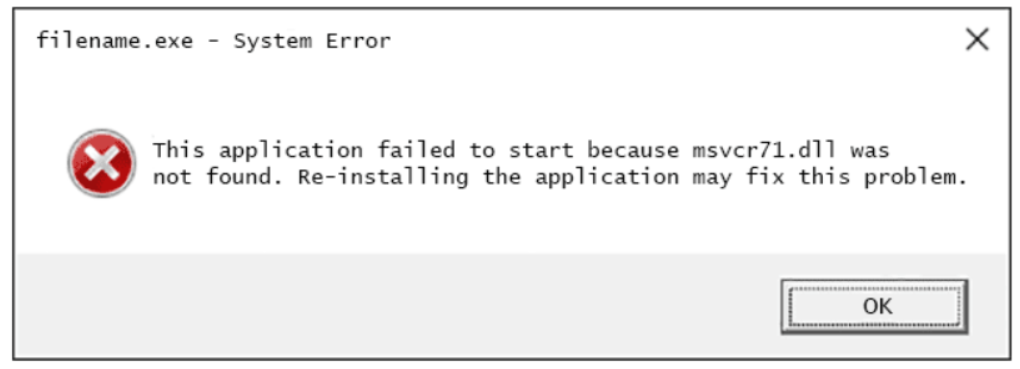
When msVCR71.dll issues occur, users typically encounter errors such as:
- "The program can't start because msVCR71.dll is missing from your computer."
- "msVCR71.dll not found."
- "Failed to load msVCR71.dll."
- "This application failed to start because msVCR71.dll was not found."
Impact on system and application functionality
These errors can prevent applications from launching, cause crashes during use, or trigger system instability. For example, a game might refuse to start, or a software development environment may crash unexpectedly. Detecting the exact error message helps identify whether the issue stems from a missing DLL, a corruption problem, or a load failure.
Step-by-Step Manual Repair Methods
Resolving msVCR71.dll errors may involve several manual troubleshooting steps. Below is a sequence you can follow:
Reinstalling Microsoft Visual C++ Redistributable Package
Since msVCR71.dll is part of the Visual C++ 2003 Redistributable, reinstalling this package often resolves missing or corrupted DLL errors. Steps: 1. Visit the official Microsoft download page. 2. Download the appropriate version (x86 or x64) depending on your system. 3. Run the installer and follow on-screen prompts. 4. Restart your computer and check if the error persists.
Replacing the DLL file manually
If you have verified that the DLL file is missing or corrupted, you can manually replace it:
Precautions: Only download DLL files from official or reputable sources to avoid malware.
Steps:
1. Download msVCR71.dll from a trusted source or extract it from a reliable installation package.
2. Navigate to C:\Windows\System32 (or C:\Windows\SysWOW64 for 64-bit systems).
3. Backup the current msVCR71.dll if it exists.
4. Copy the new DLL file into the directory.
5. Restart your computer and test the application.
Using System File Checker (SFC) to repair system files
The SFC tool scans Windows for corrupted or missing system files and repairs them automatically.
Steps:
1. Open Command Prompt as administrator (search for cmd, right-click, select “Run as administrator”).
2. Type: sfc /scannow and press Enter.
3. Wait for the scan to complete; it may take some time.
4. Restart your PC and verify if the DLL error persists.
Employing DISM tool for image servicing
If SFC cannot fix the problem, use Deployment Image Servicing and Management (DISM):
Steps:
1. Open Command Prompt as administrator.
2. Run these commands one by one:
DISM /Online /Cleanup-Image /CheckHealth
   DISM /Online /Cleanup-Image /RestoreHealth
3. After completion, run sfc /scannow again.
4. Restart and check for improvements.
Restoring Windows to previous state
If the error started after recent changes, restoring your system to an earlier restore point may help: Steps: 1. Open Control Panel > System and Security > Backup and Restore. 2. Select "Recover system settings or your computer" > "Open System Restore." 3. Choose a restore point prior to the issue. 4. Follow prompts to restore. 5. Reboot and verify if the error is resolved.
Using Trusted Tools and Official Resources
Official runtime download links
Always download Visual C++ redistributables from official Microsoft sources to ensure authenticity and safety.
Recommended DLL repair tools
While caution is advised, some reputable tools like DLL Files Fixer or CCleaner can help identify and fix DLL issues—preferably after backing up your system.
Precautions against malware and unsafe downloads
Avoid resorting to unknown third-party sites. Download files exclusively from official vendor websites, and keep your antivirus software up to date.
Conclusion
Troubleshooting msVCR71.dll errors involves understanding the root causes, such as missing or corrupted files, and applying effective repair methods. Reinstalling official redistributables, replacing DLL files carefully, repairing system files with SFC and DISM, or performing a system restore can resolve most issues. Always prioritize safety by downloading from official sources and using trusted tools. If problems persist despite these efforts, consider seeking assistance from a professional technician to prevent further system issues. Proper DLL management is crucial for maintaining system stability and ensuring your applications run smoothly. Stay vigilant, perform regular updates, and keep your system secure to avoid future DLL errors.
Remember: Regular backups and system maintenance are key to preventing runtime issues like msVCR71.dll errors. With the right approach, you can quickly restore serviceability and continue enjoying your Windows experience without interruptions.