Introduction
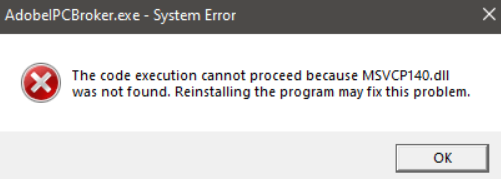
If you've encountered the dreaded "missing vcruntime140.dll" or a similar error message while launching your favorite application or game on Windows, you're not alone. DLL (Dynamic Link Library) files like vcruntime140.dll are critical components that enable Windows programs to run smoothly. When these files are missing, corrupted, or failed to load, they can cause crashes, errors, and serious frustration.
Understanding what causes these DLL errors and knowing how to fix them is essential for maintaining system stability and ensuring seamless operation of your applications. This comprehensive troubleshooting guide will walk you through various methods—from simple initial steps to advanced repair techniques—to resolve download vcruntime140.dll errors efficiently and safely.
Understanding vcruntime140.dll and Common Errors
What is vcruntime140.dll?
vcruntime140.dll is a Dynamic Link Library file associated with Microsoft Visual C++ 2015-2019 Redistributable packages. It contains runtime components required by applications developed with Visual C++ to run properly. Without this DLL, many programs, especially games and multimedia applications, cannot start or function correctly.
Common error messages
Users typically see errors like:
- "The program can't start because vcruntime140.dll is missing from your computer."
- "Error loading vcruntime140.dll."
- "The application failed to initialize because vcruntime140.dll was not found."
- "Could not find vcruntime140.dll. Please reinstall to fix the problem."
Reasons for DLL errors
DLL errors related to vcruntime140.dll often occur due to:
- Corrupted or deleted DLL files
- Outdated or missing Microsoft Visual C++ redistributable packages
- Software conflicts or incomplete installations
- Malware infections damaging system files
- Incorrect system updates or registry issues
Troubleshooting Basic DLL Issues
Step 1: Restart your PC
Before diving into complex solutions, restart your computer. Windows sometimes resolves temporary glitches that may be causing the DLL error.
Step 2: Reinstall affected applications
If the error appears when launching a specific program or game, try reinstalling that software. This process replaces missing or corrupted files associated with the application.
- Uninstall the app via Control Panel or Settings.
- Download the latest installer from the official website.
- Install the program again and check if the error persists.
Step 3: Run System File Checker (SFC)
The SFC tool scans Windows system files and repairs corrupted or missing ones, including DLLs.
- Press
Win + R, typecmd, then pressCtrl + Shift + Enterto open Command Prompt as Administrator. -
Enter the command:
bash sfc /scannow -
Wait for the scan to complete. If issues are found, SFC will attempt to fix them automatically.
- Restart your computer and see if the error is resolved.
Manual Repair Methods
If basic troubleshooting doesn't work, manual repair is necessary. These steps involve downloading the DLL file from trusted sources, registering it, or replacing corrupted files.
Step 4: Download vcruntime140.dll from official sources
Avoid unreliable third-party sites; instead, download the DLL from official Microsoft sources or by installing the latest Visual C++ Redistributable.
- Visit the Microsoft Download Center
- Download the appropriate Visual C++ Redistributable package for your system (x86 or x64).
- Install the package; this will automatically install all necessary DLL files, including
vcruntime140.dll.
Step 5: Register the DLL with RegSvr32
If the DLL exists but isn't registered properly, register it manually:
- Open Command Prompt as Administrator.
-
Navigate to the folder containing
vcruntime140.dll(usuallyC:\Windows\System32):bash cd C:\Windows\System32 -
Register the DLL:
bash regsvr32 vcruntime140.dll -
Wait for confirmation message, then restart your computer.
Step 6: Replace the DLL manually
If you have a healthy copy of vcruntime140.dll, you can replace the faulty version:
- Copy the DLL file into
C:\Windows\System32(for 64-bit systems) orC:\Windows\SysWOW64(for 32-bit systems). - Overwrite the existing file.
- Register the DLL as described above.
- Restart your computer and test the application.
Advanced Fixes Using System Tools
Sometimes, DLL errors persist due to deeper system issues. Use more advanced tools to repair Windows integrity and restore system stability.
Step 7: Run Deployment Image Servicing and Management (DISM)
- Open Command Prompt as Administrator.
-
Execute:
bash DISM /Online /Cleanup-Image /RestoreHealth -
Wait until the process completes. This tool repairs Windows system images that may be corrupted.
Step 8: Use System Restore
If the error started after recent changes or updates, reverting to an earlier restore point can fix the problem:
- Search for "System Restore" in Windows Search and open it.
- Follow on-screen instructions to choose a restore point before the error appeared.
- Confirm and let Windows restore your system to that point.
Step 9: Boot into Safe Mode
Booting into Safe Mode loads Windows with minimal drivers and services, helping diagnose software conflicts.
- Open Settings > Update & Security > Recovery.
- Under “Advanced Startup,” click "Restart now."
- After restart, go to Troubleshoot > Advanced options > Startup Settings > Restart.
- Press
4for Safe Mode. - Test the application for DLL errors. If resolved, consider reinstalling or updating drivers and applications.
Prevention and Best Practices
Proactively prevent DLL errors with these reliable practices:
Regular Windows updates
- Keep your Windows OS up to date with the latest patches and security fixes.
- Go to Settings > Update & Security > Windows Update.
Driver updates
- Update hardware drivers regularly, especially graphics and chipset drivers, to ensure compatibility with Windows updates and applications.
Security best practices
- Use reputable antivirus software.
- Avoid downloading files or software from untrusted sources.
- Scan for malware regularly.
Conclusion
Dealing with download vcruntime140.dll errors can be frustrating, but with a systematic approach, most issues are resolvable. Start with simple steps like restarting your PC, reinstalling apps, and running system scans. If these don't work, proceed to manual DLL replacements, register the DLL, and utilize powerful system repair tools like DISM or System Restore. Maintaining your system with regular updates and security practices helps prevent future DLL errors. Remember, always download DLL files and software updates from official sources to minimize risks. By following this complete troubleshooting guide, you’ll restore application stability and enjoy smooth system performance. For ongoing support, consult official Microsoft documentation or trusted tech communities.
Q: Why does this error occur?
A: This error is usually caused by missing or corrupted vcruntime140.dll files, often due to incomplete installations, Windows updates, or malware infections. Applications relying on Visual C++ runtime libraries cannot load the necessary DLLs to function properly, causing error messages.
Q: What if the error persists after installing the Visual C++ Redistributable?
A: If problems continue, try the following:
1. Reinstall the redistributable packages—sometimes uninstalling and reinstalling helps.
2. Run the System File Checker (sfc /scannow) to repair Windows system files.
3. Use System Restore to revert to a stable state.
4. Check for malware infections, which can damage DLL files.
Q: Can I fix this error on all Windows versions?
A: Yes, the methods outlined—downloading official redistributables, running system scans, and system restore—are compatible with Windows 7, 8, 10, and 11. Just ensure you’re installing the correct versions (x86 or x64) suited to your system architecture.
Protect your system and applications by staying updated and cautious when downloading files. If you're unsure, consult professional IT support to avoid unintended damage or security risks.