Overview of dxgi.dll and Its Importance in Windows and Gaming Applications
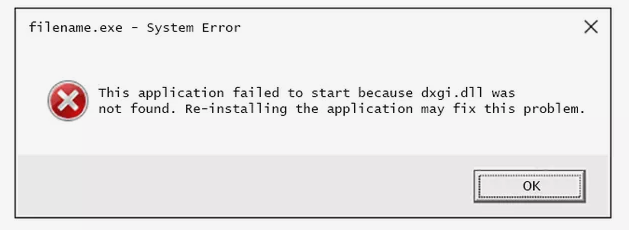
If you've encountered error messages related to dxgi.dll—such as "Missing," "Failed to Load," or "Entry Point Not Found"—you're not alone. These issues can be frustrating, especially if you're a gamer or a user relying on graphics-intensive applications. dxgi.dll is a critical dynamic link library (DLL) file that plays a foundational role in managing graphics rendering on Windows systems and within gaming environments. Understanding what causes these errors and how to resolve them can restore system stability and optimize performance.
In this comprehensive guide, we'll explore the function of dxgi.dll, common reasons behind its errors, practical troubleshooting techniques, repair tools, and best practices to prevent future issues. Whether you're on Windows 10, Windows 11, or other versions, this article provides step-by-step instructions suitable for beginners and experienced IT enthusiasts alike.
Understanding dxgi.dll and Its Role in Your System
What is dxgi.dll?
dxgi.dll stands for DirectX Graphics Infrastructure Dynamic-Link Library. It is part of the Microsoft DirectX suite, which is designed to facilitate high-performance multimedia and gaming applications by providing efficient access to graphics hardware. Specifically, dxgi.dll manages tasks such as:
- Buffer swapping
- Graphics adapter communication
- Swap chain management
- Presenting frames to the display This library is essential for many modern Windows applications, including popular games like Fortnite, Call of Duty, and Minecraft, as well as various professional graphics tools.
Common Scenarios Where dxgi.dll Causes Errors
Since dxgi.dll is tightly integrated with graphics hardware and runtime components, errors often arise during:
- Launching graphics-intensive games or applications
- Windows system updates that modify or replace system files
- Installing or updating graphics drivers
- Running legacy applications incompatible with current DirectX versions Identifying the exact cause of the error is the first step toward effective resolution.
Common Causes of dxgi.dll Errors
Understanding why these errors occur helps in choosing the appropriate fix. Below are the primary causes:
System File Corruption
Corruption of dxgi.dll can result from improper shutdowns, malware infections, or disk errors. Once corrupted, Windows may be unable to load the file properly, leading to error messages.
Driver Conflicts and Outdated Drivers
Graphics drivers are fundamental to dxgi.dll operation. Outdated, incompatible, or corrupt drivers can conflict with the DLL, causing errors such as "Failed to Load" or "Entry Point Not Found."
Runtime Dependencies Issues
dxgi.dll depends on other runtime components like DirectX libraries, Microsoft Visual C++ Redistributables, or Windows updates. Missing or outdated dependencies can prevent dxgi.dll from functioning correctly.
Effective Troubleshooting and Repair Strategies
When faced with a dxgi.dll error, follow these systematic steps to diagnose and resolve the problem efficiently.
Step 1: Use Safe Mode and System Restore
- Boot into Safe Mode: Restart your PC and press
F8orShift + Restartto access recovery options. Safe Mode loads Windows with minimal drivers, aiding troubleshooting. - Perform a System Restore: If the error appeared after recent updates or software installation, revert your system to a previous restore point where everything was functioning well.
Step 2: Reinstall or Repair DirectX and Runtime Dependencies
Since dxgi.dll is part of DirectX, updating or reinstalling it can resolve file corruption or incompatibilities.
- Download the latest DirectX End-User Runtime Web Installer from the official Microsoft website.
- Run the installer and follow the prompts to repair or update DirectX.
Step 3: Manual File Replacement and Registration
If you have access to a clean copy of dxgi.dll:
- Locate a trustworthy source (such as an official installer or trusted backup).
- Copy the file to
C:\Windows\System32\(for 32-bit systems) orC:\Windows\SysWOW64\(for 64-bit systems). -
Register the DLL: Open Command Prompt as administrator and run:
regsvr32 dxgi.dll -
Restart your computer and test if the issue persists.
Using Tools and Official Resources for Fixes
System File Checker (SFC) and Deployment Image Servicing and Management (DISM)
Windows provides built-in tools to detect and repair corrupted system files:
- SFC Scan:
- Open Command Prompt as administrator.
- Type:
sfc /scannow -
Press Enter and wait for the process to complete.
-
DISM Tool:
- In Command Prompt, run:
DISM /Online /Cleanup-Image /RestoreHealth - After completion, rerun
sfc /scannow. These steps can fix or replace missing/damaged DLL files, includingdxgi.dll.
Official Download Sources
Always source updates and runtime files from official sources:
- Microsoft's official DirectX download page
- Windows Update to ensure you have the latest OS patches
- Graphics card manufacturer websites (NVIDIA, AMD, Intel) for the latest drivers
Specialized Repair Tools
There are dedicated DLL repair tools such as Restoro or DLL-files.com Toolbox, which scan for missing or damaged DLLs and replace them. Use such tools cautiously, ensuring they come from reputable sources.
Preventative Measures and Best Practices
Adopting proactive maintenance routines can significantly reduce the likelihood of encountering dxgi.dll errors:
Regular Driver Updates
- Set your graphics drivers to update automatically through Windows Update or use manufacturer utilities (NVIDIA GeForce Experience, AMD Radeon Software).
- Periodically check for driver updates and install the latest stable versions.
Security Best Practices
- Use robust antivirus and anti-malware software to prevent infections that can corrupt system files.
- Perform regular scans and keep virus definitions up-to-date.
Backup and Restore Strategies
- Create system restore points before major updates or driver installations.
- Regularly back up important files to avoid data loss during troubleshooting.
Conclusion
dxgi.dll errors can disrupt your Windows experience, impact gaming performance, and hinder productivity. However, following structured troubleshooting steps—such as booting into Safe Mode, repairing or reinstalling DirectX, using system file checkers, and updating drivers—can often resolve these issues effectively. Remember to rely on official resources and tools to ensure safety and compatibility.
Prevention remains the best approach: keep your system and drivers updated, maintain good security practices, and regularly back up your data. With these strategies, you can minimize dxgi.dll errors and enjoy a smooth, stable Windows environment.
If problems persist despite these solutions, consider consulting professional IT support to diagnose underlying hardware or software conflicts.
Stay proactive, keep your system healthy, and happy computing!