Dealing with DLL errors can be frustrating, especially when a crucial file like msvcp140.dll is missing or corrupted. This DLL (Dynamic Link Library) plays a vital role in running many applications, particularly those developed with Microsoft Visual C++ Redistributables. If you're encountering error messages such as "msvcp140.dll not found," "failed to load msvcp140.dll," or "entry point not found," this guide will walk you through effective troubleshooting steps to resolve the issue quickly and safely. Whether you're a casual Windows user or an IT professional, understanding the root causes of these errors and knowing how to fix them can restore your system's stability and ensure smooth application performance. Let's dive into the details.
Understanding msvcp140.dll Errors and Common Causes
What is msvcp140.dll?
msvcp140.dll is a part of the Microsoft Visual C++ Redistributable package, specifically associated with Visual C++ 2015, 2017, and later versions. It contains essential functions for running applications built with these development tools. When an application requires this DLL but cannot find or properly load it, errors occur, preventing the app from launching.
Common error messages related to DLLs
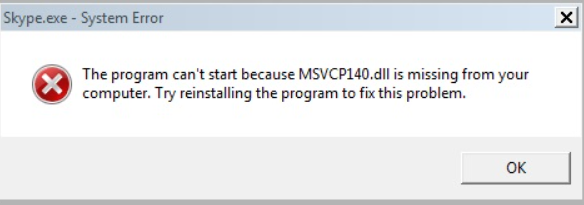
Here are some typical errors that signal issues with msvcp140.dll:
- "The program can't start because msvcp140.dll is missing."
- "Failed to load msvcp140.dll."
- "The application was unable to start correctly (0xc000007b)."
- "Entry point not found: The procedure entry point ... could not be located in dynamic link library msvcp140.dll."
Root causes of DLL errors
Several factors can lead to these errors:
- Missing DLL files due to incomplete installations or accidental deletion.
- Corrupted files caused by malware, system crashes, or failed updates.
- Incompatible or outdated versions of the Microsoft Visual C++ Redistributable.
- System file corruption or registry issues affecting the loading process.
- Hardware issues or disk errors impacting file integrity. Understanding these causes helps you choose the most appropriate fix.
Troubleshooting msvcp140.dll Errors Step-by-Step
Addressing DLL errors requires a structured approach ensuring safety and effectiveness. Here's a recommended troubleshooting flow:
Verify the error message
Begin by noting the exact error message and when it occurs. This can help determine whether the problem stems from a missing file, failed load, or other issues.
Update or reinstall Visual C++ Redistributable
Since msvcp140.dll is part of this package, reinstalling or updating it often resolves missing or corrupted DLL errors:
- Visit the official Microsoft Download Center.
- Download the latest Visual C++ Redistributable for Visual Studio (matching the version your application requires).
- Install or repair the existing version.
Download msvcp140.dll from the official source
Avoid untrustworthy websites that offer DLL downloads, as they pose security risks. Instead, obtain the DLL through:
- Official Microsoft redistributables.
- Using the System File Checker (detailed below).
Manual replacement of the DLL file
If you've obtained a clean version of msvcp140.dll:
- Place the file in the application's directory or the system folder (e.g.,
C:\Windows\System32orSysWOW64for 64-bit systems). - Run the application to verify if the error persists.
Run system file checker and repair tools
Corrupted system files may cause DLL errors. Use built-in Windows tools:
- Open Command Prompt as Administrator.
- Run
sfc /scannowto scan and repair system files. - For deeper issues, run
DISM /Online /Cleanup-Image /RestoreHealth. These commands repair system components that might influence DLL loading.
Using Official Runtime Downloads to Fix DLL Issues
Identifying the correct version (x86 vs x64)
- x86 is for 32-bit Windows.
- x64 is for 64-bit Windows.
To determine your system architecture:
- Open Settings > System > About.
- Check "System type." Ensure you download the matching redistributable package.
Downloading from official Microsoft sources
Always rely on the Microsoft official downloads page:
- Microsoft Visual C++ Redistributable Packages Select and download the latest supported package suitable for your system.
Installing the runtime
- Run the installer.
- Follow on-screen instructions.
- Restart your computer afterward. This process replaces missing or corrupted DLLs, including msvcp140.dll, ensuring compatibility and stability.
Advanced Fixes: Manual Replacement and System Repairs
Manual replacement of msvcp140.dll
If the above methods haven't worked: 1. Download the correct version of msvcp140.dll from a reputable source (preferably via official redistributables). 2. Register the DLL:
- Place the DLL into
C:\Windows\System32(for 64-bit) orC:\Windows\SysWOW64(for 32-bit). - Open Command Prompt as Administrator.
- Run:
regsvr32 msvcp140.dll - Reboot your system and check if the error is resolved.
Using SFC / DISM commands for repair
These commands fix underlying system corruption:
sfc /scannow
Followed by:
DISM /Online /Cleanup-Image /RestoreHealth
Running these updates may fix the root cause of DLL loading errors.
System restore options
If recent changes caused the issue:
- Use Windows System Restore to revert to a previous stable state.
- Access via Control Panel > System > System Protection > System Restore.
Conclusion
DLL errors like those involving msvcp140.dll are common but solvable with systematic troubleshooting. Always prioritize using official sources for downloads and updates, and ensure your system's components are current. Regularly updating your Windows and software can prevent future DLL issues, keeping your system running smoothly. If you've followed all steps and the error persists, consider seeking professional technical support. Restoring system stability might require deeper diagnostics, especially if hardware issues or extensive corruption are suspected. By understanding the causes and applying the appropriate solutions, you can effectively fix msvcp140.dll download errors and enjoy a more reliable computing experience.
Happy computing, and don't let DLL errors slow you down!