Experiencing errors with missing DLL files can be a frustrating experience, especially when they prevent you from launching crucial applications or games. One common DLL error that many Windows users face is 'msvcp140.dll was not found.' This error signals that your system cannot locate the msvcp140.dll file, which is vital for running certain applications, particularly those built with Visual C++ libraries. In this comprehensive guide, we’ll explore the significance of the msvcp140.dll file, understand why this error occurs, and walk through effective solutions to resolve it, ensuring your system runs smoothly again. Whether you’re a casual user, gamer, or IT professional, following these steps will help you diagnose and fix the root cause of this issue efficiently.
Understanding the 'msvcp140.dll was not found' Error
What is msvcp140.dll?
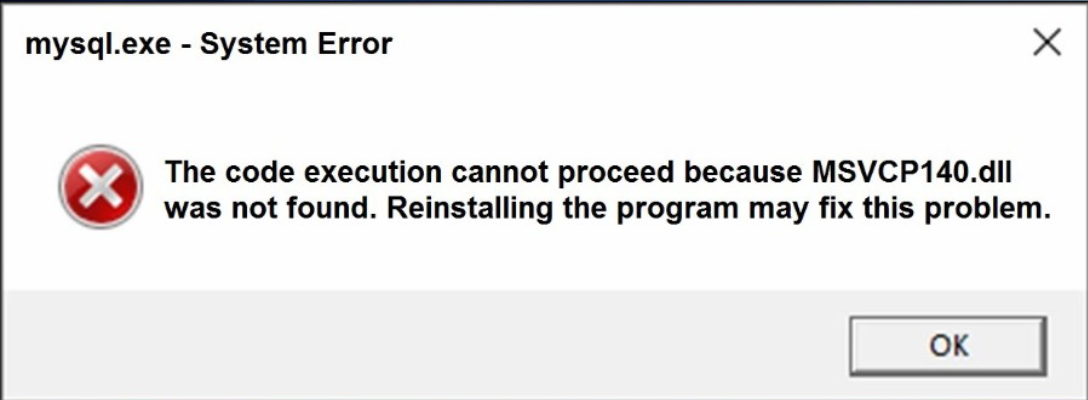
The msvcp140.dll is a Dynamic Link Library (DLL) file that's an integral component of the Microsoft Visual C++ Redistributable for Visual Studio 2015 and later versions. It contains essential functions related to the C++ runtime environment, which many applications and games depend on to operate properly. When an application or game attempts to run, it loads this DLL to access specific code required for execution. If this file is missing, corrupted, or incompatible, the application cannot function, leading to the 'msvcp140.dll was not found' error message.
Common Causes of the Error
Several factors can cause this DLL-related error, including:
- Missing or corrupted msvcp140.dll file due to accidental deletion or overwriting
- Incomplete or faulty installation of Visual C++ Redistributable packages
- Malware or viruses damaging system files
- System updates or upgrades gone wrong, leading to file conflicts
- Faulty application or game installation Understanding these causes helps in selecting the most effective repair method.
Common Causes of the Error
Corrupted System Files
System files may become corrupted over time due to improper shutdowns, disk errors, or malware infections, affecting DLL integrity.
Malware or Virus Infections
Malware can delete or modify DLL files to evade detection, often resulting in missing or damaged system files like msvcp140.dll.
Failed Software Installations
Incomplete or interrupted installations of software, especially Visual C++ Redistributables, can leave DLL files missing or improperly registered.
Step-by-Step Manual Repair Methods
Now, let’s explore practical, manual solutions to fix the 'msvcp140.dll was not found' error:
1. Downloading and Installing the Visual C++ Redistributable
Since msvcp140.dll is part of Visual C++ Redistributable packages, the most reliable fix is to install or repair this redistributable. Step-by-step:
- Visit the official Microsoft download page for Visual C++ Redistributables: Microsoft Visual C++ Redistributable Downloads
- Download the appropriate version compatible with your system:
- For most modern Windows systems, download Visual Studio 2015, 2017, 2019, and 2022 Redistributable x86 and x64 packages.
- Run the installer and choose Repair if the package is already installed, or Install if not.
- Restart your computer and check if the error persists.
2. Manual Replacement of the DLL File
If installing the redistributable doesn't work, you can manually replace the DLL:
- Download a clean copy of msvcp140.dll from a trusted source, such as the official Microsoft repository or your system backups.
- Navigate to C:\Windows\System32 (for 64-bit systems, also check C:\Windows\SysWOW64).
- Place the DLL file into these directories.
- Register the DLL using Command Prompt:
regsvr32 msvcp140.dll
Note: Manually replacing DLLs can risk security issues; always ensure sources are legitimate.
3. Using Command Prompt and RegSvr32
Sometimes, DLL registration issues prevent proper loading. Running the following commands can fix this:
- Open Command Prompt as Administrator.
- Run:
regsvr32 /u msvcp140.dll   # Unregister if already registered
regsvr32 msvcp140.dll     # Register the DLL again
Tip: If registration fails, verify the DLL exists in system directories first.
Additional Troubleshooting Tips
Beyond manual DLL fixes, consider the following steps:
Running SFC and DISM Scans
Corrupted system files can be repaired using built-in Windows tools:
- Open Command Prompt as Administrator.
- Run System File Checker:
sfc /scannow
- For a deeper system repair, run:
DISM /Online /Cleanup-Image /RestoreHealth
Reboot your PC after these scans, then test again.
Updating Windows & Drivers
Keep your Windows operating system and device drivers up to date:
- Go to Settings > Update & Security > Windows Update.
- Check for updates and install all available patches.
Performing a System Restore
If the error started after recent changes:
- Search for System Restore in the Start menu.
- Choose a restore point before the issue began.
- Follow the prompts to revert your system to a stable state.
Preventative Measures and Best Practices
Prevention is always better than cure. Here are best practices to avoid future DLL errors:
Security Best Practices
- Install reputable antivirus software.
- Perform regular scans to detect and remove malware.
Regular System Maintenance
- Keep your Windows OS and drivers up to date.
- Regularly clean temporary files and perform disk checks.
- Avoid downloading DLL files from unofficial sources.
Proper Software Installation
- Always install programs from trusted sources.
- Use official installers and avoid incomplete or pirated software.
Conclusion
The 'msvcp140.dll was not found' error can disrupt your workflow, gaming experience, or daily tasks. By understanding what the DLL is and why this error occurs, you can take targeted steps to resolve it. Installing or repairing the Visual C++ Redistributable remains the most reliable fix, complemented by system scans, manual DLL replacement, and keeping your system secure and updated. Remember, maintaining your Windows health through regular updates and security practices is essential in preventing such errors from recurring. If you follow the detailed steps outlined in this guide, you should be able to fix the error swiftly and restore your system