Dealing with DLL errors is a common yet frustrating experience for many Windows users, especially when it affects system stability or application performance. One such problematic DLL file is libcef.dll, a vital component in certain applications. If you've encountered messages like "libcef.dll is missing," "failed to load," or "entry point not found," you're not alone. This comprehensive guide aims to demystify what libcef.dll is, explore why errors occur, and walk you through effective troubleshooting and repair solutions to restore your system's harmony.
What is libcef.dll and Why Is It Important?
Role in Web Browsers and Applications
The libcef.dll file is part of the Chromium Embedded Framework (CEF), an open-source project that provides developers with a way to embed Chromium-based web browser functionalities into their applications. Think of it as the backbone that enables lightweight, customizable web components—such as in some gaming clients, VPN tools, or custom browsers—to display rich web content seamlessly within their environment. In essence, libcef.dll acts as a bridge: it handles the rendering engine, manages web content processing, and communicates with the hosting application. Because of this, its integrity is crucial—if the DLL becomes corrupted or deleted, the host applications depending on it may crash, fail to start, or throw error messages.
Common Applications Using libcef.dll
- Web-integrated desktop apps: Some productivity tools embed web features for real-time updates or interactive content.
- Game launchers: Certain gaming platforms, like Origin or Epic Games Store, utilize CEF for their interface.
- Security software: Tools that display web-based alerts or download management.
- Custom enterprise solutions: Internal apps that render web-based dashboards within native environments. Understanding its role helps grasp why a missing or faulty libcef.dll can be disruptive, affecting multiple programs relying on it.
Common libcef.dll Errors and Their Causes
Symptoms of libcef.dll Errors
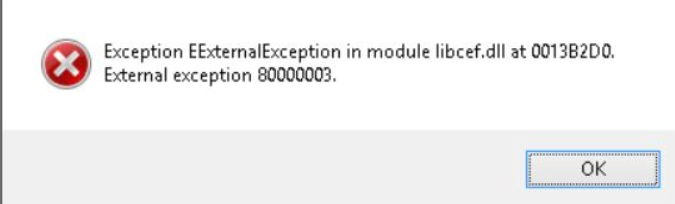
When libcef.dll encounters problems, you might see error messages such as:
- "The program can't start because libcef.dll is missing from your computer."
- "Failed to load libcef.dll."
- "Entry point not found: libcef.dll."
- Application crashes upon startup or during use.
- System instability or slowdowns when opening affected programs. Recognizing these signs promptly helps narrow down causes and solutions.
Underlying Causes
Several issues can result in libcef.dll errors, including:
- Corrupted DLL files: Due to improper shutdowns, malware infection, or disk errors.
- Incomplete or faulty application updates: Updating software without proper installation can leave DLLs in an inconsistent state.
- Accidental deletion: User or third-party cleaner tools may remove important DLLs mistakenly.
- Malware infection: Malicious software may corrupt or delete DLLs to disrupt system or hide their presence.
- System file corruption: Broader Windows system issues can affect DLL integrity. Pinpointing the root cause guides the selection of effective repair strategies.
Effective Manual Repair Strategies
Fixing libcef.dll errors often requires a combination of systematic troubleshooting steps.
Reinstalling Affected Applications
Sometimes, the simplest method is to uninstall and reinstall the software associated with libcef.dll.
Steps: 1. Navigate to Control Panel > Programs > Programs and Features. 2. Find the affected application, right-click, and choose Uninstall. 3. Download the latest version of the installer from the official website. 4. Install the application anew, ensuring all components, including DLLs, are properly installed. This process often replaces corrupted or missing DLL files with clean copies.
Manually Replacing libcef.dll
If you prefer not to reinstall, you can replace the DLL manually:
1. Download a trusted version of libcef.dll from the official application source or a reliable DLL repository.
2. Copy the file to the application's directory, typically under C:\Program Files\ or the specific application folder.
3. For system-wide replacements, you may also place it in C:\Windows\System32\ (for 64-bit systems, also consider SysWOW64).
Warning: Always use reputable sources; downloading DLLs from unverified sites risks malware.
Using System File Checker (SFC) and Deployment Image Servicing and Management (DISM)
Sometimes, DLL issues stem from broader system corruption:
-
Run SFC: Open Command Prompt as Administrator, then type:
sfc /scannowThis scans and repairs system files, including corrupt or missing DLLs. -
Run DISM: If SFC cannot fix all issues, execute:
DISM /Online /Cleanup-Image /RestoreHealthfollowed by a system reboot. These tools can resolve underlying Windows integrity issues impacting DLL stability.
Registry Cleanup
In some cases, invalid or outdated registry entries cause DLL load errors:
- Use trusted registry cleaners or manually verify relevant entries.
- Be cautious: incorrect edits can harm system stability.
Tools and Resources for libcef.dll Repair
Official Runtime Downloads
Microsoft Visual C++ Redistributables are often prerequisites for DLLs like libcef.dll. Download and install the latest versions from:
Best DLL Repair Tools
Tools like DLL-files.com Fixer, Restoro, or CCleaner can automate DLL repairs. Always select reputable software and read reviews before use.
Performing Virus Scans
Malware infections are a common root cause. Use robust antivirus programs such as:
- Windows Defender
- Malwarebytes
- Bitdefender Perform full system scans periodically to maintain DLL integrity.
Preventing Future libcef.dll Errors
Regular Updates and Maintenance
Keep your Windows system, drivers, and applications updated:
- Enable automatic updates where possible.
- Check for application updates regularly.
System Restore and Backup
Create restore points before major changes:
- Access Control Panel > System > System Protection.
- Set restore points to revert to a healthy system state if issues arise.
Safe Download Habits
Avoid downloading DLLs from unofficial sites. Only install software from trusted sources, and be wary of suspicious email attachments or links.
Use Reliable Security Software
Ensure your antivirus software is active and updated to prevent malware-related DLL issues.
Conclusion
Dealing with libcef.dll errors can be daunting, but with a clear understanding of its role and cause, you can effectively troubleshoot and resolve issues. Whether through simple reinstallations, manual replacements, or broader system repairs, ensuring the integrity of this DLL is crucial for smooth application performance and system stability. Remember, maintaining a healthy system through regular updates and security practices is your best defense against future DLL errors. If persistent problems occur, don’t hesitate to seek professional assistance to safeguard your system's health.
Empower your Windows experience—understand your DLLs, troubleshoot confidently, and keep your applications running smoothly!