Introduction
Encountering DLL errors can be frustrating, especially when they disrupt your applications or cause system crashes. Among these, errors related to mfc140u.dll are quite common for Windows users, particularly those running software that depends on Microsoft Visual C++ Redistributables. This DLL file plays a vital role in running programs developed with Microsoft Visual C++, and issues with it can lead to application failures, runtime crashes, or startup errors. In this comprehensive guide, we will explore what mfc140u.dll is, why errors happen, and most importantly, how to troubleshoot and repair these issues effectively. Whether you're a casual user, gamer, or IT professional, this article aims to provide practical solutions to restore your system stability and get your applications running smoothly again.
Understanding mfc140u.dll and Its Role
What is mfc140u.dll?
mfc140u.dll is a Dynamic Link Library (DLL) file that is part of the Microsoft Visual C++ Redistributable package. Specifically, it contains functions from the Microsoft Foundation Classes (MFC) library, which many Windows applications use for creating user interfaces, handling data, and other core functions. This DLL is essential for applications built using Visual C++ 2015, 2017, and later versions, as it provides runtime support. When you install software that relies on these libraries, the mfc140u.dll file is typically installed along with them.
Common scenarios causing errors
While mfc140u.dll is usually installed with software or system updates, issues may occur due to:
- Corruption or accidental deletion of the DLL file
- Outdated or incompatible Microsoft Visual C++ Redistributable packages
- Malware or virus infections damaging the DLL
- Failed Windows updates or system corruption
- Software conflicts or incomplete installations Understanding these causes can help you diagnose the root issue and select the most effective fix.
Common mfc140u.dll Errors and Symptoms
Error messages overview
Below are some typical errors associated with mfc140u.dll:
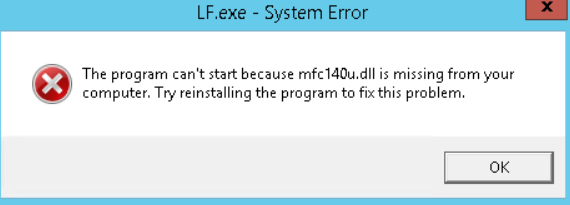
- “The program can't start because mfc140u.dll is missing from your computer.”
- “Error loading mfc140u.dll”
- “mfc140u.dll not found”
- “Failed to load mfc140u.dll”
- “The code execution cannot proceed because mfc140u.dll was not found.” These messages usually appear when launching an application or during system startup.
Symptoms experienced by users
When mfc140u.dll errors occur, they often manifest as:
- Application crashes or failures to open
- Runtime errors during program execution
- System alert pop-ups
- Sluggish system performance
- Inability to install or update certain programs Recognizing these signs early can help prevent further system instability.
Troubleshooting and Fixing mfc140u.dll Errors
Reinstall Microsoft Visual C++ Redistributable
Since mfc140u.dll is part of the Visual C++ Redistributable, repairing or reinstalling these packages often resolves DLL errors: 1. Visit the official Microsoft Download Center. 2. Search for "Visual C++ Redistributable 2015-2019" (or the specific version your application requires). 3. Download the x86 and x64 versions, install them, and restart your PC. 4. Check if the error persists.
Update Windows system
Keeping Windows updated ensures compatibility and fixes system bugs: 1. Go to Settings > Update & Security > Windows Update. 2. Click Check for updates. 3. Install all pending updates and restart your computer.
Run SFC (System File Checker) and DISM tools
These built-in tools scan and repair Windows system files, including DLLs:
- SFC scan:
- Open Command Prompt as Administrator.
- Type
sfc /scannowand press Enter. -
Wait for the process to complete, then restart.
-
DISM repair:
- In Command Prompt, type:
DISM /Online /Cleanup-Image /RestoreHealth - Press Enter and wait for completion.
- Run sfc /scannow again to ensure repair.
Manual Repair Methods for mfc140u.dll
Download the official mfc140u.dll
If the above steps do not resolve the problem, you can manually replace the DLL: 1. Visit the official Microsoft support or trusted DLL repository. 2. Download mfc140u.dll matching the system architecture (x86 or x64). 3. Save the file to the appropriate folder:
- For system-wide use: C:\Windows\System32 (x86) or C:\Windows\SysWOW64 (x64). Note: Be cautious when downloading DLL files; always prefer official sources to avoid malware.
Manual replacement using System File Checker
Before manually replacing DLLs, you can attempt:
1. Run Command Prompt as administrator.
2. Execute:
sfc /scanfile=C:\Windows\System32\mfc140u.dll
3. Follow prompts; if it detects corruption, it will replace automatically.
Register DLL with regsvr32
To ensure the DLL is properly registered:
1. Open Command Prompt as administrator.
2. Type:
regsvr32 C:\Windows\System32\mfc140u.dll
3. Press Enter; a success message should appear.
Preventing Future mfc140u.dll Errors
Keep your system updated
Regularly updating Windows and installed software minimizes compatibility issues and security vulnerabilities that could lead to DLL errors.
Use trusted sources for DLL files
Avoid downloading DLL files from unverified websites. Instead, rely on official Microsoft downloads or trusted software sources.
Regularly scan for malware
Malware infections can corrupt DLL files. Use reputable antivirus software for weekly scans to keep your system clean.
Conclusion
Errors related to mfc140u.dll can significantly impact your system’s stability and the functionality of your applications. By understanding the role of this DLL, recognizing common error signs, and employing effective troubleshooting steps—such as reinstalling Visual C++ Redistributables, updating Windows, running system file repair tools, or manually replacing the DLL—you can resolve these issues efficiently. Maintaining a clean, updated system and practicing safe download habits are key to preventing future DLL errors. If problems persist, consider consulting professional IT support or using reliable system repair tools designed to address DLL-related issues. Restoring the integrity of mfc140u.dll ensures your applications run smoothly and your system remains stable.
Take action today: start with the basics by updating your Windows system and reinstalling Visual C++ Redistributables. If issues continue, explore manual repair methods for a lasting fix. Your smooth-running applications depend on it!