Overview of msvcp140_1.dll errors, their impact on system performance, and common scenarios where these errors occur.
Encountering an error message related to msvcp140_1.dll can be frustrating, especially when it disrupts your favorite game, stops essential software from launching, or causes system instability. This DLL (Dynamic Link Library) error typically appears as a missing or failed-to-load message, indicating that Windows or an application cannot locate or properly load this vital file. Such errors may appear during software installation, startup issues, or runtime crashes, often leaving users confused about the cause and solution.
Understanding the root of msvcp140_1.dll errors is crucial to resolving them efficiently. Whether you’re a gamer experiencing game crashes, a developer running software, or an everyday user facing system errors, this guide aims to provide comprehensive troubleshooting steps to restore system stability quickly and effectively.
Understanding the msvcp140_1.dll Error
What is msvcp140_1.dll?
msvcp140_1.dll is a Dynamic Link Library file that is part of the Microsoft Visual C++ Redistributable package. It contains essential functions used by applications developed with Microsoft Visual Studio, especially those built using Visual C++ 2015, 2017, and later versions. This DLL is a shared resource, meaning multiple programs rely on it to perform certain tasks, such as memory management, input/output operations, and data handling.
When an application or Windows itself requires this file and cannot find or load it correctly, an error message prompts the user to address the issue. These errors can prevent applications from launching, cause crashes, or lead to performance degradation.
Common causes of the error
msvcp140_1.dll errors usually occur due to:
- Missing DLL files: The file was deleted, moved, or never installed.
- Corrupted or outdated runtime libraries: Improper installation or updates can corrupt the DLL.
- Failed Windows updates: System updates may inadvertently remove or break the DLL dependencies.
- Malware infections: Malicious software can delete or damage DLL files.
- Software conflicts: Compatibility issues between applications or corrupt third-party software. Understanding these causes helps you target the correct solution — whether it’s repairing system files, reinstalling runtimes, or cleaning malware.
Common Symptoms and Error Messages
Error message examples
msvcp140_1.dll errors typically display messages such as:
- "The program can't start because msvcp140_1.dll is missing from your computer. Try reinstalling the program to fix this problem."
- "Failed to load msvcp140_1.dll."
- "This application has failed to start because msvcp140_1.dll was not found."
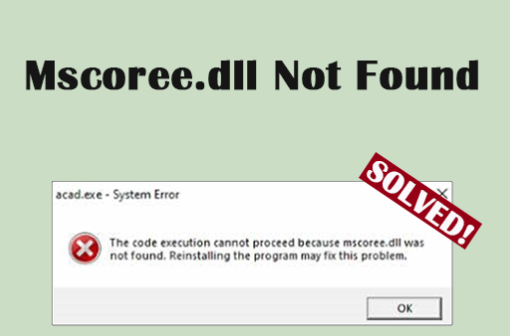
- "The code execution cannot proceed because msvcp140_1.dll was not found."
When do these errors occur?
These errors might appear during:
- Launching specific applications or games
- Installing or updating software
- Running Windows updates
- During system startup or shutdown
- When attempting to run certain system utilities or developer tools Recognizing the patterns of when these errors occur can guide the troubleshooting process accordingly.
Troubleshooting Steps for msvcp140_1.dll Errors
Basic troubleshooting
- Restart your computer — sometimes, a simple reboot can resolve temporary glitches.
- Update Windows — installing the latest updates can replace missing or corrupted system files.
- Reinstall the problematic program — if the error appears only with one app, reinstalling it can replace missing DLLs.
- Run a malware scan — use reputable antivirus software to ensure no malicious files are affecting your DLL files.
Advanced fixes
-
Check for Windows system file integrity
-
Open Command Prompt as Administrator.
- Run:
sfc /scannow - Wait for the scan and repair process to complete.
-
Reinstall or repair Microsoft Visual C++ Redistributable
-
Download the latest supported Visual C++ Redistributable packages from the official Microsoft site.
- Uninstall existing Redistributables, then reinstall the latest versions.
-
Update Drivers and Software Compatibility
-
Ensure all drivers and applications are up-to-date.
- Run compatibility mode if necessary for older programs.
-
Use System Restore
-
Roll back your system to a previous point when errors weren’t present.
Manual Repair Methods
Manual replacement
If you have a working system or a trusted source, you can manually replace the msvcp140_1.dll file:
- Download the DLL from a reputable source.
- Place it in the System32 (for 64-bit systems) or SysWOW64 (for 32-bit systems) folder:
- C:\Windows\System32/ or C:\Windows\SysWOW64/
- Register the DLL:
- Open Command Prompt as Administrator.
- Run:
regsvr32 msvcp140_1.dllNote: Be cautious with manual DLL downloads from third-party sites, as they may contain malware. Always prefer official Microsoft sources.
RegSvr32 command usage
The regsvr32 command registers DLL files, enabling Windows to recognize and utilize them properly:
-
Example:
cmd regsvr32 C:\Windows\System32\msvcp140_1.dll -
Confirm registration success or view error messages for troubleshooting.
Using Official Runtime Download and Repair Tools
Official downloads
The most reliable way to fix msvcp140_1.dll errors is by installing or repairing the Visual C++ Redistributable packages:
- Visit the Microsoft Visual C++ Redistributable downloads page.
- Download and install the latest versions compatible with your system.
- Restart your PC to complete the installation.
Recommended repair tools
Various third-party DLL repair tools can automate fixing missing or corrupted DLL files:
- DLL-files.com Client: Offers safe downloads and system scans.
- CCleaner: Includes registry cleaning features that can fix DLL errors.
- Microsoft’s System File Checker (sfc /scannow): An effective built-in tool for repairing system files. Always use reputable and verified tools to avoid introducing malware or system instability.
Conclusion
Dealing with msvcp140_1.dll errors can seem daunting, but most issues stem from missing or corrupted runtime libraries or system file problems that are fixable through systematic troubleshooting. Starting with basic solutions like updating Windows and reinstalling applications, then progressing to system file repairs or manual DLL management, usually resolves the issue.
Prevention Tips:
- Keep your Windows OS updated.
- Download software and updates only from official sources.
- Regularly scan your system for malware.
- Maintain backed-up restore points for quick recovery. By following these strategies, you can prevent future DLL errors and ensure that your Windows environment remains stable, reliable, and ready for gaming, development, or everyday use.
Need further assistance? Don’t hesitate to seek help from professional IT support or consult official Microsoft resources to keep your system running smoothly.