Are you getting an error message that says "msvcr110.dll is missing" when launching your favorite game or software? You're not alone. DLL (Dynamic Link Library) errors are common issues faced by Windows users and can be frustrating, especially when they prevent you from running essential applications. This guide aims to provide you with a clear understanding of why this error occurs and offers step-by-step solutions to fix it effectively—whether you're on Windows 10, Windows 11, or older versions. By understanding the underlying causes and performing proper troubleshooting, you can restore your system's stability, eliminate the error, and get back to work, gaming, or entertainment smoothly.
Understanding the 'msvcr110.dll is Missing' Error
What is msvcr110.dll?
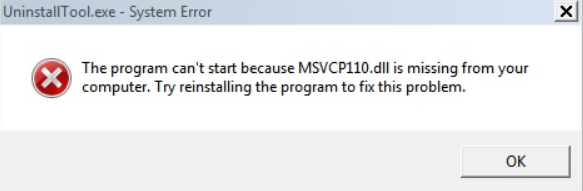
The msvcr110.dll file is a crucial component of the Microsoft Visual C++ Redistributable package—specifically, Visual C++ Redistributable for Visual Studio 2012. DLL files like msvcr110.dll contain code and data that multiple programs can use simultaneously. This shared resource reduces redundancy and saves system resources. When an application needs to access this DLL but cannot find it or encounters corruption, Windows displays an error message such as:
"The program can't start because msvcr110.dll is missing from your computer. Try reinstalling the program to fix this problem."
Why does this error occur?
The error primarily happens because Windows cannot locate or load the msvcr110.dll file when running an application that depends on it. Common causes include:
- Missing or deleted DLL files
- Corrupted DLL due to malware or system issues
- Incompatible or outdated Visual C++ Redistributable packages
- Incomplete installation of software or game
- Registry issues that mislead Windows about DLL locations
Impact of the error on system and applications
Facing this error hampers your ability to launch specific programs or games. It might also cause system instability or crash other applications that depend on the DLL. Addressing it promptly ensures your system runs smoothly and prevents further errors.
Common Causes of the Error
Understanding the root causes helps you choose the most effective troubleshooting method.
1. Corrupted DLL Files
DLL files can become corrupted due to malware infections, improper shutdowns, or faulty software updates, leading to the missing or unreadable error.
2. Registry Problems
Invalid or broken entries in Windows Registry that reference msvcr110.dll can mislead Windows when attempting to load the DLL, resulting in errors.
3. Incomplete Software Installations
Some applications depend on certain DLL files. If the installation process was interrupted or did not complete successfully, required DLL files might be missing.
4. Software Conflicts
Conflicts between different versions of Visual C++ Redistributables or incompatible software can cause DLL errors.
Step-by-Step Troubleshooting Solutions
Below are practical, step-by-step solutions to fix the "msvcr110.dll is missing" error. Begin with simple methods and proceed to more advanced ones if necessary.
1. Using System File Checker (SFC)
System File Checker scans your Windows system for corrupted or missing system files and repairs them automatically. Steps: 1. Open Command Prompt as administrator.
- Press Windows + X and select Command Prompt (Admin) or Windows Terminal (Admin).
- Type the command:
sfc /scannow - Press Enter and wait for the scan to complete. This may take several minutes.
- Restart your computer once the process finishes.
Note: SFC repairs system files but may not replace DLLs missing due to disk errors or malicious files.
2. Reinstall or Update Visual C++ Redistributables
Since msvcr110.dll is part of the Visual C++ Redistributable, reinstalling or updating it can resolve DLL errors caused by outdated or corrupted packages. Steps: 1. Visit the official Microsoft download page for Visual C++ Redistributable packages. 2. Download the Visual C++ Redistributable for Visual Studio 2012 (both x86 and x64 versions, if applicable). 3. Run the installers and select Repair if the package is already installed, or choose Install to add it. 4. Restart your computer and check if the error persists.
3. Manually Replace the DLL File
If you trust the source, you can manually download msvcr110.dll from a reputable website and place it in the appropriate directory. Caution: Download DLL files only from trusted sources to prevent malware infection. Steps: 1. Download msvcr110.dll from a reliable website such as DLL-files.com. 2. Copy the downloaded file. 3. Paste msvcr110.dll into:
- For application-specific issues: the folder of the program that shows the error.
- For system-wide fixes:
C:\Windows\System32(for 64-bit systems, also copy toC:\Windows\SysWOW64). -
Register the DLL:
-
Open Command Prompt as administrator.
- Run the command:
regsvr32 msvcr110.dll - Restart your PC.
4. Use DLL Repair Tools
Specialized tools can automatically scan and repair missing or corrupt DLL files. Popular options include:
- DLL-files Fixer
- Restoro
- CCleaner (includes system repair features) Use these tools carefully and always back up your system beforehand, especially when making significant changes.
5. Additional Fixes: Check for Malware and Registry Issues
Malware infections can cause DLL corruption or deletion. Running a comprehensive virus scan with a trusted antivirus (like Windows Defender or Malwarebytes) is recommended. Similarly, registry cleaners may help fix broken registry entries related to DLL paths—but use them cautiously, as incorrect changes can cause further issues.
Preventative Measures and Best Practices
Prevention is better than cure. Follow these tips to avoid encountering the msvcr110.dll is missing error again:
1. Keep System and Software Updated
Regularly update Windows and all installed software. Updates often include security patches, bug fixes, and updated redistributables.
2. Install Software from Trusted Sources
Avoid downloading software or DLL files from questionable websites. Use official vendors and sources.
3. Maintain Antivirus and Malware Scans
Run routine virus scans to protect your system from malicious files that can corrupt DLLs.
4. Perform Regular System Maintenance
Cleaning your registry with reputable tools (with caution), disk cleanup, and defragmentation can help keep Windows healthy.
5. Create a Backup Before Major Changes
Before making significant modifications, such as manual DLL replacements or system tweaks, back up your system or create restore points.
Conclusion
The "msvcr110.dll is missing" error can be unsettling, but with a clear understanding of its causes and methodical troubleshooting, you can resolve it effectively. From running System File Checker to reinstalling Visual C++ Redistributables and replacing DLL files manually, multiple solutions are available. Remember, keeping your Windows system updated, maintaining good software practices, and performing regular maintenance can prevent this and other DLL errors from recurring. Always back up your system before making major changes, and consult official Microsoft resources for trusted downloads. By following this comprehensive guide, you'll be well-equipped to fix the msvcr110.dll missing error and ensure your system runs smoothly.
Need further assistance? Feel free to reach out to tech support or visit official Microsoft support pages for additional help.