Introduction
Encountering a kernelbase.dll error can be quite disruptive, especially when you're trying to use your Windows PC smoothly. This error often manifests as application crashes, startup issues, or specific error messages that can leave you puzzled about how to resolve them. Kernelbase.dll is a crucial component of the Windows operating system, and any problems related to it can potentially affect system stability and performance. This comprehensive guide aims to demystify the kernelbase.dll error, explaining what causes it, how to identify its symptoms, and most importantly, how to fix it. Whether you're an IT professional, a gamer, or a regular user, understanding and troubleshooting this error effectively can save you time and prevent further system issues.
Understanding the Kernelbase.dll Error
What is kernelbase.dll?
Kernelbase.dll is a core Windows Dynamic Link Library (DLL) file that provides essential functions for the operating system’s kernel — the core part that manages hardware, system processes, and software interactions. It is involved in handling various low-level operations, including memory management, process and thread creation, and error handling. Because many applications depend on kernelbase.dll to operate correctly, any corruption or missing parts of this DLL can cause failures ranging from application crashes to system errors.
Why the error occurs
The kernelbase.dll error can be triggered by multiple underlying issues, including:
- Corrupted or missing DLL files: Accidental deletion, malware infection, or failed updates can corrupt or delete kernelbase.dll.
- System file corruption: Windows system files may become damaged due to improper shutdowns, hardware failures, or software conflicts.
- Faulty Windows updates: Occasionally, an update might not install correctly, causing DLL conflicts.
- Outdated drivers: Incompatible or outdated device drivers can interfere with system operations, leading to DLL errors.
- Malware infections: Malicious software can corrupt or delete essential DLL files.
- Hardware problems: Failing hard drives or RAM can introduce corruption into system files.
Common Symptoms and Error Messages
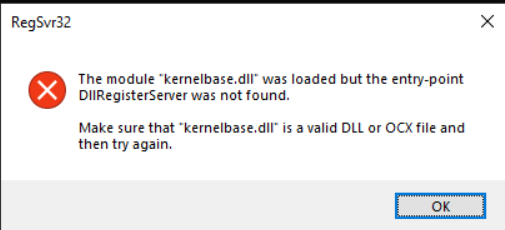
Error codes and messages
The kernelbase.dll error can appear in various forms, often accompanied by specific error messages, such as:
- "Entry Point Not Found" — indicating a missing or incompatible DLL function.
- "The program can’t start because kernelbase.dll is missing from your computer."
- "Unable to locate component" or "Failed to load kernelbase.dll."
- Application crashes or freezes when opening certain programs or games.
- Blue Screen of Death (BSOD) errors, particularly if the DLL error occurs during system operation.
Impact on system stability
When this error manifests, it can hamper normal computer usage, causing frequent application crashes, startup delays, or system instability. Over time, unresolved DLL issues can lead to data loss, decreased performance, and more serious Windows errors.
Step-by-Step Troubleshooting and Fixes
Dealing with a kernelbase.dll error requires systematic troubleshooting. Here are practical steps to diagnose and fix the issue:
1. Running System File Checker (SFC) and Deployment Image Servicing and Management (DISM)
SFC scans system files for corruption and repairs any issues found. How to run SFC: 1. Open Command Prompt as Administrator:
- Press Windows + X, then select Command Prompt (Admin) or Windows PowerShell (Admin).
- Type:
sfc /scannow - Press Enter and wait for the scan to complete.
- Follow on-screen instructions if corrupt files are found. DISM can repair Windows system images that SFC cannot. How to run DISM:
- In the same Command Prompt window, type:
DISM /Online /Cleanup-Image /RestoreHealth - Press Enter and wait for the process to finish.
- After, rerun
sfc /scannowto ensure the integrity of system files.
2. Performing System Restore
If the error started after recent changes, a System Restore can revert Windows to a previous stable state.
Steps:
1. Press Windows + R, type rstrui.exe, and press Enter.
2. Follow the prompts to choose a restore point dated before the error appeared.
3. Complete the restore process and reboot your system.
3. Reinstalling Affected Applications
Sometimes, a specific app causing the error needs to be reinstalled: 1. Uninstall the problematic application via Control Panel > Programs > Uninstall a program. 2. Download the latest version from the official website. 3. Install and check if the error persists.
4. Updating Windows and Drivers
Keeping Windows and device drivers up to date is vital:
- Windows Update:
- Go to Settings > Update & Security > Windows Update.
- Click Check for updates.
- Driver Updates:
- Visit the manufacturer’s website for your hardware (graphics card, motherboard, etc.).
- Download and install the latest drivers.
5. Manual Replacement of DLL Files
If the kernelbase.dll file is missing or corrupted:
1. Download a safe copy of kernelbase.dll from a reputable source or extract it from a trusted Windows installation media.
2. Place the DLL in the C:\Windows\System32 folder.
3. Register the DLL by opening Command Prompt as administrator and typing:
regsvr32 kernelbase.dll
Note: Be cautious when replacing system files manually and always keep backups.
Advanced Repair Methods
Beyond basic troubleshooting, more in-depth techniques can resolve stubborn DLL errors:
1. Registry Cleanup
Incorrect or obsolete registry entries related to DLLs can cause errors.
- Use trusted registry cleaning tools such as CCleaner to safely scan and fix invalid registry entries.
- Always back up your registry before making changes.
2. Using Dependency Walker
This utility helps identify missing dependencies or conflicts:
- Download and run Dependency Walker.
- Load the kernelbase.dll or the problematic application.
- Check for missing DLLs or incompatible modules.
3. Utilizing DLL Repair Tools
Specialized tools like Reimage Repair or DLL-files.com Repair can automate patching and fixing of corrupted DLL files. Use reputable tools and ensure you back up your system beforehand.
Preventive Measures and Best Practices
Prevention is better than cure when it comes to DLL errors. Here are effective strategies:
1. Regular System Updates
Frequent updates patch security vulnerabilities and fix bugs, reducing DLL-related errors.
- Enable automatic updates via Windows Update.
2. Security Best Practices
- Use reputable antivirus software.
- Perform regular malware scans.
- Avoid downloading files from untrusted sources.
3. Backup and Restore Strategies
- Regularly back up your important files and create system restore points.
- Use built-in Windows tools like File History or third-party backup solutions.
Conclusion
The kernelbase.dll error can be intimidating, but with a systematic approach, it’s often easy to diagnose and resolve. Regular maintenance, keeping your Windows system and drivers up to date, and cautious software management can greatly reduce the chances of encountering such DLL issues. If you experience persistent problems despite following these troubleshooting steps, consider seeking professional technical support to prevent potential data loss or system damage. Stay proactive—maintain your system well, keep your software current, and always back up critical data. For further assistance, consult official Microsoft support resources or trusted tech communities.
Additional Resources
- Microsoft Support: Troubleshoot DLL errors
- How to run System File Checker and DISM
- Best practices for Windows maintenance