Overview of vcruntime140.dll errors, their impact on system stability, and why proper repair methods are essential
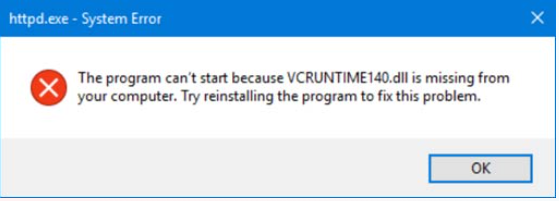
DLL errors, particularly related to the vcruntime140.dll file, can cause significant disruptions to your Windows system and applications. These errors often appear as pop-up messages indicating that the DLL file is missing, corrupted, or cannot be found, which prevents programs from running smoothly or even launching at all. This not only hampers daily productivity but can also lead to system instability, crashes, and in some cases, security vulnerabilities.
Addressing these errors promptly and effectively is crucial. Whether you're a gamer experiencing game crashes, a professional running vital software, or an IT professional maintaining system health, understanding how to troubleshoot and fix vcruntime140.dll download errors can restore your system's stability and performance.
In this comprehensive guide, we'll explore what this DLL file does, common causes of errors, and essential methods to resolve these issues safely.
Understanding vcruntime140.dll and Its Role
What is vcruntime140.dll?
vcruntime140.dll is a dynamically linked library (DLL) file that is part of the Microsoft Visual C++ Redistributable package. These redistributables install essential runtime components required by many Windows applications built using Visual C++. The vcruntime140.dll specifically contains functions used for executing applications written in Visual C++ 2015, 2017, and later versions.
Without this DLL, programs relying on Visual C++ libraries cannot execute properly, leading to error messages and application crashes.
Common functions and applications depending on this DLL
Many popular applications, including video games, professional software like Adobe Premiere, and various productivity tools, depend on the vcruntime140.dll for their operation. Common functions include memory management, exception handling, and basic runtime procedures that ensure software runs smoothly. If this DLL is missing or corrupted, these applications may fail to launch or experience operational issues.
Common Causes of vcruntime140.dll Errors
Missing DLL files
One of the most typical reasons for these errors is the absence of the vcruntime140.dll file. This absence can result from incomplete software installation, accidental deletion, or corruption due to malware.
Corrupted or outdated DLLs
Over time, DLL files can become corrupted from improper shutdowns, disk errors, or faulty updates. An outdated or corrupted vcruntime140.dll can cause compatibility issues or runtime errors.
Dependency issues
Sometimes, related components or dependencies of the Visual C++ Redistributable might be outdated or improperly installed, leading to conflicts and DLL errors.
Malware and virus infections
Malicious software can corrupt or delete DLL files, including vcruntime140.dll, to disrupt system functions or conceal malicious activities. Running malware scans is crucial if DLL errors occur unexpectedly.
How to Fix vcruntime140.dll Download Errors
Resolving vcruntime140.dll errors involves a series of troubleshooting steps to ensure the DLL file is correctly installed, registered, and functioning.
Step 1: Use official sources to download vcruntime140.dll
Always prioritize downloading DLL files from official sources like the Microsoft website to avoid security risks or counterfeit files. You can install or repair the Visual C++ Redistributable for Visual Studio, which includes the necessary runtime files.
Step 2: Manual replacement and registration
If you have already obtained the DLL file from a safe source:
- Place the
vcruntime140.dllin the application's directory or the Windows system folder (C:\Windows\System32for 64-bit orC:\Windows\SysWOW64for 32-bit systems). - Register the DLL file using Command Prompt:
- Open Command Prompt as Administrator.
- Execute:
regsvr32 vcruntime140.dllThis registers the DLL, allowing Windows to recognize and use it properly.
Step 3: Run system file checker (SFC)
The System File Checker scans protected system files and repairs corrupted or missing files:
- Open Command Prompt as Administrator.
- Enter:
sfc /scannow - Wait for the process to complete. If issues are found, Windows will attempt to repair them automatically.
Step 4: Use DISM for image repair
Deployment Image Servicing and Management (DISM) can fix deeper issues with the Windows image:
- Open Command Prompt as Administrator.
- Run:
DISM /Online /Cleanup-Image /RestoreHealth - After completion, rerun the SFC scan.
Additional Tip: Reinstall Microsoft Visual C++ Redistributable
The most reliable way to fix DLL errors like vcruntime140.dll is to reinstall the correct version of the Visual C++ Redistributable package:
1. Visit the official Microsoft Download Center.
2. Download the appropriate version for your system (both x86 and x64 if necessary).
3. Run the installer and restart your system.
Preventing Future DLL Errors
Prevention is better than cure. Consider adopting these best practices to maintain DLL file health:
Regular driver and Windows updates
Keeping your Windows OS and device drivers up to date ensures compatibility and stability. Windows Update automatically installs security patches and system improvements.
Security best practices
Regular malware scans using reputable antivirus software help detect and remove infections that may corrupt DLL files.
System restore points
Create system restore points before major updates or software installations. This allows you to revert to a stable state if errors occur.
Conclusion
Dealing with vcruntime140.dll download errors may seem daunting, but with a systematic approach, you can resolve these issues effectively. Starting by downloading the DLL or reinstalling the Visual C++ Redistributable sets a solid foundation. Following up with system scans, registration, and updates ensures your Windows system remains healthy and error-free.
Remember, proactive maintenance—such as keeping your system updated, performing regular malware scans, and backing up important data—can prevent these errors from recurring. If you encounter persistent issues despite these efforts, consulting a professional or reaching out to official support channels is advisable.
By understanding and applying the methods outlined in this guide, you'll restore system stability and enjoy seamless software performance. Stay vigilant and keep your Windows environment optimized!