Introduction
If you’re a Windows user, encountering DLL errors can be frustrating and disruptive. Among these, ucrtbase.dll is a common culprit behind many runtime errors, application crashes, or failed launches. This dynamic link library (DLL) is a critical component of the Universal C Runtime (UCRT) in Windows, essential for running modern software and games smoothly. When ucrtbase.dll is missing, corrupted, or unable to load correctly, it can cause error messages such as "ucrtbase.dll is missing," "not found," or "failed to load." This comprehensive guide aims to demystify ucrtbase.dll errors, explore their causes, and provide you with effective troubleshooting steps. Whether you're an everyday Windows user, a gamer experiencing crash issues, or an IT professional tasked with resolving software problems, this article will equip you with the knowledge and tools to fix ucrtbase.dll issues and restore your system’s stability.
Understanding ucrtbase.dll and Its Role in Windows
What is ucrtbase.dll?
ucrtbase.dll is a core component of the Universal C Runtime (UCRT), a standardized C programming library that forms part of the Windows operating system. It provides essential functions such as memory management, string handling, input/output, and process control. Essentially, ucrtbase.dll enables software developers to create more reliable and portable applications by relying on shared, well-maintained runtime libraries.
Why is ucrtbase.dll critical for Windows and software applications?
Nearly all modern Windows applications — especially those built with Microsoft Visual C++ — depend on ucrtbase.dll for executing fundamental tasks. When an application launches, it dynamically links to this DLL, which supplies necessary functions. If the DLL is missing or corrupted, the program cannot access these functions, resulting in errors or crashes. Since ucrtbase.dll is integral to the Windows environment, its status directly influences overall system stability and software performance.
Common ucrtbase.dll Errors and Symptoms
Error messages overview
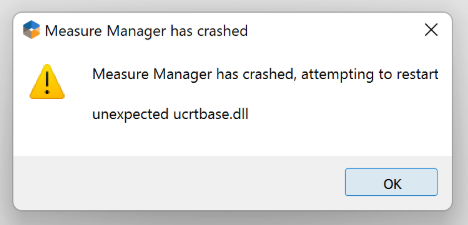
Encountering ucrtbase.dll errors typically involves specific messages, such as:
- "The program can’t start because ucrtbase.dll is missing."
- "ucrtbase.dll not found."
- "Failed to load ucrtbase.dll."
- "This application failed to initialize properly (0xc000007b)." These errors frequently appear during program startup, especially after system updates, software installations, or driver updates.
Impact on programs and gaming
The consequences of ucrtbase.dll errors extend beyond mere error messages. They can prevent applications from launching, cause frequent crashes, or lead to degraded system performance. Gamers, in particular, may experience persistent game crashes or failed game launches due to these DLL issues, hampering their experience and productivity.
Step-by-Step Troubleshooting for ucrtbase.dll Issues
Resolving ucrtbase.dll errors involves systematically diagnosing and fixing underlying issues. Here's a practical approach:
1. Using System File Checker (SFC)
The first step in repairing any DLL-related problem on Windows is to run the System File Checker tool, which verifies and repairs corrupted system files. Steps:
- Open Command Prompt as an administrator. You can do this by right-clicking the Start menu and selecting "Command Prompt (Admin)" or "Windows PowerShell (Admin)".
-
Enter the command:
sfc /scannow -
Press Enter and wait for the scan to complete. If SFC detects issues with system files, it will attempt to repair them automatically. Note: If SFC finds issues it cannot fix, proceed to the next step.
2. Employing Deployment Image Servicing and Management (DISM)
DISM is a more advanced tool that repairs the Windows image, which can fix problems that SFC cannot. Steps:
- Open Command Prompt as an administrator.
- Run the following command:
```
DISM /Online /Cleanup-Image /RestoreHealth
```
- Wait for the process to finish, which may take several minutes.
- Restart your computer and rerun sfc /scannow to verify system integrity.
3. Manual Replacement Techniques
If system tools do not resolve the problem, consider manually replacing the ucrtbase.dll file. Important: Always use official or trusted sources to avoid malware. Steps:
- Determine if the DLL is genuinely missing or corrupted by checking the Windows System32 folder (typically located at
C:\Windows\System32). - Download the compatible ucrtbase.dll file from the official Microsoft website or a trusted repository.
-
Place the DLL file into the appropriate directory:
C:\Windows\System32 -
Register the DLL using Command Prompt:
regsvr32 ucrtbase.dll -
Restart your PC and test if the error persists. Note: Manually replacing DLL files can be risky; making a system restore point before proceeding is highly recommended.
How to Reinstall or Update ucrtbase.dll Safely
Official runtime downloads
The most reliable way to repair ucrtbase.dll issues is to ensure your system has the latest Visual C++ Redistributables installed. Steps:
- Visit the Microsoft Official Download Center.
- Download the Microsoft Visual C++ Redistributable packages compatible with your Windows version, particularly the latest supported versions (e.g., 2015-2022).
- Run the installers and follow prompts to reinstall or repair existing runtime libraries.
- Restart your computer. This process ensures all runtime components, including ucrtbase.dll, are properly installed and up to date.
Reinstalling Windows Visual C++ Redistributables
Sometimes, specific redistributables might be corrupted or missing. Reinstalling or repairing these packages can resolve DLL errors without manual file handling. Steps:
- Navigate to Programs and Features in the Control Panel.
- Locate existing Visual C++ Redistributable installations.
- Select and choose "Repair."
- Alternatively, uninstall and reinstall the packages from the official Microsoft downloads.
Preventing Future DLL Errors and Best Practices
Prevention is better than cure. Here are essential tips to avoid ucrtbase.dll errors down the line:
1. System restore points
Create regular restore points before installing significant updates or software. This allows quick rollback if errors appear later.
2. Regular Windows updates
Keep your Windows OS updated with the latest patches and security updates. These often include vital fixes to runtime components.
3. Driver updates
Outdated or incompatible drivers can trigger DLL errors. Use Device Manager or manufacturer tools to keep drivers current.
4. Security best practices
Use reputable antivirus solutions and avoid downloading DLL files from untrusted sources, which can introduce malware or unstable files.
Conclusion
uCRTbase.dll errors can be disruptive but are generally fixable with a systematic approach. By understanding the critical role this DLL plays, recognizing common error symptoms, and following detailed troubleshooting steps — including system file tools, official updates, and cautious manual replacements — you can restore system stability and improve software performance. Always prioritize using official sources for downloads and updates. Regular maintenance, including updates and system backups, will minimize the risk of encountering persistent DLL issues. With proper care, your Windows system can remain robust, reliable, and ready to run your favorite applications and games without hiccups. If your ucrtbase.dll problems persist despite these efforts, consider seeking professional assistance or contacting Microsoft support for more in-depth troubleshooting.
Stay proactive, keep your system updated, and enjoy a smoother computing experience!