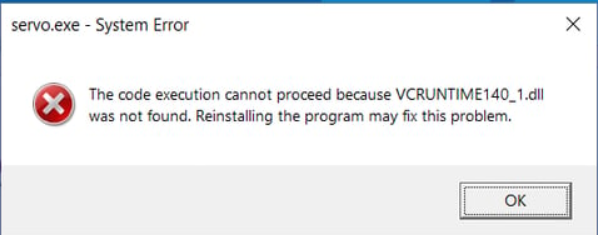
Encountering a "vcruntime140_1.dll not found" error can be frustrating, especially when you're trying to launch an essential application or game. DLL errors like this are common in Windows and often cause applications to crash or function improperly. Understanding why this error occurs and knowing how to fix it efficiently can save you time and prevent further system issues. This guide offers comprehensive, step-by-step solutions to resolve the "vcruntime140_1.dll not found" error quickly and safely, whether you’re using Windows 7, 10, or 11.
Understanding the 'vcruntime140_1.dll Not Found' Error
What is vcruntime140_1.dll?
The vcruntime140_1.dll is a Dynamic Link Library (DLL) file integral to the Microsoft Visual C++ Redistributable packages. It contains code and data used by multiple programs developed in C++, enabling them to run efficiently. Specifically, this DLL supports several runtime functions required for modern Windows applications and games, especially those built with Visual Studio 2015 and later.
Without this DLL, some applications cannot access critical runtime functions, leading to errors like "vcruntime140_1.dll not found" or "Missing vcruntime140_1.dll." These errors typically surface during program startup or installation and prevent programs from functioning correctly.
Common Causes of the Error
Several issues can lead to the disappearance or corruption of this DLL file:
- Missing or corrupted Microsoft Visual C++ Redistributable: An incomplete or failed installation can leave essential DLL files out of place.
- Accidental deletion: Manual removal of files or malware infections can delete vital DLLs.
- System file corruption: Disk errors, improper shutdowns, or malware can corrupt system files, including DLLs.
- Software conflicts: Conflicting or outdated antivirus programs might mistakenly quarantine DLL files.
- Hardware issues: Failing hard drives or memory modules can cause file corruption. Understanding these causes helps target effective solutions tailored to your specific problem.
Troubleshooting the Error
Before diving into complex repairs, try some initial troubleshooting steps to identify and possibly resolve the issue.
Basic Troubleshooting Steps
- Restart Your Computer: Sometimes, a simple reboot can resolve transient issues.
- Scan for Malware: Run a full antivirus scan to detect and eliminate any malicious software that might have corrupted DLL files.
-
Check for Windows Updates: Ensure your Windows OS is up to date since updates often include bug fixes and security patches:
-
Go to Settings > Update & Security > Windows Update.
- Click Check for updates and install any available patches.
-
Run System File Checker (SFC):
-
Open Command Prompt as Administrator.
- Type
sfc /scannowand press Enter. - Wait for the process to complete, which will repair any corrupted system files, including DLLs.
Verifying System Updates and Windows Components
Many DLL errors stem from outdated or missing Windows components. Ensuring that your system is fully updated can often restore or replace missing DLL files automatically.
- Confirm that your Windows version has all critical updates installed.
- Use Windows Update Troubleshooter to diagnose and fix update-related issues.
Manual Repair Solutions
If basic troubleshooting doesn’t resolve the problem, manual fixes may be necessary.
Reinstall Visual C++ Redistributable Packages
Since vcruntime140_1.dll is part of the Visual C++ Redistributable, reinstalling it often restores the missing or corrupted DLL.
Step-by-step guide:
1. Visit the official Microsoft download page: Microsoft Visual C++ Redistributable
2. Download the latest Visual C++ Redistributable for your system (x86 or x64):
- For most modern PCs, install both.
- Choose the version compatible with your system (e.g., Visual Studio 2015, 2017, 2019, and 2022 all share support files).
- Run the installer and follow the prompts.
- Restart your computer and check if the DLL error persists.
Manual DLL Replacement
In some cases, replacing the DLL manually can help, but only from trusted sources:
1. Download vcruntime140_1.dll from a reputable website like DLL-files.com or directly from the Microsoft repository.
2. Place the DLL in the affected application's directory or C:\Windows\System32 (for 64-bit systems) or C:\Windows\SysWOW64 (for 32-bit systems).
3. Register the DLL using Command Prompt:
- Open Command Prompt as Administrator.
- Run `regsvr32 vcruntime140_1.dll`.
Note: Manually replacing DLLs carries risks, such as malware infection or version conflicts. Prefer official sources or reinstall redistributables first.
Using RegSvr32 for Registration
The command regsvr32 registers DLL files with Windows, enabling programs to locate the functions they contain:
regsvr32 vcruntime140_1.dll
If registration succeeds, you should see a confirmation message. If not, note any error messages to guide further troubleshooting.
Using Official Runtime Downloads
The safest way to restore the missing DLL file is through official Microsoft downloads:
Official Microsoft Download Links
- Download the latest Visual C++ Redistributable packages for your system:
- Visual C++ Redistributable for Visual Studio 2015-2022 (for 32-bit)
- Visual C++ Redistributable for Visual Studio 2015-2022 (for 64-bit)
Installation Tips and Precautions
- Always download from official links to avoid malware.
- Run the installer as administrator.
- Restart your computer after installation.
- Verify the runtime version corresponds to your application's requirements.
Prevention and Best Practices
Preventing DLL errors like "vcruntime140_1.dll not found" involves adopting good maintenance habits:
Regular System Updates
Keep your Windows OS updated with the latest patches and service packs to ensure system stability and security.
Antivirus and Malware Scans
Use reputable antivirus programs to regularly scan your system. Malware can delete or corrupt system DLLs, leading to errors.
System Restore Points
Create system restore points before installing new software or updates, enabling you to revert to a stable state if issues arise.
Avoid Unverified Software and Downloads
Only download software from official or reputable sources to minimize the risk of corrupting system files.
Conclusion
The "vcruntime140_1.dll not found" error can be resolved through a combination of troubleshooting, manual repairs, and preventive practices. Starting with simple steps like updating Windows and running system scans often suffices. When necessary, reinstalling the Visual C++ Redistributable packages or downloading DLLs from official sources provides a safe, reliable fix. Remember, always prioritize trusted sources to avoid malware risks. If troubles persist despite these efforts, seeking professional technical support is recommended to ensure your system remains healthy and functional. By paying attention to proper maintenance and updates, you can minimize the likelihood of encountering this frustrating DLL error in the future.