Introduction
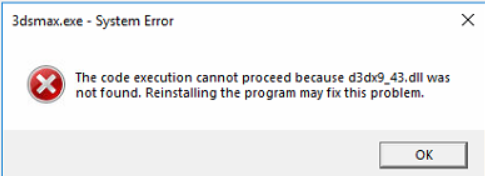
Have you encountered the frustrating "d3dx9_43.dll not found" error message when launching a game or running a graphics-intensive application on Windows? This common DLL (Dynamic Link Library) error can prevent programs from functioning correctly, leading to crashes, poor performance, or complete failure to start. Understanding the causes behind this issue and knowing how to troubleshoot it effectively can save you time and restore your system’s stability. In this comprehensive guide, we will explore the role of the d3dx9_43.dll file, identify the most common causes for its absence or corruption, and walk through practical, step-by-step solutions to fix the error. Whether you’re a gamer, software user, or IT support professional, this guide aims to provide clear instructions to help you resolve the issue swiftly and prevent future DLL problems.
Understanding the d3dx9_43.dll File
What is d3dx9_43.dll?
The d3dx9_43.dll file is part of Microsoft's DirectX, a set of application programming interfaces (APIs) designed to handle multimedia tasks, especially game and graphics rendering on Windows systems. Specifically, this DLL is associated with DirectX 9 and contains functions crucial for 3D graphics processing, visual effects, and multimedia operations. Many games and multimedia applications depend on it to function correctly.
Why does this error occur?
The error message indicating that d3dx9_43.dll is not found usually appears when the DLL file is missing, corrupted, or incompatible with your current system. Some common scenarios include:
- The DLL file has been accidentally deleted or moved.
- The DLL is outdated or incompatible with your system or application.
- System files are corrupted due to malware, improper shutdowns, or failing hardware.
- The required DirectX runtime is not installed or is incomplete.
- Registry issues or incorrect system configurations. Understanding this context helps in choosing the appropriate troubleshooting methods.
Common Causes of the Error
System File Corruption
Over time, Windows system files can become corrupted because of improper updates, malware attacks, or hardware failures. If critical files like d3dx9_43.dll are affected, applications relying on it will generate errors.
Driver Conflicts and Outdated Drivers
Graphics drivers are tightly integrated with DirectX components. Outdated, corrupted, or conflicting drivers can cause DLL files to malfunction or become inaccessible, leading to the error.
Missing DirectX Runtime Files
The d3dx9_43.dll is part of DirectX Runtime. If your system lacks the necessary DirectX version or the runtime installation is incomplete or corrupted, applications may not find the DLL.
Malware Infection
Malware or viruses can delete or tamper with DLL files, aiming to disrupt system functionality or hide malicious activities. A compromised d3dx9_43.dll can trigger errors.
Registry Issues
Invalid or broken registry entries associated with DLL files can prevent Windows from locating or loading the necessary files correctly.
Step-by-Step Troubleshooting Solutions
Using System File Checker (SFC)
The System File Checker utility scans protected system files and repairs corrupt or missing files, including DLLs.
Step 1: Run Command Prompt as Administrator
- Click the Start menu, type
cmdorCommand Prompt - Right-click on the Command Prompt app and select Run as administrator.
Step 2: Execute the SFC scan
-
In the command window, type:
bash sfc /scannow -
Press Enter and wait for the scan to complete. This process may take several minutes.
Step 3: Review the results
- If the tool finds issues, it will attempt to fix them automatically. Restart your computer afterward.
Reinstalling or Updating DirectX Runtimes
Since d3dx9_43.dll is part of DirectX 9, reinstalling the latest DirectX End-User Runtime can restore the missing DLL.
Step 1: Download the DirectX Runtime Web Installer
- Visit the official Microsoft DirectX download page: https://docs.microsoft.com/en-us/windows/readiness/preview/upcomingfeatures/dxr-12 (ensure download from official sources).
- Search for "DirectX End-User Runtime Web Installer".
Step 2: Install the runtime
- Run the downloaded installer and follow the on-screen instructions.
- Restart your PC after installation is complete.
Manual DLL Replacement
If the above steps don’t resolve the issue, replacing the DLL manually might help.
Step 1: Download the DLL from a trusted source
- Download
d3dx9_43.dllfrom a reputable website that offers official DLL files. Be cautious to avoid malware sites.
Step 2: Copy the DLL to the appropriate folder
- Place the DLL file in your system directory:
- For 64-bit Windows:
C:\Windows\System32(for 32-bit DLLs on 64-bit systems) and/orC:\Windows\SysWOW64. - You may need administrative privileges to copy files into these folders.
Step 3: Register the DLL (if necessary)
- Open Command Prompt as administrator.
-
Type:
bash regsvr32 d3dx9_43.dll -
Press Enter and restart your computer.
Using DLL Repair Tools
There are specialized tools designed to fix DLL issues automatically.
Step 1: Choose a reliable DLL repair utility
- Examples include DLL-files.com Client or Restoro.
Step 2: Scan and repair
- Install and run the software, then follow the prompts to scan for missing or corrupted DLL files.
- Use the tool’s repair options to restore the
d3dx9_43.dllfile.
Preventive Measures and Tips
Keeping Drivers Updated
Regularly update your graphics and device drivers through official manufacturer websites or Windows Update.
Regular System Maintenance
- Run periodic disk cleanup and malware scans.
- Keep your Windows OS updated with the latest patches and updates to prevent system file corruption.
Official Runtime Download Links
Always download DirectX or runtime components from the official Microsoft website to avoid security risks and ensure compatibility.
Additional Tips
- Avoid downloading DLL files from unknown third-party websites.
- Create system restore points before making significant changes.
- Use reputable security software to protect against malware infections.
Conclusion
Encountering the "d3dx9_43.dll not found" error can be disruptive, especially when trying to play games or run multimedia applications. This error typically results from corrupted, missing, or incompatible DLL files, often linked to outdated drivers, incomplete DirectX installations, or system corruption. By following the detailed troubleshooting steps—such as running system file checks, reinstalling DirectX, manually replacing DLL files, or using repair tools—you can effectively resolve the problem. Moreover, maintaining good system hygiene with timely updates, regular health checks, and cautious downloads can prevent similar errors in the future. With these practices, you’ll ensure your Windows system remains stable, secure, and ready to support your multimedia needs. If you continue to experience issues after these steps, consider reaching out to a professional or technical support for further assistance.