Dealing with DLL errors can be frustrating, especially when they disrupt your gaming experience or cause system instability. One common issue many Windows users encounter is the error message "unarc.dll returned an error code -1." This error often appears during game installations, software updates, or runtime operations, leading to crashes, failed setups, or corrupted files. Recognizing and resolving this problem promptly is crucial to maintaining system health and ensuring smooth software performance. In this comprehensive guide, we will explore the causes behind the "unarc.dll returned an error code -1" issue, how to identify its symptoms, and detailed manual and tool-based solutions to fix it effectively. Whether you're a gamer, IT support professional, or casual user, this article provides practical, step-by-step methods to restore stability and prevent future DLL errors.
Understanding unarc.dll and Error Code -1
What is unarc.dll?
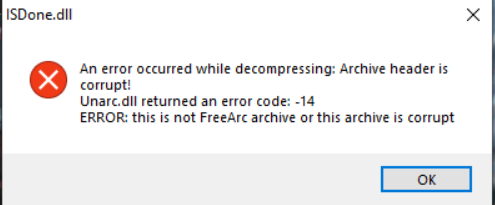
DLL files, or Dynamic Link Libraries, are essential components in Windows that contain code and data used by multiple programs simultaneously. The unarc.dll file is a critical DLL associated with archive extraction, primarily utilized during software or game installations to decompress compressed files. When a program calls unarc.dll, it expects the file to execute specific functions related to unpacking archives. If the DLL is missing, corrupted, or incompatible, errors like "unarc.dll returned an error code -1" occur, halting the installation or operation.
Common scenarios leading to error -1
This error can arise in various situations, including:
- Corrupted or missing unarc.dll file due to failed updates or malware infections.
- Incomplete or interrupted installations that leave DLL files damaged.
- Software conflicts with other applications or antivirus programs blocking DLL access.
- System file corruption affecting multiple components, including DLLs.
- Outdated or incompatible software versions, especially with newer Windows updates. Understanding these causes helps in diagnosing and choosing the appropriate repair method.
Identifying Symptoms and Impact
Symptoms overview
The "unarc.dll returned an error code -1" message typically manifests as:
- Installation failures during game or software setup.
- Application crashes when launching or running specific programs.
- Error messages during runtime, often with a pop-up window displaying the error code.
- System instability, such as freezes or unexpected shutdowns associated with affected applications.
Diagnostic tools and methods
To confirm the error, consider these approaches:
- Event Viewer: Check Windows logs for DLL-related errors.
- Process Monitor: Use this tool to observe DLL loading failures.
- System File Checker (SFC): Run
sfc /scannowto detect and repair corrupted system files. - Manual testing: Attempt to locate unarc.dll in the system directory (
C:\Windows\System32) and check its integrity. If these diagnostics point to issues with unarc.dll, proceed with targeted repair strategies.
Manual Repair Strategies for unarc.dll Error -1
Manual fixes require careful execution but can effectively resolve the error without third-party tools.
Step 1: Use System File Checker (SFC)
The SFC utility scans your Windows system files, including DLLs, and repairs corrupted or missing files.
1. Press Win + R, type cmd, then press Ctrl + Shift + Enter to run Command Prompt as administrator.
2. In the command window, enter:
bash
   sfc /scannow
3. Wait for the process to complete. If SFC finds issues with unarc.dll or related files, it will attempt to repair them automatically.
4. Restart your computer and check if the error persists.
Step 2: Use Deployment Image Servicing and Management (DISM)
If SFC doesn't resolve the problem, DISM can repair the Windows image.
1. Open Command Prompt as administrator.
2. Enter the following commands one by one:
bash
   DISM /Online /Cleanup-Image /CheckHealth
   DISM /Online /Cleanup-Image /RestoreHealth
3. After completion, rerun sfc /scannow to ensure all system files are repaired.
4. Reboot your system and test the software or game.
Step 3: Manual DLL Replacement
If the unarc.dll file is corrupt or missing, replacing it manually can fix the error. 1. Obtain a clean copy of unarc.dll:
- Download from a reputable source or extract it from a trusted installation package.
-
Backup your existing DLL:
-
Navigate to
C:\Windows\System32, locate unarc.dll, and copy it to a safe location. -
Replace the DLL:
-
Copy the new unarc.dll into the
System32directory. -
Register the DLL:
-
Open Command Prompt as administrator.
- Type:
bash regsvr32 /u unarc.dll regsvr32 unarc.dll - Restart your computer and verify if the error is resolved.
Additional Troubleshooting Tips
Beyond manual methods, consider these effective troubleshooting steps:
Updating Windows and drivers
Ensure your Windows OS and all device drivers are up to date. Outdated drivers can cause DLL conflicts.
- Use Windows Update to install the latest patches.
- Visit hardware manufacturers' websites for driver updates, especially graphics and chipset drivers.
Reinstall affected software
Corrupted or incomplete software installations often cause DLL errors.
- Uninstall the problematic program.
- Download the latest installer from official sources.
- Reinstall and test again.
Use DLL repair tools
Specialized tools like DLL Suite or Restoro can automatically scan, repair, or replace problematic DLL files.
- Download and install reputable DLL repair tools.
- Run full system scans and follow the instructions to fix unarc.dll errors.
Prevention and Best Practices
Prevention is better than cure, especially for DLL errors that can recur if underlying issues persist.
Security best practices
- Use reliable antivirus software to prevent malware infections that corrupt DLL files.
- Avoid downloading DLL files from unofficial sources.
Regular system updates
- Keep Windows and software applications updated to patch security vulnerabilities and fix bugs that might cause DLL corruption.
Backup and restore
- Regularly back up your system and important files.
- Create restore points before installing major updates or software.
Conclusion
The "unarc.dll returned an error code -1" can disrupt your system's stability and interfere with game or software performance. Understanding the root causes—such as corrupted DLL files, incomplete installations, or system issues—is vital for effective troubleshooting. By following the manual repair methods outlined—using System File Checker, DISM, or manually replacing DLL files—you can resolve the error efficiently. Complement these with proactive measures like updating your system, maintaining security, and backing up data to prevent future DLL errors. Remember, combining manual repairs with reputable tools offers the most comprehensive approach to restoring your system’s stability. Stay vigilant, keep your software up to date, and regularly perform system maintenance to enjoy a smooth computing experience.
If you continue to experience issues despite these efforts, consider consulting a professional technician or contacting official support channels for personalized assistance.