Overview of vcruntime140_1.dll and its importance in Windows and application stability If you've encountered an error message related to vcruntime140_1.dll on your Windows 64-bit system, you're not alone. This DLL (Dynamic Link Library) file is an integral part of the Visual C++ Redistributable package, which many applications rely on to run properly. Errors such as missing or corrupted DLL files can cause application crashes, system instability, or prevent certain programs from launching altogether. Resolving vcruntime140_1.dll download issues involves understanding what this file is, recognizing error symptoms, and applying effective repair methods. This guide offers detailed, step-by-step instructions to help Windows users, IT technicians, gamers, and developers fix vcruntime140_1.dll errors efficiently—ensuring your system runs smoothly.
Understanding vcruntime140_1.dll and Its Role
What is vcruntime140_1.dll?
vcruntime140_1.dll is a DLL file associated primarily with Microsoft Visual C++ 2015-2019 Redistributable packages. These packages include essential runtime components that applications developed with Visual C++ require to function correctly. This specific DLL contains functions related to C++ runtime operations, such as memory management, exception handling, and standard library functionalities.
Why is it crucial for software operation?
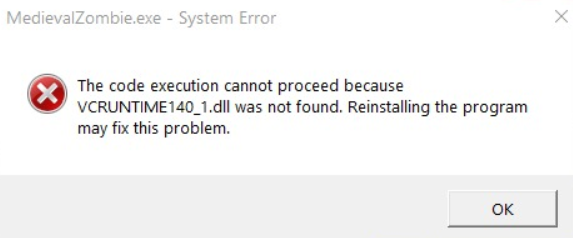
Many Windows-based applications, especially games and enterprise software, depend on the Visual C++ runtime libraries. If vcruntime140_1.dll is missing or corrupted, these programs can't load critical code segments, leading to startup failures, crashes, or error messages. Think of it as a vital component in a machine—without it, the entire system or program may malfunction.
Common scenarios leading to DLL errors
- Corrupted or outdated Visual C++ Redistributable installations
- Accidental deletion of DLL files
- Malware or virus infections damaging system files
- System crashes or improper shutdowns leading to file corruption
- Software updates or installations that fail to replace or repair DLL files Understanding these causes helps in choosing the most effective repair strategies.
Identifying Common vcruntime140_1.dll Errors on a 64-bit System
Error messages overview
Common errors related to vcruntime140_1.dll include:
- "The program can't start because vcruntime140_1.dll is missing from your computer."
- "Error loading vcruntime140_1.dll. The specified module could not be found."
- "vcruntime140_1.dll is either not designed to run on Windows or it contains an error."
- "Failed to load required DLL." These messages indicate issues with the DLL's presence, integrity, or compatibility.
System behaviors indicating DLL issues
Apart from explicit error messages, watch for:
- Frequent application crashes during startup
- Unexpected system slowdowns
- Specific programs failing to run or update
- Windows notifications alerting to missing or corrupted files
Impact on applications and system stability
Failure to address these DLL errors can result in degraded system performance, vulnerability to malware exploiting system files, and an inability to use essential software—especially critical for gamers and professionals relying on specific applications.
Effective Methods to Download and Replace vcruntime140_1.dll (64-bit)
Step 1: Using official runtime downloads
To ensure safety and compatibility, always download DLL files from official Microsoft sources or reinstall the Visual C++ Redistributable packages:
- Visit the official Microsoft website: https://support.microsoft.com/en-us/help/2977003/the-latest-supported-visual-c-downloads
- Download the Visual C++ Redistributable for Visual Studio 2015-2019 (x64) version
- Run the installer and follow prompts to repair or install all necessary runtime files
Step 2: Manual replacement procedures
If you prefer manual repair, follow these precise steps: 1. Locate or Download the vcruntime140_1.dll file:
- Only obtain the DLL from trusted sources or through official redistributable installations.
-
Boot into Safe Mode (recommended):
-
Restart your computer, press F8 or Shift + Restart to enter Safe Mode.
-
Backup the existing DLL (if present):
-
Navigate to
C:\Windows\System32(for 64-bit DLL files), and locatevcruntime140_1.dll. - Copy it to a backup folder.
-
Replace the DLL:
-
Copy the downloaded DLL file into
C:\Windows\System32. - If your system is 64-bit, also place the DLL into
C:\Windows\SysWOW64. -
Register the DLL (optional):
-
Open Command Prompt as Administrator.
- Run:
regsvr32 vcruntime140_1.dllfor registration. - Restart your computer to apply changes.
Step 3: Verifying success and preventing future errors
- Launch the affected application(s) to confirm the error is resolved.
- Use System File Checker (SFC) to scan and repair Windows files:
- Open Command Prompt as Administrator.
- Run:
sfc /scannowand wait for completion. - Keep your Windows OS and Visual C++ Redistributables updated to prevent future issues.
Troubleshooting Common DLL Error Scenarios
Using System File Checker (SFC) and DISM
- Open Command Prompt as Administrator.
- Run
sfc /scannowto detect and repair missing or corrupted system files. - If issues persist, use Deployment Image Servicing and Management (DISM):
- Run:
DISM /Online /Cleanup-Image /RestoreHealth
Registry cleanup and repair
- Use reliable registry cleaners cautiously.
- Remove obsolete entries related to the DLL, but always back up your registry before modifications.
Reinstalling Visual C++ Redistributable packages
- Sometimes, simply reinstalling or repairing the Visual C++ Redistributable packages resolves DLL errors.
- Uninstall existing versions via "Add or Remove Programs."
- Re-download from the official Microsoft site and install the latest supported version.
Best Practices for Preventing DLL Errors in Future
Keeping Windows updated
Regularly install Windows updates to ensure you have the latest system patches, security fixes, and runtime components.
Regular system scans
- Use Windows Defender or reputable third-party antivirus software to prevent malware that can corrupt DLL files.
- Schedule periodic system health checks.
Using reliable tool recommendations
- Employ trusted system cleanup and repair tools such as CCleaner or Advanced SystemCare.
- Always download software from official sources.
Conclusion
Dealing with vcruntime140_1.dll download 64 bit errors can seem daunting, but with a clear understanding of the DLL's role and proper repair techniques, you can effectively resolve these issues. Always prioritize downloading DLL files and redistributables from official sources to avoid security risks. Maintaining your system with regular updates, scans, and cautious registry management helps prevent recurrence. Remember, ensuring your Windows system and associated runtimes are correctly installed and up-to-date not only fixes current errors but also safeguards against future runtime issues. If persistent problems occur, consulting with an IT professional or visiting official Microsoft support channels is advisable. Stay proactive, keep your system clean, and enjoy smooth application performance without interruptions.