Introduction
In the realm of Windows gaming and high-performance graphics applications, d3d12.dll plays a crucial role. As a core component of DirectX 12, this dynamic link library (DLL) enables advanced graphics rendering and efficient communication between hardware and software, ensuring that modern games, 3D applications, and multimedia tools run smoothly. However, encountering errors related to d3d12.dll—such as missing files, failed loads, or specific entry point errors—can be disruptive and frustrating. These issues often lead to game crashes, system instability, or an inability to launch critical applications, especially in systems relying heavily on graphics performance. Timely troubleshooting and understanding the underlying causes of these errors are vital. Whether you're a gamer eager to enjoy the latest titles, a developer working on graphics-intensive software, or an IT support professional maintaining system health, this comprehensive guide provides effective solutions for resolving d3d12.dll errors and preventing future occurrences.
Understanding d3d12.dll and Its Significance
Role in Windows and Gaming
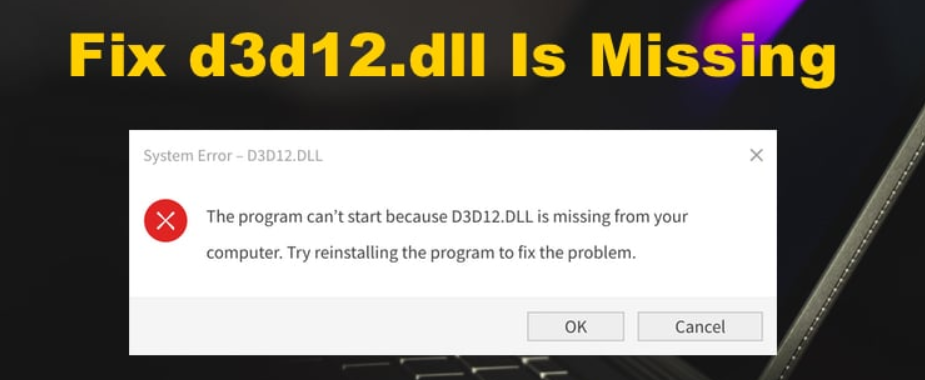
d3d12.dll serves as the runtime library for DirectX 12, a low-level API designed to provide high-efficiency graphics rendering. This DLL handles crucial graphics tasks, such as resource management and command queue control, directly communicating with your GPU to optimize performance. In modern gaming, d3d12.dll is fundamental—it allows for improved frame rates, reduced latency, and better hardware utilization. The DLL works seamlessly with the operating system and application code, acting as a bridge between software instructions and hardware execution.
Common Issues Linked to d3d12.dll
Despite its robustness, d3d12.dll can encounter problems, often due to corrupted files, driver conflicts, or outdated system components. Common symptoms include:
- Errors stating "d3d12.dll is missing"
- Failures to load the DLL with messages like "Failed to load d3d12.dll"
- Entry point errors such as "The procedure entry point D3D12CreateDevice could not be located"
- Crashes during game startup or system notifications of missing DLL files Recognizing these signs early helps troubleshoot efficiently, restoring stability and performance.
Common d3d12.dll Errors and Their Causes
Error Message Examples
- "The code execution cannot proceed because d3d12.dll was not found."
- "Failed to load d3d12.dll. The specified module could not be found."
- "Entry Point Not Found: The procedure entry point D3D12CreateDevice could not be located in the dynamic link library d3d12.dll." These errors are typically indicative of underlying issues that need diagnosing before applying fixes.
Underlying Causes
- Corrupted Files: The DLL file itself may become corrupted due to malware, abrupt shutdowns, or failed updates.
- Missing Files: An incomplete or faulty installation of DirectX or related graphics drivers may omit or corrupt d3d12.dll.
- Outdated Drivers: Hardware drivers, especially GPU drivers, that are not current may conflict with the latest DirectX components.
- System File Conflicts: Other system files or third-party software might interfere, causing DLL conflicts.
- Malware Infection: Malicious software can delete or corrupt DLL files, leading to errors. Understanding these root causes is essential in choosing the proper troubleshooting approach, avoiding unnecessary steps, and preventing recurrence.
Step-by-Step Troubleshooting and Fixes
Manual Replacement from Official Sources
- Download the DLL file from a trusted source.
The safest option is to obtain d3d12.dll directly from the official Microsoft DirectX End-User Runtime Web Installer here. Avoid third-party DLL repositories, which may distribute corrupted or infected files. -
Replace the existing DLL:
-
Navigate to
C:\Windows\System32(for 64-bit systems, also check here). - Backup the current d3d12.dll to a separate folder.
- Place the downloaded d3d12.dll into the
System32directory. -
Register the DLL:
-
Open Command Prompt as administrator.
- Execute:
regsvr32 d3d12.dll
Using System File Checker (SFC) and DISM
-
Run System File Checker:
-
Open Command Prompt with administrative rights.
-
Execute:
sfc /scannow -
Wait for the process to complete and fix any corrupt system files.
-
Use Deployment Image Servicing and Management (DISM):
-
Still in the Command Prompt, execute:
DISM /Online /Cleanup-Image /RestoreHealth -
This repairs system images and handles deeper corruption issues.
- Reboot the PC and check if the d3d12.dll error persists.
Updating Graphics Drivers
- Identify your GPU model.
Use Device Manager or GPU manufacturer's utility (e.g., NVIDIA GeForce Experience or AMD Radeon Software). -
Download the latest drivers from official sources:
- AMD Drivers
- Intel Graphics Drivers (if applicable)
- Install and restart your system to apply updates.
Reinstalling Related Applications
Sometimes, errors stem from corrupt application installations:
- Uninstall the affected program or game.
- Download the latest installer from official sources.
- Reinstall and verify if the DLL issues are resolved.
Additional Tips
- Ensure Windows is fully updated via Windows Update.
- Run an antivirus scan to rule out malware interference.
- Use System Restore points prior to error onset to revert system states.
Preventative Measures and Best Practices
Regular Updates
- Keep Windows up-to-date to ensure compatible system files and DirectX components.
- Update graphics drivers regularly to prevent conflicts with d3d12.dll.
Security Practices
- Maintain a robust firewall and antivirus program.
- Avoid downloading DLL files or software from unofficial sources.
Backup and System Restore
- Regularly back up important data.
- Create system restore points before performing major updates or installing new software. By adopting these best practices, you can minimize the risk of encountering d3d12.dll errors and maintain system stability and gaming performance.
Conclusion
d3d12.dll is an essential component for contemporary Windows graphics and gaming experiences. Errors related to this DLL can disrupt workflows, cause crashes, and hinder system performance. Through understanding its role, recognizing common error signs, and implementing systematic troubleshooting steps—such as manual DLL replacement, system file repairs, and driver updates—you can resolve issues efficiently. Always prioritize caution by downloading files from official sources and maintaining up-to-date system and driver software. Preventative measures, including security practices and regular maintenance, are key to avoiding future DLL errors. If you’re facing persistent issues despite following these solutions, consulting professional support or reaching out to relevant online communities can provide additional guidance. Restoring your system’s optimal graphics performance is achievable with the right approach and caution.
Take control of your system’s health today by applying these troubleshooting insights, and enjoy smooth, error-free gaming and multimedia experiences!