DLL errors, especially involving files like msVCP120.dll, can be a frustrating obstacle for Windows users, gamers, developers, and IT professionals alike. Whether you're facing startup failures, application crashes, or mysterious error messages, understanding how to properly handle DLL issues is vital for maintaining system stability and ensuring smooth software operation. This comprehensive guide walks you through the essentials of msVCP120.dll, how to download it safely, troubleshoot common errors, and restore your system to optimal performance.
Understanding msVCP120.dll and Its Role
What is msVCP120.dll?
msVCP120.dll is a dynamic link library (DLL) file associated with the Microsoft Visual C++ 2013 Redistributable package. Essentially, it contains code and functions that various Windows applications and games rely on to run correctly. This DLL provides runtime components necessary for executing C++ applications that were developed with Visual Studio 2013. When an application calls on functions in msVCP120.dll, the operating system loads the library into memory to enable the program's execution. If this DLL is missing, corrupted, or incompatible, applications depending on it will fail to launch properly.
Common Applications Relying on msVCP120.dll
Most modern Windows software and games—not to mention various development tools—are built with Visual C++ components. Popular applications that may rely on msVCP120.dll include:
- PC games integrated with Visual C++ runtime
- Engineering or design software
- Office productivity tools with custom add-ons
- Development environments and SDKs Without the DLL, these applications may not run, or you may encounter error messages.
Signs of msVCP120.dll Errors
Common indicators of issues related to msVCP120.dll include:
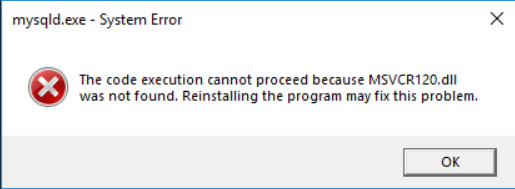
- Error message: “The code execution cannot proceed because msVCP120.dll was not found.”
- Application crash upon startup
- “Failed to load msVCP120.dll”
- Entry point not found errors related to the DLL
- System warnings or alerts indicating missing or corrupted files Promptly addressing these signs is crucial for avoiding further system or software instability.
How to Download msVCP120.dll Safely and Correctly
Official Runtime Download Links
The safest way to obtain msVCP120.dll is through official sources provided by Microsoft. Downloading DLLs from unofficial websites can expose your system to malware or incompatible files.
Microsoft Visual C++ Redistributable for Visual Studio 2013 includes msVCP120.dll and can be downloaded directly from the official Microsoft website:
Download Visual C++ Redistributable for Visual Studio 2013
Choose the version matching your system architecture—either x86 for 32-bit systems or x64 for 64-bit systems.
Checking Your System Architecture
Before downloading, verify whether your Windows is 32-bit or 64-bit: 1. Go to Settings > System > About. 2. Under System type, you'll see whether your OS is 32-bit or 64-bit. This ensures you download the correct version of the runtime package, avoiding incompatible DLL issues.
Verifying DLL Integrity and Compatibility
After downloading, you can further verify the DLL by scanning the file with your antivirus software or checking the file's digital signature if available. Using legitimate sources helps prevent malicious versions of DLL files.
Manual Repair and Replacement of msVCP120.dll
If the DLL is missing or corrupted, you can attempt to repair your system or manually replace the file.
Using System File Checker (SFC)
Windows includes a built-in tool called System File Checker to scan and repair missing or corrupted system files:
1. Open Command Prompt as Administrator.
2. Type sfc /scannow and press Enter.
3. Wait for the process to complete; Windows will attempt to restore any problematic files automatically.
If msVCP120.dll is part of your system files, this process may resolve the error.
Using Deployment Image Servicing and Management (DISM)
In cases where SFC cannot fix the issue, use DISM:
1. Open Command Prompt as Administrator.
2. Run: DISM /Online /Cleanup-Image /RestoreHealth
3. After completion, run sfc /scannow again.
Manual Replacement and Registration
If needed, you can manually replace msVCP120.dll: 1. Download the correct version from the official Microsoft link. 2. Copy the DLL to the application's installation folder or the C:\Windows\System32 directory. 3. Register the DLL using Command Prompt:
regsvr32 msVCP120.dll
This process ensures the DLL is properly registered in Windows, allowing applications to utilize it correctly.
Troubleshooting Common msVCP120.dll Errors
Identifying Error Messages
Some typical errors include:
- “msVCP120.dll is missing”
- “Failed to load msVCP120.dll”
- “Entry point not found in msVCP120.dll” Recognizing the exact message helps tailor specific fixes.
Fixing 'Not Found' and 'Corrupted' Errors
Solutions include:
- Reinstalling the Visual C++ 2013 Redistributable from the official Microsoft website.
- Running SFC and DISM commands.
- Restoring the DLL from a known good backup or source.
When to Reinstall Visual C++ Redistributable
If errors persist after manual fixes, uninstall the existing Visual C++ Redistributable package via Programs and Features, then reinstall using the latest official installer. This refreshes all runtime files, including msVCP120.dll, ensuring compatibility and integrity.
Additional Tips
- Update your Windows OS with the latest service packs and updates.
- Update device drivers, especially graphics and system drivers.
- Perform a system restore if the problem started recently and other fixes fail.
Conclusion
Managing DLL files like msVCP120.dll is crucial for maintaining a stable Windows environment and ensuring your applications run smoothly. While downloading DLLs from official sources and following systematic repair steps is the safest approach, routine system maintenance—such as Windows updates and regular system scans—can prevent many issues from arising. Always prioritize safety by avoiding third-party DLL download sites, and consider professional assistance if persistent errors undermine your workflow. Proper DLL management not only resolves immediate errors but also contributes to a healthier, more reliable system overall.
Remember: When in doubt, seeking professional help is a wise choice to prevent further complications. Keep your system updated, backed up, and regularly maintained for the best computing experience.