Introduction
Encountering the 'download msvcp140.dll' error can be frustrating, especially when it suddenly appears during your gaming session or while launching essential applications. This DLL (Dynamic Link Library) error indicates that your system can't locate or properly load a vital library needed for running programs powered by Microsoft Visual C++ components. If left unresolved, it can cause application crashes, system instability, or startup issues. Recognizing the importance of timely resolution, this guide will walk you through understanding the root causes, troubleshooting steps, and reliable fixes to restore your system's performance efficiently.
Understanding the 'msvcp140.dll' File and Its Role
What is msvcp140.dll?
The msvcp140.dll file is part of the Microsoft Visual C++ Redistributable package. It contains crucial runtime components that enable programs developed with Visual C++ to function correctly. Specifically, this DLL provides standard C++ functions, such as memory management, input/output operations, and error handling, among others, which are essential for many applications, especially games and professional software.
Common Causes of DLL Errors
DLL errors involving msvcp140.dll can occur for various reasons, including:
- The DLL file is missing from your system due to accidental deletion or incomplete installations.
- The DLL file has become corrupted or damaged because of malware or improper system shutdowns.
- Incompatibility between different versions of the Visual C++ Redistributable packages.
- Software conflicts or incorrect registration of the DLL.
- System files corrupted due to disk errors or hardware issues. Understanding these factors helps in addressing the root cause effectively.
Common Reasons Behind the 'download msvcp140.dll' Error
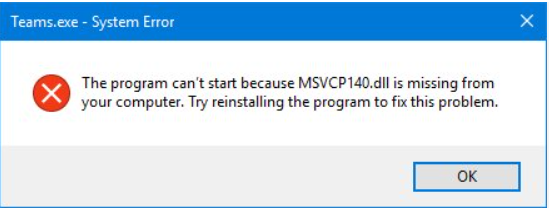
Missing or Not Found DLL
This is a frequent scenario, especially after uninstalling or updating programs. If the DLL file is absent from the Windows system directory, the application may display a message prompting you to download msvcp140.dll.
Corrupted DLL Files
Corruption can occur due to malware infections, improper shutdowns, or failed updates, rendering the DLL unusable and causing runtime errors.
Version Conflicts
Having multiple versions of the Visual C++ Redistributable installed can sometimes lead to conflicts, especially if an application requires a specific version.
How to Fix the 'download msvcp140.dll' Error
1. Download the Official Microsoft Visual C++ Redistributable Package
Step-by-step instructions:
- Visit the official Microsoft download page for Visual C++ Redistributable.
- Download the latest x64 or x86 version depending on your system architecture.
- Close all applications and run the installer as an administrator.
- Follow prompts to install or repair the Redistributable.
- Restart your computer and check if the error persists. Note: Avoid downloading DLL files from third-party websites, as they can be unsafe or outdated.
2. Reinstall or Update the Application Causing the Error
Sometimes, the error is specific to a particular program, such as a game or software suite.
- Uninstall the affected application via Control Panel > Programs > Uninstall a program.
- Download the latest version from the official website.
- Install anew, as this often replaces or repairs missing or corrupted DLL files.
3. Use System File Checker (SFC) and DISM to Repair System Files
SFC scan:
- Open Command Prompt as an administrator.
- Type:
sfc /scannow - Press Enter; wait for the process to finish.
-
Restart your computer and see if the issue is resolved. DISM tool:
-
In the same Command Prompt window, type:
DISM /Online /Cleanup-Image /RestoreHealth -
Hit Enter and wait for the process to complete.
- Run the SFC command again if needed.
4. Manually Replace the DLL File
Caution: This method is more technical and generally not recommended unless you are confident.
- Download the msvcp140.dll file from a reputable source or extract it from a clean Windows installation.
- Place the DLL in the application's directory or
C:\Windows\System32(for 64-bit) orC:\Windows\SysWOW64(for 32-bit). - Register the DLL:
- Open Command Prompt as an administrator.
- Type:
regsvr32 msvcp140.dll - Hit Enter.
5. Register DLL Using RegSvr32
If the DLL exists but isn't registered correctly:
- Open Command Prompt as Administrator.
- Type:
regsvr32 msvcp140.dll - Confirm and restart your system.
Additional Troubleshooting Tips
Performing System Restore
- If issues began recently, restoring your system to an earlier point can resolve deeply rooted problems.
- Search for 'System Restore' in the Start menu and follow the prompts.
Running Virus Scan
- Malware infections might corrupt or delete DLL files.
- Use a reputable antivirus program to conduct a full system scan and eliminate threats.
Booting into Safe Mode
- Safe Mode loads Windows with minimal drivers, helping diagnose startup issues.
- Restart your PC and press F8 or use Shift + Restart to enter Safe Mode.
- Troubleshoot and repair DLL issues in this environment.
Conclusion
The 'download msvcp140.dll' error can disrupt your workflow or gaming experience but is usually fixable with straightforward troubleshooting steps. The most reliable approach involves downloading the official Microsoft Visual C++ Redistributable package, reinstalling conflicting applications, repairing system files with built-in tools like SFC and DISM, and ensuring your system is malware-free. Always prioritize safety by downloading DLL files directly from trusted sources or through official installers. If your attempts to resolve the issue don’t work, consulting a professional technician can prevent further complications. Taking proactive measures, such as keeping your system updated and running routine maintenance checks, helps prevent future DLL errors. Equipped with this comprehensive guide, you'll be better prepared to handle the 'download msvcp140.dll' error swiftly and securely, minimizing downtime and restoring seamless operation to your Windows system.
Need further assistance? Reach out to professional support or community forums specialized in Windows troubleshooting for personalized help.