Are you experiencing errors related to mfplat.dll on your Windows system? These errors can cause your multimedia applications to crash, lead to system instability, or prevent certain programs from running altogether. While DLL issues might seem daunting, understanding their root causes and knowing how to troubleshoot them effectively can restore your system’s stability with ease. This comprehensive guide will walk you through the nature of mfplat.dll, common errors, causes, and practical solutions to resolve these issues confidently.
Understanding mfplat.dll and Its Role in Windows
What is mfplat.dll?
mfplat.dll is a crucial Dynamic Link Library (DLL) file associated with Microsoft’s Media Foundation platform. It provides essential functions needed for multimedia processing, including audio and video playback, streaming, and media editing features. Located within your Windows system directories—often in C:\Windows\System32—this DLL supports various media tasks by enabling communication between software applications and hardware components like codecs and drivers.
How does it affect system performance?
Since mfplat.dll is integral to multimedia functionalities, issues with this DLL can manifest as playback failures, crashes of media apps, or errors during system startup. When the file functions correctly, media content operates smoothly; when corrupted, missing, or conflicted, it hampers your entertainment and productivity.
Common scenarios leading to errors
- System updates or software installations that accidentally overwrite or misconfigure mfplat.dll.
- Virus or malware infections damaging or replacing DLL files.
- Hardware driver conflicts, especially with audio/video devices.
- Manual deletion or accidental removal of the DLL.
- Corruption due to abrupt shutdowns or disk errors.
Common Causes of mfplat.dll Errors
Understanding why mfplat.dll errors occur helps in applying precise solutions. Here are the most common reasons:
Corrupted or missing files
Corruption can occur from malware attacks, incomplete downloads, or failed updates, rendering the DLL unusable. Missing DLL files usually result from accidental deletion or failed software installations.
Dependency conflicts
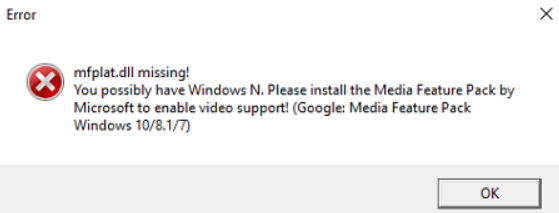
mfplat.dll depends on other system files and components. If these dependencies are corrupted or missing, the DLL cannot function correctly, leading to errors.
Registry issues
Incorrect or broken entries in the Windows registry pointing to mfplat.dll can cause the system to fail loading the DLL properly.
Software or driver conflicts
Outdated, incompatible, or improperly installed media codecs, drivers, or multimedia applications may conflict with mfplat.dll, triggering errors.
Step-by-Step Manual Repair Methods
Before resorting to third-party tools, you should try these manual troubleshooting steps. They are effective and relatively straightforward.
Manual DLL replacement
- Download a clean copy of mfplat.dll from an official source or another trusted system.
- Make sure to back up your existing DLL file by copying it to a safe location.
- Replace the corrupted or missing mfplat.dll in C:\Windows\System32 (or SysWOW64 for 64-bit systems).
- If prompted, allow administrator permission to complete the replacement.
Registering DLL files
- Open Command Prompt as Administrator.
- Run the command:
regsvr32 mfplat.dll - Wait for confirmation that the DLL has registered successfully. If registration fails, note any error messages for further troubleshooting.
Using SFC and DISM for system repair
Corrupted system files, including DLLs, can be repaired using built-in tools:
-
System File Checker (SFC):
sfc /scannowRun this in an elevated Command Prompt to scan and repair corrupt system files. -
Deployment Image Servicing and Management (DISM):
DISM /Online /Cleanup-Image /RestoreHealthUse this command to fix underlying system image issues that may affect DLL integrity.
Restoring registry entries
Use System Restore to revert your system settings to a point before the mfplat.dll error appeared. This can resolve deep registry issues linked to DLL problems.
Using Repair Tools and Official Downloads
While manual fixes work well, sometimes automatic tools expedite the process, especially for less tech-savvy users.
Best DLL repair tools
- DLL-files.com Client: A reputable tool for replacing missing or corrupted DLLs.
- CCleaner: Can fix registry errors and optimize system settings.
- Restoro: Offers comprehensive system repairs, including DLL issues.
Official Microsoft runtime downloads
Always download mfplat.dll or related components through official sources to avoid malware:
- Visit the Microsoft Download Center for latest Media Foundation updates.
- Use Windows Update to ensure your system receives the latest patches and runtime components.
Installation and safety tips
- Scan all downloaded files with reputable antivirus software.
- Avoid downloading DLL files from third-party websites that promise “free” DLLs—they often contain malware.
- Follow official instructions or seek professional assistance if unsure.
Additional Tips and Best Practices
Prevention is better than cure. Regular maintenance reduces the chances of mfplat.dll errors recurring.
System restore points
Create restore points before performing major updates or installing new software. This allows easy rollback if issues arise.
Regular system scans
Use Windows Defender or third-party antivirus programs to detect and remove malware that could damage DLL files.
Updating drivers and Windows
Keep your graphics, audio, and other media drivers up-to-date. Regular Windows updates also patch security vulnerabilities and improve system stability.
Conclusion
Errors related to mfplat.dll can disrupt your system’s multimedia functionality and overall stability. Properly diagnosing the cause—whether due to corruption, missing files, conflicts, or registry issues—enables targeted and effective fixes. Remember to use a combination of manual methods, repair tools, and preventive maintenance practices to resolve current problems and minimize future risks. By staying vigilant, performing regular updates, and exercising caution when downloading files, you can keep mfplat.dll and your Windows system running smoothly. If issues persist despite your efforts, consider consulting a professional technician to avoid further complications.
Take action today: Keep your system healthy, perform periodic checks, and stay informed about best troubleshooting practices to maintain a trouble-free Windows experience!