Introduction
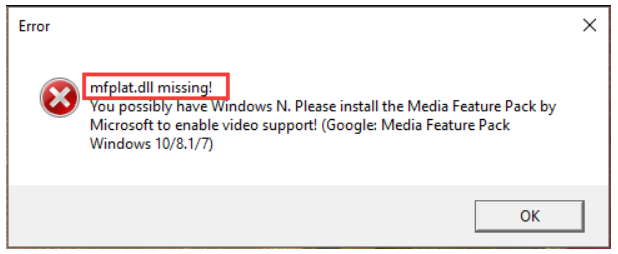
Encountering a 'mfplat.dll not found' error can be frustrating, especially when you're trying to launch an application or game that suddenly stops working. The mfplat.dll file is a critical component of Windows, playing a vital role in multimedia processing, particularly within the Media Foundation framework. When this DLL file goes missing, corrupted, or becomes inaccessible, it can prevent media applications, streaming services, or even system processes from functioning correctly. Understanding what causes this error and how to fix it promptly is essential to maintain your system’s stability and ensure smooth operation. Whether you’re a casual user, IT professional, or gamer, this comprehensive guide will walk you through the causes, troubleshooting tactics, manual repair methods, and preventive tips to resolve the 'mfplat.dll not found' error efficiently.
Understanding the mfplat.dll Error
What is mfplat.dll?
The mfplat.dll is a dynamic link library (DLL) file that belongs to the Microsoft Media Foundation platform — a set of APIs for playing, recording, and processing multimedia content in Windows. This DLL provides essential functions related to multimedia tasks, such as streaming and video playback, making it indispensable for many modern Windows applications and services.
Common Reasons for 'not found' Errors
The 'mfplat.dll not found' error typically occurs due to one or more of the following issues:
- Deleted or Missing DLL File: The file may have been accidentally removed or is missing due to incomplete updates or software uninstallation.
- Corruption of System Files: Malware infections, improper shutdowns, or faulty updates can corrupt system files, including DLLs.
- Outdated or Faulty Drivers: When graphics and audio drivers are outdated, they can interfere with multimedia components.
- Registry Errors: Invalid or broken entries in the Windows registry can cause DLLs to become inaccessible.
- Dependency Problems: If other related files or frameworks like Media Foundation are missing or corrupted, it can prevent mfplat.dll from functioning correctly.
Preliminary Troubleshooting Steps
Before diving into complex repairs, try these simple solutions to eliminate common causes quickly.
Reboot in Safe Mode
Booting Windows in Safe Mode loads only essential drivers and services, which can help identify if background processes or malware are causing the issue:
1. Press Windows + R, type msconfig, and hit Enter.
2. Under the Boot tab, select Safe Boot, then click OK.
3. Restart your computer.
Once in Safe Mode, observe if the error persists. If it doesn't, a third-party program or driver might be causing the problem.
Update Windows and Drivers
Ensuring your system and drivers are up to date can resolve compatibility issues:
- Open Settings > Update & Security > Windows Update.
- Click Check for updates and install any available updates.
- Update your graphics and audio drivers via the manufacturer's website or Device Manager:
- Press Windows + X, select Device Manager.
- Right-click relevant devices, choose Update driver, and follow prompts.
Run a Virus Scan
Malware may delete or corrupt DLL files. Use Windows Defender or your preferred antivirus software to conduct a full system scan: 1. Open Windows Security > Virus & Threat Protection. 2. Click Quick Scan or Full Scan. 3. Remove any threats found and reboot.
Manual Repair Methods for 'mfplat.dll not found' Error
If the preliminary steps don't resolve the issue, more targeted manual fixes are necessary.
Reinstalling the Media Foundation Runtime
Since mfplat.dll is part of the Media Foundation, reinstalling related components can help: 1. Download the Media Feature Pack compatible with your Windows version from the official Microsoft website. 2. Run the installer and follow prompts to install or repair the multimedia framework. 3. Restart your computer.
Registering the DLL File using RegSvr32
Proper registration of DLL files ensures Windows recognizes and loads them correctly: 1. Open Command Prompt as administrator:
- Search cmd in the Start menu, right-click, select Run as administrator.
- Type the following command:
regsvr32 /u mfplat.dllto unregister the existing DLL. - Then, register it again:
regsvr32 mfplat.dll - Restart your system and see if the error persists.
Replacing the Missing DLL Manually
If the mfplat.dll file is missing:
1. Download the DLL file from a reputable source or extract it from a trusted Windows installation media.
2. Place the DLL into the appropriate directory:
C:\Windows\System32\
3. Run Command Prompt as administrator and re-register the DLL using regsvr32 as shown above.
Note: Be cautious when downloading DLL files—prefer official sources to avoid malware.
Using System File Checker (SFC) and DISM
These tools repair corrupted system files:
- Run SFC:
- Open Command Prompt as administrator.
- Type:
sfc /scannow -
Let the scan complete; it will repair or replace corrupt system files.
-
Run DISM:
- In the same elevated Command Prompt, execute:
DISM /Online /Cleanup-Image /RestoreHealth - Wait for the process to complete, then rerun sfc /scannow.
Additional Tips and Preventive Measures
Prevention is always better than cure. Implement these practices to reduce the chance of future DLL errors:
Regular System Maintenance
- Keep your operating system updated.
- Use Disk Cleanup and defragmentation tools to maintain system health.
- Regularly scan for malware.
Keeping Drivers Updated
- Use device manufacturer tools or Windows Update to ensure all drivers are current.
- Avoid outdated or beta drivers that can cause stability issues.
Using Reliable Sources for DLL Files
- Always acquire DLL files from official Microsoft sources or trusted software providers.
- Avoid third-party DLL download sites, which may include malware.
Conclusion
The 'mfplat.dll not found' error can be a disruptive hurdle but is often fixable with systematic troubleshooting. Understanding the role of mfplat.dll in multimedia processing helps clarify why its absence affects your system and applications. Starting with simple steps like updates, system scans, and Safe Mode can resolve minor issues. When necessary, manual repairs—such as registering DLLs, restoring files, or fixing system corruption—are effective solutions. To maintain long-term system stability, prioritize regular updates, routine maintenance, and cautious management of system files. If problems persist despite your efforts, don't hesitate to seek professional assistance. With proper care, your Windows system can run smoothly without interruptions caused by DLL errors.
Remember: Back up your data regularly and create system restore points before making significant changes to your system, ensuring you can revert to a stable state if needed.