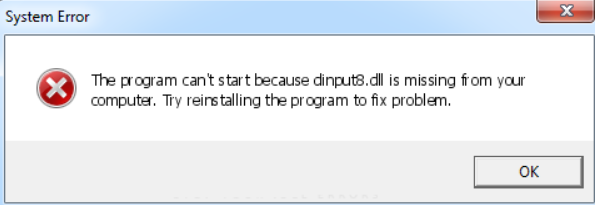
Experiencing errors related to missing or corrupted DLL files is a common frustration for GTA San Andreas players. One particularly notorious issue is the dinput8.dll error, which can abruptly halt gameplay and leave gamers scratching their heads. Whether you see messages like "dinput8.dll not found" or "Failed to load dinput8.dll," resolving these errors is crucial to get back to enjoying San Andreas without interruptions. This comprehensive guide walks you through understanding the error, troubleshooting effective solutions, and preventing similar issues in the future.
Understanding the 'dinput8.dll' Error in GTA San Andreas
What is 'dinput8.dll'?
dinput8.dll is a dynamic link library file that is part of the DirectX API set, specifically responsible for DirectInput functionality—handling input devices such as keyboards, mice, and game controllers. Games like GTA San Andreas rely on DirectX components to interpret user commands and facilitate smooth gameplay. When this DLL is missing or corrupted, the game cannot properly receive input signals, leading to errors that prevent gameplay from proceeding.
Why Does This Error Occur?
Several factors can trigger the dinput8.dll error:
- Corrupted or missing DLL files: During updates or improper installations, the
dinput8.dllfile may become corrupted or accidentally deleted. - Incorrect game or system configurations: Compatibility issues or misconfigured DirectX components can cause the DLL to malfunction.
- Outdated or incompatible drivers: Graphics, sound, or input device drivers that are not up to date can conflict with DirectX functioning.
- Malware infections: Some malicious programs may delete or corrupt DLL files to interfere with system operations.
- Problems during game modding or patches: Unauthorized modifications may overwrite or delete essential DLLs, leading to errors.
Common Symptoms and Error Messages
Players experiencing the dinput8.dll error might observe:
- A pop-up error indicating the DLL is missing or failed to load.
- The game crashing shortly after startup.
- Missing input controls or unresponsive gameplay.
- System error logs referencing
dinput8.dll. Recognizing these symptoms early helps you identify that the problem is related to this specific DLL file.
Troubleshooting Methods to Fix 'dinput8.dll' Errors
Resolving the dinput8.dll error involves a systematic approach. Here are several effective methods, from simple verification steps to manual repairs, to restore GTA San Andreas’s stability.
Verifying File Integrity and Reinstalling Game Files
Step 1: Use your game launcher or platform (such as Steam or Rockstar Games Launcher) to verify the integrity of game files.
- Steam:
- Right-click GTA San Andreas in your library.
- Select Properties > Local Files > Verify Integrity of Game Files.
- Wait for the process to complete and fix any corrupted or missing files.
- Other Platforms:
- Check similar options for verifying game or application files. Step 2: If verification doesn’t resolve the problem, uninstall and reinstall GTA San Andreas. This ensures all files, including DLLs, are restored to their original state.
Using Official Runtime Downloads
Step 1: Download and install the latest version of Microsoft DirectX End-User Runtime from the official Microsoft website. This package contains essential DLL files, including dinput8.dll.
- Download DirectX End-User Runtime Step 2: Follow the installation prompts and restart your PC. This can replace missing or outdated DirectX DLL files, resolving many runtime errors.
Manual Replacement of the DLL File
Warning: Only download DLL files from reputable sources to avoid malware.
Step 1: Search for dinput8.dll from trusted sources, or better yet, copy the file from an existing, functioning system that has the same Windows version.
Step 2: Place the DLL file into the game's directory, typically located at:
C:\Program Files\Rockstar Games\GTA San Andreas\
Step 3: Register the DLL (optional but recommended):
- Open Command Prompt as administrator.
- Run the command:
regsvr32 dinput8.dll
Note: Manual replacement should be a last resort. Be cautious to avoid corrupting your system or game files.
Checking for System Conflicts or Malware
- Run Antivirus and Malware Scans: Use reputable tools like Windows Defender or Malwarebytes to scan your system. Malware infections can damage DLL files.
- Update Drivers: Ensure your graphics, sound, and input device drivers are current.
- Disable Conflicting Software: Background applications, especially those modifying game files or overlays (like screen recorders), might introduce conflicts.
Preventive Measures and Best Practices
Preventing future dinput8.dll errors hinges on maintaining a healthy and updated system environment.
Keeping Windows and Drivers Updated
Regularly update your Windows OS to benefit from the latest security and stability improvements, including DirectX updates.
- Check for Windows updates via Settings > Update & Security.
- Update device drivers through Device Manager or the manufacturer’s website.
Using Reliable Download Sources
Always obtain game patches, DirectX, and other runtime files from official or well-established sources to avoid corrupted or malicious DLLs.
Regular Malware Scans
Schedule periodic scans using trusted security software to detect and remove malware threats that could corrupt system files.
Creating System Restore Points
Before making major changes like game modifications or system updates, create restore points:
- Open Control Panel > System and Security > System.
- Select System protection > Create. This allows easy recovery if errors occur later.
Conclusion
The dinput8.dll error in GTA San Andreas can seem daunting, but with a structured troubleshooting approach, most issues can be resolved efficiently. By verifying game files, updating DirectX, manually replacing DLLs from trusted sources, and maintaining system health, players can return to seamless gameplay. Remember, always use official sources and tools, and prioritize system maintenance to prevent recurring DLL errors.
If you encounter persistent problems despite following these steps, consider reaching out to official support channels or specialized online communities for further assistance. Ensuring your system and game files are in top shape is the key to uninterrupted adventures in Los Santos!
Happy gaming!