Are you encountering the dreaded "d3dx9_43.dll missing" error while launching a game or application? This common issue can prevent your favorite programs from running, leaving you frustrated. Thankfully, resolving this problem is manageable once you understand the causes and proper solutions. In this comprehensive guide, we’ll explore the role of d3dx9_43.dll, common errors related to it, and step-by-step methods to fix and prevent DLL issues—whether through official downloads, manual repair, or troubleshooting.
Understanding d3dx9_43.dll and Its Role
What is d3dx9_43.dll?
d3dx9_43.dll is a Dynamic Link Library (DLL) file that is part of the Microsoft DirectX runtime, specifically from DirectX 9.0c. These DLL files contain essential functions and resources that enable multimedia and gaming applications to interact smoothly with your Windows system, particularly providing graphics and sound capabilities necessary for high-quality gaming and media performance.
Common scenarios where this DLL is required
You will find d3dx9_43.dll needed in various situations:
- Running older or some newer PC games that rely on DirectX 9 components
- Using certain multimedia editing or visualization software
- Encountering startup errors related to missing or corrupted DirectX files
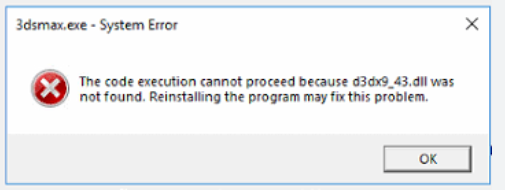
- Facing error messages like "The program can't start because d3dx9_43.dll is missing" or "Failed to load d3dx9_43.dll"
Common Errors Related to d3dx9_43.dll
Recognizing DLL Error Messages
Knowing how error messages appear helps in troubleshooting:
- "The file d3dx9_43.dll is missing."
- "Unable to start the application. d3dx9_43.dll not found."
- "Entry point not found: d3dx9_43.dll."
- "Failed to load d3dx9_43.dll."
Troubleshooting Error Causes
Major reasons these errors occur include:
- Corrupted or missing DLL files due to accidental deletion or disk errors
- Incomplete DirectX installation, possibly from interrupted or improper updates
- Incompatible software versions between your system and the application
- Malicious software or viruses corrupting system files
- System file corruption from malware or improper shutdowns
How to Download d3dx9_43.dll Safely and Effectively
Official DirectX Runtime Downloads
The safest and most reliable method to obtain d3dx9_43.dll is through the official Microsoft DirectX End-User Runtime Web Installer. This installer includes all necessary files and ensures compatibility with your Windows version. Steps to download and install: 1. Visit the official Microsoft DirectX download page. 2. Click Download and save the setup file. 3. Run the installer and follow on-screen instructions. 4. Restart your computer after installation completes. This process updates or installs missing DirectX components, including d3dx9_43.dll, ensuring a safe and effective fix.
Verifying the Authenticity
Avoid downloading DLL files from third-party sources or unofficial sites, as these can include malicious malware or outdated versions. Always prefer official Microsoft tools to ensure system security and stability.
Manual Repair and Replacement Methods
If updating via the official installer doesn't resolve the issue, you may consider manually replacing the DLL file.
Manual DLL Replacement
Note: Only proceed if you’re comfortable with system file management. 1. Locate the correct d3dx9_43.dll file from a trustworthy source or after successful DirectX installation. 2. Copy the DLL file to your clipboard. 3. Paste it into the directory of the affected application, usually located in:
C:\Windows\System32(for 64-bit Windows)C:\Windows\SysWOW64(for 32-bit Windows)-
Register the DLL (optional but recommended) using Command Prompt:
-
Open Command Prompt as Administrator
- Type:
regsvr32 d3dx9_43.dlland press Enter
Using Command-Line Tools for Repair
You can repair system files that might be causing DLL issues using built-in tools:
-
System File Checker (SFC):
bash
  sfc /scannow
This scans and repairs corrupted or missing system files automatically. -
Deployment Image Servicing and Management (DISM):
bash
  DISM /Online /Cleanup-Image /RestoreHealth
Run this command in an elevated Command Prompt to repair the Windows image.
Additional Troubleshooting Tips
Running SFC and DISM
These tools help fix underlying system issues that may prevent DLL files from functioning correctly.
Updating Graphics Drivers
Outdated or incompatible graphics drivers can cause DLL errors related to DirectX components.
- Visit your GPU manufacturer’s website (NVIDIA, AMD, Intel) for the latest drivers.
- Use Windows Update for recommended driver updates.
Performing System Restore
If the error started after recent changes or updates: 1. Open Control Panel > Recovery > Open System Restore. 2. Choose a restore point before the error began. 3. Follow the prompts to restore your system, which can revert DLL files to a working state.
Running Antivirus and Malware Scans
Malware infections often corrupt system DLLs. Use trusted antivirus software to perform a full scan and clean any threats.
Conclusion
Dealing with d3dx9_43.dll missing errors can be straightforward if you follow proper steps:
- Always download d3dx9_43.dll via the official Microsoft DirectX installer.
- Avoid unreliable third-party sources to prevent security risks.
- Consider manual replacement only if necessary, and use Command Prompt tools for registration.
- Regularly update your graphics drivers and perform routine system maintenance like SFC and DISM scans to keep your system healthy. By implementing these solutions, you can quickly restore your system’s game and media performance, ensuring smooth gameplay and application stability. Stay proactive with system updates and backups to prevent future DLL errors, and enjoy a seamless computing experience!
Need further assistance? Don’t hesitate to consult IT professionals or reach out to Microsoft support for personalized help. Happy gaming!