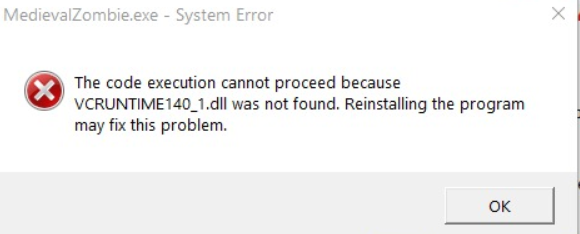
When you launch an application or game on your Windows PC, nothing is more frustrating than encountering an error message claiming that a crucial DLL file is missing. One common error is: "The code execution cannot proceed because vcruntime140_1.dll was not found." This error often leaves users puzzled, especially because it involves a vital part of the Windows runtime environment that supports many applications. If you're facing this problem, don’t worry — this comprehensive guide will walk you through understanding the root causes, troubleshooting effectively, and preventing future issues.
Understanding the 'vcruntime140_1.dll Not Found' Error
What is vcruntime140_1.dll?
The vcruntime140_1.dll file is a dynamic link library (DLL) associated with Microsoft Visual C++ Redistributables. These redistributables are essential runtime components that enable compiled C++ applications to run correctly on Windows. The vcruntime140_1.dll specifically corresponds to Visual C++ 2019, which many modern applications and games depend on for their core functions.
Without this DLL, applications that rely on Visual C++ cannot execute properly, resulting in errors that halt their operation or crash outright.
Why does this error happen?
The "DLL not found" error occurs when Windows cannot locate the necessary vcruntime140_1.dll file at the time of application launch. Common reasons include:
- The DLL file has been deleted or moved
- The Visual C++ Redistributable package is missing, outdated, or corrupted
- System files have become damaged or corrupted
- The application was installed incorrectly
- Malware or virus infections tampered with system files Understanding these causes is critical for choosing the correct troubleshooting steps.
Common Causes of the Error
Missing or Deleted DLL Files
Sometimes, accidental deletion or failed updates lead to missing DLL files. This can happen if disk cleanup tools remove DLLs that are thought to be unnecessary or if user-installed software mistakenly deletes shared files.
Corrupted System Files
System file corruption can occur due to abrupt shutdowns, faulty hardware, or malware infections. Damaged system files prevent critical DLLs from being accessed, leading to errors like this.
Incorrect Visual C++ Redistributable Installation
If the Visual C++ redistributable packages are incompletely installed or corrupted, they might not register the required DLL files properly, causing applications to fail.
System File Corruption
Beyond DLL files, broader system integrity issues can cause these errors. Tools like System File Checker (SFC) and Deployment Image Servicing and Management (DISM) can diagnose and repair these problems.
Step-by-Step Troubleshooting and Fixes
Manual Replacement of the DLL File
Note: Manually copying DLL files from untrusted sources can be risky and possibly lead to malware exposure. If you choose this method, ensure you download DLLs from reputable sources or obtain them from a clean system backup.
Steps:
1. Search for a trusted source for vcruntime140_1.dll.
2. Download the DLL file matching your Windows architecture (32-bit or 64-bit).
3. Copy the file to the application's directory (where the executable is located) or the C:\Windows\System32 folder for 64-bit or C:\Windows\SysWOW64 for 32-bit systems.
4. Restart your system and try launching the application again.
Reinstall or Update Visual C++ Redistributables
The most reliable fix involves reinstalling the latest Visual C++ Redistributables: 1. Visit the official Microsoft download page for Visual C++ redistributables: Microsoft Visual C++ Redistributable Downloads. 2. Download the same version that your application requires (most often Visual C++ 2015-2019 redistributable). 3. Run the installer and follow the prompts to repair or install. 4. Restart your system and check if the problem persists.
Run System File Check (SFC) and DISM
These built-in tools can scan and repair corrupted system files: Procedure: 1. Open Command Prompt as Administrator — right-click Start > Command Prompt (Admin). 2. Run the System File Checker:
sfc /scannow
Wait for the process to complete; it will automatically fix damaged files if possible. 3. Run DISM to repair the Windows image:
DISM /Online /Cleanup-Image /RestoreHealth
Again, wait until the process completes, then restart your PC. 4. Try launching the affected application again.
Use System Restore in Windows
If the error started after recent system changes or updates, restoring Windows to a previous state can fix the issue: 1. Search for "System Restore" in the Start menu. 2. Follow the on-screen wizard to choose a restore point prior to when the error appeared. 3. Complete the restore process and restart your computer.
Reinstall the Affected Applications
If specific software continues to give errors, try uninstalling and reinstalling it: 1. Open Settings > Apps. 2. Find the problematic application, click Uninstall. 3. Download the latest installer from the official source. 4. Install and test the application.
Preventative Measures and Best Practices
Proactively maintaining your system minimizes the risk of encountering DLL errors:
Regular Windows Updates
Keeping Windows updated ensures you have the latest security patches and system files:
- Go to Settings > Update & Security > Windows Update.
- Click "Check for updates" regularly.
Safe Software Installation Practices
- Always download applications from official or reputable sources.
- Avoid pirated or cracked software, which can introduce malware or corrupt system files.
- During installation, opt for custom setup to ensure components are correctly installed.
Using Official Runtime Downloads
- Always download Visual C++ redistributables directly from Microsoft.
- Avoid third-party sites offering DLL files, as they may be unsafe or outdated.
Conclusion
Encountering the error "The code execution cannot proceed because vcruntime140_1.dll was not found" can be disruptive, but with a clear understanding of its causes and effective troubleshooting, you can resolve it swiftly. Start by ensuring your Visual C++ Redistributables are up-to-date, scan and repair your system files, and consider reinstalling affected applications if necessary. Maintaining good system hygiene and applying best practices in software management not only fixes current issues but also prevents future DLL errors. If problems persist despite these efforts, consulting a professional IT support specialist is advisable to avoid further complications. By staying vigilant and proactive, you can keep your Windows environment stable and your applications running smoothly.
Remember: Always back up critical data before performing system repairs or restores. And if you’re unsure about any step, seek professional guidance for a safer, more effective fix.