Description: This comprehensive guide provides detailed solutions to resolve the common 'steamui.dll' loading failure in Steam. Whether due to system file corruption, DLL conflicts, or registry issues, this article offers step-by-step troubleshooting methods, repair tools, and preventative tips to ensure Steam runs smoothly without DLL errors.
Introduction
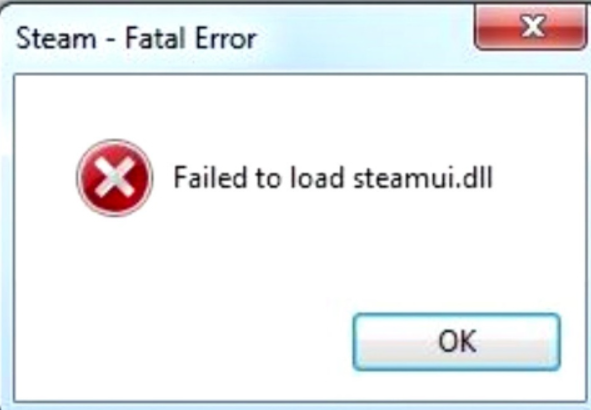
Encountering the 'steam failed to load steamui.dll' error can be frustrating, especially when you're eager to dive into your favorite games on Steam. This error typically prevents the Steam client from launching properly, disrupting your gaming experience and causing inconvenience. Understanding the underlying causes of this issue and knowing how to fix it efficiently are essential to keep your system healthy and gaming seamless. In this guide, we'll explore the reasons behind the error and outline effective troubleshooting steps to resolve it once and for all.
Understanding the 'steamui.dll' Error
What is steamui.dll?
steamui.dll is a dynamic link library file that is vital for the Steam client’s user interface. It contains essential functions that allow Steam’s interface to load and operate correctly. If this file becomes corrupted, missing, or incompatible, Steam will fail to load, resulting in the 'steamui.dll' error.
Common causes of DLL load failure
The 'steamui.dll' error can occur due to various reasons, including:
- Corrupted or missing steamui.dll file
- System file corruption or disk errors
- DLL conflicts with other programs
- Outdated or incompatible graphics or system drivers
- Malware or virus infections
- Improper Steam installation or updates
- Registry issues or leftover files from previous Steam versions Knowing these causes helps in choosing the right troubleshooting approach.
Preliminary Troubleshooting Steps
Before diving into complex fixes, start with these simple yet effective actions:
Restart Steam and Windows
Sometimes, a simple restart can resolve temporary glitches.
- Close Steam completely by right-clicking the Steam icon in the system tray and selecting Exit.
- Restart your Windows PC to clear background processes and free up resources.
- Launch Steam again and check if the error persists.
Update Steam and Windows
Ensure both Steam and your Windows operating system are up-to-date.
- Update Steam: Open Steam, go to Steam > Check for Steam Client Updates.
- Update Windows: Go to Settings > Update & Security > Windows Update, and click Check for updates. An outdated system or client can cause compatibility issues with DLL files.
Run Steam as Administrator
Permissions issues can prevent Steam from accessing or loading certain DLL files.
- Right-click the Steam shortcut or executable.
- Select Run as administrator.
- Confirm any prompts and see if the error persists.
Advanced Fixes for 'steamui.dll' Load Failure
If basic steps don't work, proceed with more in-depth solutions.
Verify Integrity of Game Files
Corrupted game files can sometimes interfere with Steam’s core functions. 1. Open Steam and go to your Library. 2. Right-click on any installed game and select Properties. 3. Navigate to the Local Files tab. 4. Click Verify Integrity of Game Files. Wait for the process to complete, then restart Steam. (Note: This method primarily helps with game-specific errors but can sometimes resolve DLL conflicts)
Reinstall Steam
A clean installation can replace corrupted files, including steamui.dll. 1. Backup your game files to avoid redownloading them:
- Navigate to
C:\Program Files (x86)\Steam\steamapps\commonand copy your game folders elsewhere. - Uninstall Steam via Control Panel > Programs > Uninstall a Program.
- Download the latest Steam installer from the official Steam website.
- Install Steam again.
- Restore your game files to the
steamapps\commonfolder.
Manual Replacement of steamui.dll
If you suspect the steamui.dll file is corrupted or missing:
1. Download a fresh steamui.dll from a reputable source or copy it from a working system.
2. Locate your Steam directory (usually in C:\Program Files (x86)\Steam).
3. Backup the existing steamui.dll by renaming it (e.g., to steamui_backup.dll).
4. Place the new steamui.dll into the Steam directory.
5. Restart Steam.
Note: Be cautious about downloading DLL files from third-party sites; always prefer official or trusted sources.
Use of DLL Repair Tools
There are specialized tools that can scan and repair DLL issues:
- DLL-files.com Client or system repair utilities can help fix corrupted files.
- Run the tool, scan for issues related to steamui.dll, and follow the prompts to fix or replace the file.
Additional System Checks
Beyond Steam-specific fixes, systemic issues might be causing DLL errors.
Run SFC and DISM scans
These tools verify and repair system files that could affect DLLs.
1. Open Command Prompt as Administrator.
2. Type: sfc /scannow and press Enter. Wait for the scan to complete.
3. Run Deployment Image Servicing and Management (DISM):
DISM /Online /Cleanup-Image /RestoreHealth
4. Restart your PC and try launching Steam again.
Update Graphics and System Drivers
Outdated drivers can cause conflicts with DLL files.
- Use Device Manager or manufacturer’s tools (GeForce Experience for NVIDIA, AMD Radeon Settings) to update graphics drivers.
- Update other system drivers, especially chipset and network adapters.
Perform System Restore if Necessary
If the error started after recent changes: 1. Search for System Restore in the Windows search bar. 2. Select Create a restore point > System Restore. 3. Choose a restore point before the error appeared. 4. Follow the prompts to revert your system to a healthy state.
Prevention and Best Practices
Prevent future DLL errors with these habits:
Regular virus scans
Use reliable antivirus software to regularly scan for malware that might corrupt DLL files.
Keep drivers and Windows updated
Regular updates patch security vulnerabilities and improve compatibility.
Avoid suspicious software
Download programs only from official sources to prevent DLL conflicts or malware infections.
Backup important files
Maintain backups of your system and critical data to recover quickly from unexpected errors.
Conclusion
The 'steam failed to load steamui.dll' error can stem from various issues, from corrupted system files to DLL conflicts or outdated drivers. Starting with basic troubleshooting like restarting, updating, and running the client with admin rights can often resolve the problem. If not, deeper measures such as verifying files, reinstalling Steam, manually replacing DLLs, or repairing system files may be necessary. Maintaining your system health through regular updates, security scans, and backups is essential in preventing such errors from recurring. If after all efforts the problem persists, consider consulting professional support or reaching out to Steam’s customer service. Remember: A healthy system ensures smoother gaming experiences. Keep your software and drivers up-to-date, and stay vigilant against malware to avoid DLL-related headaches in the future.