Dealing with DLL errors can be frustrating, especially when they prevent your favorite applications or even Windows itself from working properly. One of the most common problems faced by Windows users is the 'vcruntime140.dll was not found' error. This DLL (Dynamic Link Library) is a critical component for many programs that rely on Microsoft Visual C++ libraries. If you're seeing this message, it means your system can't locate or load this essential file, leading to application crashes or startup failures. In this comprehensive guide, we'll dive into what vcruntime140.dll does, why it might go missing, and most importantly, how you can fix the error with safe, step-by-step solutions. Whether you're a casual user or an IT support professional, you'll find practical tips to restore your system's stability and prevent future DLL issues.
Understanding vcruntime140.dll and Its Role
What is vcruntime140.dll?
At its core, vcruntime140.dll is part of the Microsoft Visual C++ Redistributable package, specifically associated with Visual Studio 2015 and later versions. This DLL contains runtime functions that enable applications developed with Visual C++ to run smoothly on Windows systems. Without it, many programs cannot execute properly, which often manifests as error messages during startup.
Why does this DLL go missing?
There are several reasons why vcruntime140.dll might be absent or corrupted:
- Incomplete or corrupt installation of Visual C++ Redistributables.
- Accidental deletion or file corruption due to malware or disk errors.
- Failed Windows updates that disrupt system files.
- Application crashes or installation errors.
- Malware infections that delete or block system files.
How does its absence affect software?
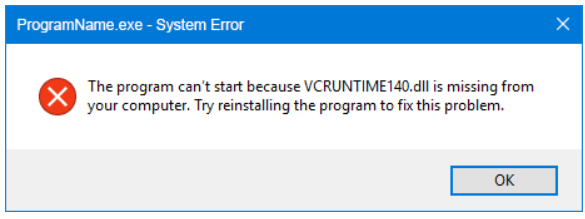
When Windows or an application cannot find vcruntime140.dll, it typically results in startup errors like:
“The program can’t start because vcruntime140.dll is missing from your computer. Try reinstalling the program to fix this problem.” This prevents software from running, causes system instability, and diminishes user productivity.
Common Causes of the 'vcruntime140.dll was not found' Error
1. Corrupted DLL Files
Corruption can occur during software installation, abrupt system shutdowns, or disk errors, rendering vcruntime140.dll unreadable or unusable.
2. Failed Windows or Application Updates
Incomplete or failed updates can disrupt system files. Outdated DLLs can also lead to compatibility issues.
3. Malware Infections
Malicious software might delete, corrupt, or block access to critical DLL files to cause system failures or to evade detection.
Step-by-Step Manual Repair Solutions
Fortunately, most DLL errors, including 'vcruntime140.dll was not found,' can be fixed with safe, straightforward steps. Follow the procedures below to restore your system’s normal operation.
1. Use System File Checker (SFC) to Repair System Files
System File Checker is a built-in Windows tool that scans for and repairs corrupted or missing system files, including DLLs. Steps:
- Press
Windows Key + Sand typecmd. - Right-click Command Prompt and select Run as administrator.
-
Enter the command:
sfc /scannow -
Press Enter. Wait for the scan to complete—this may take some time.
- If SFC finds issues, it will automatically fix them. Restart your computer afterward.
2. Deploy Deployment Image Servicing and Management (DISM)
If SFC doesn't resolve the problem, use DISM to repair the underlying Windows image. Steps:
- Open Command Prompt as administrator (see above).
-
Enter:
DISM /Online /Cleanup-Image /RestoreHealth -
Press Enter and wait for the process to finish.
- After completion, rerun
sfc /scannowto ensure all corrupt files are repaired.
3. Download and Install the Microsoft Visual C++ Redistributable Package
The most reliable way to restore vcruntime140.dll is to reinstall the Visual C++ Redistributable package. Steps:
- Visit the official Microsoft Download Center.
- Download the Visual C++ Redistributable for Visual Studio 2015, 2017, 2019, and 2022 (the package is unified and backward compatible).
- Choose the x86 or x64 version depending on your system architecture.
- Run the installer and follow the prompts.
- Restart your computer once the installation completes.
4. Manual Replacement of vcruntime140.dll from Trusted Sources
If the DLL file is still missing, you might consider downloading vcruntime140.dll from a reputable source. Caution: Always download DLLs from official sites or reputable platforms like Microsoft or DLL-files.com to avoid malware. Steps:
- Download the correct version of vcruntime140.dll matching your system's architecture.
- Copy the DLL into:
C:\Windows\System32\(for 64-bit Windows)C:\Windows\SysWOW64\(for 32-bit Windows)- Register the DLL using RegSvr32:
- Open Command Prompt as administrator.
-
Enter:
regsvr32 vcruntime140.dll -
Restart your PC.
5. Reinstall the Application
If the error appears with a specific program, try uninstalling and reinstalling the application to ensure all necessary runtime components are correctly installed.
Preventive Measures and Best Practices
Prevention is always better than cure. To minimize DLL errors like 'vcruntime140.dll was not found' in the future, consider adopting these best practices:
1. Keep Windows Updated
Regular updates patch security vulnerabilities and fix system bugs, reducing the risk of DLL corruption.
- Go to Settings > Update & Security > Windows Update.
- Click Check for updates and install all pending updates.
2. Use Reliable Software Sources
Download applications only from official sites or trusted vendors to avoid malware that can corrupt or delete system files.
3. Regular Security Scans
Antivirus programs can detect and remove malware that threatens system stability.
- Schedule routine scans with your trusted antivirus software.
- Use Windows Defender for integrated protection.
Conclusion
The 'vcruntime140.dll was not found' error can be a disruptive problem, but with the right approach, it’s entirely fixable. Understanding the role of vcruntime140.dll, its common issues, and employing the outlined troubleshooting steps can effectively restore your system's stability. Remember, proactive maintenance, keeping your Windows system up-to-date, and practicing safe software installation habits are key to avoiding DLL-related errors. If you encounter persistent problems despite these efforts, consider seeking professional technical support to diagnose underlying issues more deeply. A well-maintained system ensures smoother software operation and peace of mind.
Take action today to fix DLL errors promptly, ensuring your Windows environment remains robust and your applications run without interruption!