Introduction
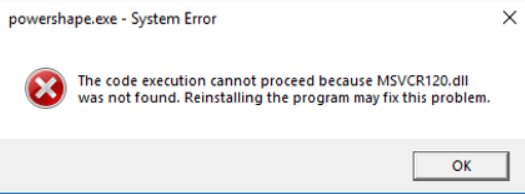
Encountering the error message "The code execution cannot proceed because msvcr120.dll was not found" can be frustrating, especially when it disrupts your daily work, gaming session, or software development activities. This error typically indicates that your system is missing a crucial Dynamic Link Library (DLL) file needed for running certain applications, especially those built with C++ runtime libraries. Such issues can affect system stability, cause application crashes, or prevent programs from launching altogether. Fortunately, this guide provides a comprehensive overview of common causes for this DLL error and offers effective troubleshooting methods. Whether you're a beginner or an experienced user, follow these steps to resolve the problem and restore smooth system performance.
Understanding the 'msvcr120.dll not found' Error
What is msvcr120.dll?
The msvcr120.dll is a dynamic link library file that belongs to the Microsoft Visual C++ Redistributable package. It's an essential component that provides runtime functions for programs developed with Visual C++, such as memory management, input/output processing, and other core functionalities. Applications depend on this DLL to execute properly.
Why does this error occur?
The error "The code execution cannot proceed because msvcr120.dll was not found" usually occurs when the DLL file is missing, corrupted, or incompatible with your system. Common scenarios include accidental deletion, system file corruption, or conflicts caused by incompatible software versions.
Impact on applications and system stability
When this DLL is missing, applications relying on it will often crash or refuse to launch. This can affect a wide range of software—from games and office programs to development tools—leading to decreased productivity and system instability.
Common Causes of the Error
Missing or Deleted DLL Files
Sometimes, the DLL file might be accidentally deleted by cleaning tools or during manual file management, making it unavailable for applications that require it.
System File Corruption
Corrupted Windows system files, possibly due to improper shutdowns, malware infections, or outdated drivers, can lead to missing or damaged DLL files.
Dependency or Compatibility Issues
Installing incompatible versions of Visual C++ Redistributables or updating software without proper dependencies can trigger DLL errors.
Malware and Virus Impact
Malware infections can delete or corrupt system DLL files, or disguise malicious files as legitimate DLLs, causing runtime errors.
Step-by-Step Repair Methods
Manual Replacement of DLL File
Caution: Always prefer official sources to avoid malware risks.
1. Identify the correct version of msvcr120.dll needed, typically linked to the specific software or game.
2. Download the DLL file from the official Microsoft Visual C++ Redistributable page, or trusted repositories such as DLL-files.com.
3. Place the DLL in the application's directory (where the executable is located), or in the C:\Windows\System32 folder for 64-bit systems.
4. Register the DLL if necessary:
- Open Command Prompt as Administrator.
- Type
regsvr32 msvcr120.dlland press Enter.
Using System File Checker (SFC) and DISM
- Run Command Prompt as Administrator.
- Execute the System File Checker to scan and repair corrupted system files:
sfc /scannow - Use Deployment Image Servicing and Management (DISM) tool if SFC cannot fix issues:
DISM /Online /Cleanup-Image /RestoreHealth - Restart your computer and check if the DLL error persists.
Reinstalling Visual C++ Redistributables
Most DLL errors are resolved by reinstalling the correct redistributable package. 1. Visit the official Microsoft Visual C++ Redistributable download page. 2. Download Visual C++ Redistributable for Visual Studio 2013, which includes msvcr120.dll. 3. Uninstall older versions via Control Panel > Programs > Programs and Features. 4. Install the downloaded package and restart your system.
Restoring System Files via System Restore
If the error appeared after recent changes, restoring your system to a previous restore point can help. 1. Search for System Restore in Windows Search. 2. Select Create a restore point. 3. Click System Restore and follow the prompts to choose a restore point before the error started. 4. Complete the process and restart.
Preventing Future DLL Errors
Regular System Updates
Keep your Windows system updated to ensure all system files, including DLLs, are current and secure.
Safe Software Installation
Always download software from official sources and avoid illegal or uncertified versions to prevent compatibility issues.
Routine Virus Scans
Use reputable antivirus software to perform regular scans, detecting and removing malware that could harm system files.
Conclusion
The "The code execution cannot proceed because msvcr120.dll was not found" error can be resolved through a series of effective troubleshooting steps, starting from manual replacements and system repairs to reinstalling necessary redistributables. Maintaining your system with regular updates, vigilant virus protection, and careful software management can prevent such DLL errors from recurring. If, after following this guide, the problem persists, consider seeking help from professional IT support to diagnose underlying issues. Addressing DLL errors promptly ensures your system remains stable, responsive, and ready for various computing needs.
FAQ
Q: Why does this error occur?
A: This error is usually caused by missing, corrupted, or incompatible versions of the msvcr120.dll file, often due to improper system updates, malware infections, or accidental deletion.
Q: What if the error persists after reinstalling Visual C++ Redistributables?
A: If the error continues, try running system repair tools like SFC and DISM, check for malware infections, or restore your system to a previous restore point that predates the error.
Q: Does this method work for all Windows versions?
A: Yes, the troubleshooting steps outlined here apply across Windows 7, 8, 10, and 11. However, specific driver and system update procedures may vary slightly depending on your Windows version.
Q: Is it safe to download DLL files from third-party websites?
A: It is safer to obtain DLL files directly from official sources like Microsoft or trusted, reputable repositories. Downloading from shady sites risks malware infections that could harm your system.
By following the outlined steps and precautions, you can effectively troubleshoot and resolve the "msvcr120.dll was not found" error, ensuring your applications run smoothly and your system remains stable.