Introduction
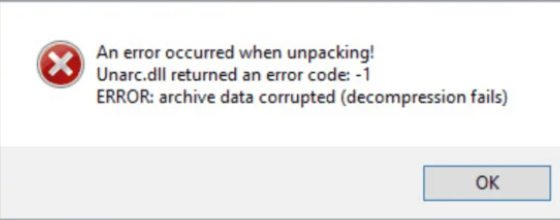
Encountering DLL errors such as isdone.dll and unarc.dll error-1 can be frustrating and disruptive, especially when trying to install or run software on Windows. These errors often manifest as installation failures, application crashes, or system instability, leaving users unsure about the root cause and solutions. Understanding why these errors occur and how to troubleshoot them effectively is crucial for maintaining a stable, error-free system. In this comprehensive guide, we will explore the common causes behind isdone.dll and unarc.dll error-1, identify symptoms you might experience, and provide step-by-step troubleshooting techniques—from manual repairs to preventative measures. Whether you're a gamer, professional, or IT support personnel, this article aims to equip you with practical, expert advice to restore your system’s health and prevent recurring DLL errors.
Understanding DLL Errors: Causes and Symptoms
What Are DLL Files?
DLL (Dynamic Link Library) files contain code, data, and resources used by multiple applications simultaneously. They enable programs to share functionalities without redundancy, leading to efficient memory usage. Commonly, when you launch an application or install software, DLL files load to perform specific tasks behind the scenes.
Common Causes of DLL Errors
DLL errors like isdone.dll and unarc.dll error-1 typically occur due to:
- Missing DLL Files: Critical DLL files have been accidentally deleted or not included during installation.
- Corrupted DLL Files: Damage caused by malware, incomplete downloads, or system crashes can corrupt DLL files, making them unusable.
- Version Conflicts: Using incompatible or outdated DLL files can trigger errors, especially after system updates or software upgrades.
- Failed or Interrupted Installations: Interruptions during setup, such as power loss or network failure, can leave DLL files incomplete or missing.
- Malware Infection: Malicious software can delete or corrupt DLL files to disable security functions or other programs.
- Hard Drive or Storage Issues: Bad sectors or disk errors can corrupt files, including DLLs.
Recognizing the Symptoms
Common indicators of DLL errors include:
- Error message stating “isdone.dll is missing” or “unarc.dll error-1.”
- Software installation failures or crashes shortly after beginning.
- Application freezing or errors during runtime.
- System instability or blue screen errors.
- Unexpected pop-ups related to DLL failures. Timely identification allows you to implement solutions before system stability deteriorates further.
Step-by-Step Troubleshooting for isdone.dll and unarc.dll error-1
When facing DLL errors, a systematic approach ensures thorough diagnosis and effective resolution. Below are essential steps to troubleshoot isdone.dll and unarc.dll error-1.
Checking for Missing or Corrupted DLL Files
First, verify whether the DLL files are present and intact:
1. Locate the Files: Use Windows Explorer or Command Prompt to check for isdone.dll and unarc.dll in their typical directories (e.g., C:\Windows\System32).
2. Verify File Integrity: Ensure the files are not empty or corrupted (right-click, select Properties > Details). If missing or suspicious, proceed with repair steps.
Using System File Checker (SFC) and Deployment Image Servicing and Management (DISM)
Windows provides built-in tools to repair corrupt system files:
1. Run Command Prompt as Administrator: Type cmd in the Start menu, right-click Command Prompt, and select Run as administrator.
2. Execute SFC Scan:
sfc /scannow
This scans and restores missing or corrupt system files, including DLLs. 3. If Problems Persist, Run DISM:
DISM /Online /Cleanup-Image /RestoreHealth
This repairs the Windows component store, ensuring SFC can function correctly. 4. Restart your computer after these processes complete.
Verifying Compatibility and Version Conflicts
- Check the software version: Ensure your application or game is compatible with your current Windows version.
- Update Windows: Regular updates fix bugs and compatibility issues.
- Update Drivers: Especially graphics and system drivers, as outdated drivers can cause DLL errors.
Manual Repair Techniques
Sometimes, automated tools may not fully resolve DLL errors, requiring manual intervention.
Manual Replacement of DLL Files
- Obtain a trusted DLL file from official sources or your backup.
-
Replace the existing DLL:
-
Navigate to the directory where the DLL resides (
C:\Windows\System32). - Backup the current DLL (rename it to
isdone_backup.dll). - Copy the fresh DLL file into the directory. Note: Be cautious—using untrusted sources can introduce malware.
Re-registering DLLs with RegSvr32
Re-register DLL files to fix registration issues:
regsvr32 /u isdone.dll
regsvr32 isdone.dll
Repeat for other problematic DLLs.
Restoring System Files and Using System Restore
If DLL errors persist:
- Use System Restore: Roll back your system to a previous stable state.
- Restore from backup: If available, restore DLL files from backups.
Preventative Measures and Best Practices
Prevention is better than cure. Adopting good practices can minimize DLL errors:
Updating Windows and Drivers
- Enable automatic updates for Windows.
- Regularly update hardware drivers via Device Manager or manufacturer websites.
Installing Official Runtime Files
- Install the latest Microsoft Visual C++ Redistributables and .NET Framework versions.
- Keep your system software stack current to prevent compatibility issues.
Security Precautions
- Use reputable antivirus software.
- Run regular virus scans to detect and eliminate malware threats.
- Avoid unsafe downloads from unofficial sources to prevent corruption or infection.
Conclusion
DLL errors like isdone.dll and unarc.dll error-1 are common but manageable issues that, if addressed promptly, can prevent system instability and data loss. A structured troubleshooting process—starting with verifying file integrity, using Windows repair tools, manually replacing or re-registering DLLs, and applying preventative best practices—can resolve most DLL-related problems effectively. Regular system maintenance, keeping software up-to-date, and practicing safe browsing habits are essential for minimizing DLL errors in the future. When in doubt, relying on trusted repair tools and official resources ensures your system remains healthy and secure. If you encounter persistent DLL issues beyond manual repair, consider consulting professionals or using specialized system repair software to safeguard your Windows environment.
Take action today to troubleshoot DLL errors effectively and keep your Windows system running smoothly!