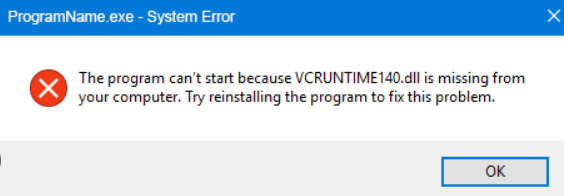
When working with Windows computers, encountering DLL errors can be both frustrating and disruptive. Among these, errors related to vcruntime140.dll are particularly common, especially for users running applications or games that depend on Visual C++ libraries. These errors can manifest as application crashes, startup failures, or specific messages like "Missing vcruntime140.dll" or "Failed to Load vcruntime140.dll," which hinder your system’s stability and productivity. Understanding the importance of vcruntime140.dll, recognizing error symptoms, and knowing how to troubleshoot effectively are crucial steps to restoring smooth system operation. This comprehensive guide aims to equip Windows users—whether on Windows 10 or Windows 11—with the essential knowledge and practical solutions to fix vcruntime140.dll errors efficiently.
Understanding vcruntime140.dll and Its Role
What is vcruntime140.dll?
vcruntime140.dll is a Dynamic Link Library (DLL) file integral to the Microsoft Visual C++ Redistributable for Visual Studio 2015, 2017, 2019, and newer versions. It contains runtime functions that enable Windows programs and applications built with Visual C++ to run correctly. Think of it as a supportive engine that provides essential functions like memory management, error handling, and other core operations necessary for many software programs.
DLL Functions and Dependencies
DLL files like vcruntime140.dll serve as shared libraries providing a collection of pre-written code routines. When an application calls a function within these DLLs, it improves efficiency by avoiding repetitive code and reducing program size. The proper functioning of vcruntime140.dll depends on:
- Correct installation of the Visual C++ Redistributable package
- Compatibility between the DLL and the application
- Integrity of the DLL file (not corrupted or missing)
Common Scenarios Causing Errors
vcruntime140.dll errors often stem from various issues, such as:
- Corrupted or outdated DLL files resulting from incomplete installations or malware infections
- Accidentally deleting or overwriting the DLL
- Faulty Windows updates or system file corruption
- Using incompatible software versions or poor-quality third-party drivers
- Hardware failures impacting storage devices where DLL files reside
Common Error Messages Related to vcruntime140.dll
Typical Error Messages and Their Implications
When vcruntime140.dll encounters issues, users may see messages like:
-
"The code execution cannot proceed because vcruntime140.dll was not found."
Indicates the DLL is missing or not detected by the system. -
"Failed to load vcruntime140.dll."
Suggests the DLL exists but cannot be loaded, perhaps due to corruption. -
"Entry Point Not Found" error involving vcruntime140.dll.
Points to a version mismatch or corrupted DLL file where the application cannot find the required function. These messages directly impact application launch, lead to crashes, or prevent system components from functioning correctly.
Impact on Applications and System Stability
Missing or corrupted vcruntime140.dll files can cause:
- Application crashes during startup or operation
- Inability to run specific software, especially games or professional tools built with Visual C++
- Overall system instability if critical system components rely on the DLL Timely troubleshooting is essential to prevent further issues and ensure seamless performance.
Effective Manual Repair Methods
Reinstalling Visual C++ Redistributables
The most common and reliable fix is to reinstall or update the Visual C++ Redistributable package. Steps: 1. Visit the Microsoft Official Download Center. 2. Download the latest Visual C++ Redistributable for Visual Studio 2015-2022 (choose the correct version, usually x86 or x64 depending on your system). 3. Uninstall existing versions via Control Panel > Programs > Programs and Features. 4. Restart your computer. 5. Run the installer and follow on-screen prompts. 6. After installation, reboot and check if the error persists.
Manual DLL Replacement
If you have a trusted source for vcruntime140.dll: 1. Download the DLL file from a reputable website or extract it from a fresh Visual C++ Redistributable package. 2. Place the DLL into the application's directory or the System32 (for 64-bit systems) / SysWOW64 (for 32-bit systems) folders. 3. Register the DLL using Command Prompt:
- Open Command Prompt as Administrator.
- Type:
regsvr32 vcruntime140.dlland press Enter. - Relaunch the application to verify if the error is resolved. Note: Be cautious with DLL downloads; always use legitimate and trusted sources to avoid malware.
Fixing Registry Errors
Corrupted registry entries can contribute to DLL issues:
1. Use Registry Editor (regedit) to check for invalid or outdated entries related to vcruntime140.dll (advanced users only).
2. Alternatively, use trusted registry cleaning tools—like CCleaner—to scan and fix registry issues.
Using Tools and Utilities for Repair
Automated tools can significantly streamline DLL error troubleshooting:
System File Checker (SFC)
The SFC utility scans protected system files and repairs corrupted or missing files.
How to use:
1. Open Command Prompt as Administrator.
2. Type: sfc /scannow and press Enter.
3. Wait for the process to complete.
4. Restart your PC and verify if the issue persists.
Deployment Image Servicing and Management (DISM)
DISM can repair Windows images to fix deeper system corruption:
1. Open Command Prompt as Administrator.
2. Enter: DISM /Online /Cleanup-Image /RestoreHealth.
3. After completion, run sfc /scannow.
4. Reboot your system.
Popular Repair Tools
There are third-party utilities designed to repair DLL issues, such as:
- DLL-files.com Client
- Wise Registry Cleaner
- Advanced SystemCare Use these tools cautiously, ensuring they're from reputable sources.
Preventive Measures and Best Practices
Being proactive reduces the risk of vcruntime140.dll errors recurring:
Keeping Windows Updated
Regularly install Windows updates that include security patches and system improvements:
- Go to Settings > Update & Security > Windows Update.
- Click Check for updates.
Running Security Scans
Malware or viruses can corrupt DLL files:
- Use Windows Defender or trusted third-party antivirus software.
- Perform regular full system scans.
Creating System Restore Points
Restore points can help you revert to a stable system state if errors occur:
- Search for Create a restore point in the Start menu.
- Enable system protection for your drive.
- Create restore points periodically or before major changes.
Conclusion
vcruntime140.dll errors can severely impact your applications, games, and overall system stability. However, with the knowledge of what causes these issues and the step-by-step troubleshooting methods detailed here, you can resolve most problems efficiently. Whether it's reinstalling Visual C++ Redistributables, manually replacing DLLs, or utilizing built-in Windows utilities like SFC and DISM, effective solutions are within reach. Remember, regular system maintenance—including updates, security scans, and creating restore points—goes a long way in preventing future DLL errors. If persistent problems persist despite your efforts, don’t hesitate to seek professional assistance to diagnose and fix underlying system issues. Taking proactive care and timely troubleshooting will ensure your Windows system remains stable, allowing you to enjoy applications and games without interruption.