Introduction
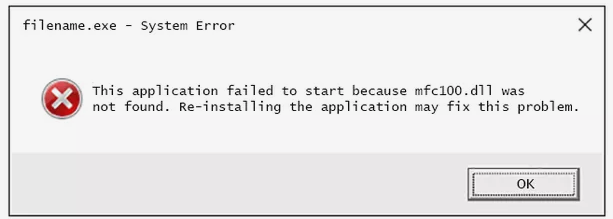
Experiencing error messages related to mfc100.dll can be frustrating for Windows users, gamers, software developers, and IT professionals alike. This particular DLL (Dynamic Link Library) file is a critical component for many applications, especially those built with Microsoft Visual C++ libraries. When mfc100.dll is missing, corrupted, or not functioning correctly, users often encounter symptoms like application crashes, loading failures, or error pop-ups such as "The program can't start because mfc100.dll is missing" or "Cannot find mfc100.dll".
Understanding what causes these errors and knowing how to troubleshoot them effectively is essential for restoring system stability and ensuring smooth software operation. This comprehensive guide covers the role of mfc100.dll, how to identify related issues, and provides actionable solutions to resolve and prevent these errors.
Understanding mfc100.dll and Its Role
What is mfc100.dll?
mfc100.dll is a Dynamic Link Library file associated with Microsoft Visual C++ 2010 Redistributable Package. It contains essential functions and resources used by applications developed with Microsoft’s MFC (Microsoft Foundation Class) library. When you run software or games relying on Visual C++ components, this DLL helps facilitate various operations, including graphics rendering, user interface management, and other core functionalities.
Why is mfc100.dll Important?
Without mfc100.dll, many applications cannot operate correctly, resulting in crashes or startup failures. It acts as a bridge, providing shared code that multiple programs can tap into, reducing redundancy and improving efficiency. If the DLL gets corrupted, deleted, or mismatched, it can cause serious stability issues, affecting both individual applications and overall system performance.
Common Causes of DLL Errors
DLL issues often result from:
- Corrupted or missing DLL files due to improper installations or system crashes.
- Accidental deletion of the DLL while cleaning up files.
- Conflicting software or incompatible versions.
- Malware infections damaging or deleting DLL files.
- Outdated or corrupt Visual C++ Redistributables. Understanding these causes helps in choosing the most effective repair strategies.
Identifying and Diagnosing mfc100.dll Errors
Error Messages and Symptoms
Common error messages indicating problems with mfc100.dll include:
- “The program can't start because mfc100.dll is missing”
- “Cannot find [application] because mfc100.dll is missing”
- “The code execution cannot proceed because mfc100.dll was not found”
- Application crashes or fails to launch. Symptoms can extend beyond error pop-ups to include system slowdowns or erratic behavior if DLL-related issues are widespread.
Diagnosing Missing or Corrupted DLLs
To diagnose whether mfc100.dll is genuinely missing or corrupted, use these steps:
1. Check for the DLL file directly: Navigate to C:\Windows\System32 or C:\Windows\SysWOW64 and look for mfc100.dll.
2. Use Command Prompt: Enter dir mfc100.dll /s to locate the DLL on your system.
3. Observe error messages during application startup: Capture the specific error details.
4. Use Event Viewer: Check logs for application or system errors related to DLLs.
Tools for Troubleshooting DLL Errors
Several utilities assist in diagnosing DLL issues:
- Dependency Walker: Analyzes DLL dependencies.
- System File Checker (SFC): Checks for corrupt system files.
- DISM (Deployment Image Servicing and Management): Repairs the Windows image.
- Malware scanners: Detect infections damaging DLL files. These tools help pinpoint whether the issue stems from file corruption, missing components, or other system problems.
Effective Solutions for mfc100.dll Errors
Manual Replacement of mfc100.dll
If the DLL file is missing or corrupted, manually replacing it can be effective:
1. Obtain the DLL File Safely: Download mfc100.dll from official sources or extract it from a trusted Microsoft Visual C++ Redistributable installer.
2. Copy the DLL: Place it into the application's directory, or system folder (System32 or SysWOW64).
3. Register the DLL (if necessary): Open Command Prompt as administrator and run:
regsvr32 mfc100.dll
Note: Be cautious with DLL downloads—prefer official sources to avoid malware.
Using System File Checker (SFC) and Deployment Image Servicing (DISM)
To repair missing or corrupted system files:
- Run SFC:
sfc /scannow
- Run DISM:
DISM /Online /Cleanup-Image /RestoreHealth
These commands scan and repair vital system files, including those associated with Visual C++ libraries.
Reinstalling or Repairing Affected Applications
Many issues stem from faulty application installations:
- Reinstall the program: Uninstall and then reinstall the affected application to ensure all dependencies, including
mfc100.dll, are correctly set up. - Repair installation: Use repair options available through the installer or via Programs & Features in Windows.
Updating Graphics Drivers and Dependencies
Some DLL errors might relate to outdated drivers or dependencies:
- Update your graphics card drivers via the manufacturer’s website.
- Install or update Microsoft Visual C++ 2010 Redistributable: Download directly from Microsoft’s official site.
Prevention and Best Practices
Regular System Updates
Keeping Windows updated ensures essential system components and DLL files remain current. Enable automatic updates or periodically check for updates:
- Windows Update Assistant
- Manual update via Settings > Update & Security
Avoiding Untrusted Software
Download applications only from reputable sources. Avoid pirated or unofficial versions, which can contain tampered DLL files or malware.
Performing Routine System Maintenance
Regularly:
- Run antivirus scans
- Clean unnecessary files with tools like Disk Cleanup
- Use System Restore points before major changes
Backup Critical Files
Maintain backups of vital DLL files and system images to enable quick recovery if issues arise.
Conclusion
mfc100.dll plays a crucial role in the smooth operation of many Windows applications. When this DLL goes missing, becomes corrupted, or conflicts with other files, it can cause frustrating errors and system instability. By understanding the roots of mfc100.dll errors, diagnosing symptoms properly, and applying targeted fixes—from manual replacement to system repairs—you can restore your system’s stability.
Proactive maintenance, regular updates, and cautious software installation are key to preventing future DLL issues. If persistent problems occur despite troubleshooting, seeking help from IT professionals or official support channels is recommended to ensure a safe and effective resolution.
Remember, resolving DLL errors promptly not only fixes immediate issues but also safeguards your overall system health.
Take action today to keep your Windows system running smoothly—proper maintenance and timely troubleshooting are the best defenses against DLL errors like those involving mfc100.dll.