Are you experiencing errors related to vcruntime140_1.dll when launching your favorite applications or games? These errors can be frustrating, especially when they prevent you from using essential software or playing the latest titles. Understanding the root causes of vcruntime140_1.dll issues and knowing how to fix them quickly can help restore stability and performance to your Windows system. This comprehensive guide will walk you through what this DLL file is, common reasons for errors, and practical solutions to get you back on track.
Understanding vcruntime140_1.dll and Its Role in Windows
What is vcruntime140_1.dll?
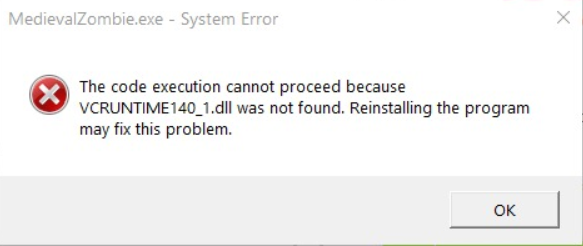
vcruntime140_1.dll is a dynamic link library (DLL) file belonging to the Microsoft Visual C++ Redistributable package. It contains essential functions used by applications developed with Visual C++, specifically those built with Visual Studio 2015, 2017, and 2019. These DLLs provide runtime components required for running C++ programs on Windows operating systems without the need for installing full development environments. When an application or game is launched, Windows searches for the necessary DLL files like vcruntime140_1.dll in system directories. If the DLL is missing, corrupted, or incompatible, the application cannot run properly, and you'll see error messages such as:
- "The specified module could not be found."
- "vcruntime140_1.dll is missing."
- "Failed to load vcruntime140_1.dll."
Common Applications and Games That Depend on This DLL
Many popular applications, especially those built with C++, depend on the presence of vcruntime140_1.dll. These include:
- Major PC games like Fortnite, Call of Duty, and League of Legends.
- Software such as Adobe Photoshop, AutoCAD, and other creative tools.
- Business applications including Microsoft Office components and third-party programs. Ensuring this DLL is correctly installed and functional is vital for the smooth operation of numerous software titles.
Common Causes of vcruntime140_1.dll Errors
Understanding why these errors occur can help you address the root issue efficiently. The typical causes include:
1. File corruption and deletion
Over time, DLL files can become corrupted due to improper shutdowns, disk errors, or malware interference. Sometimes, DLL files are accidentally deleted during system cleanup or manual file management, leading to missing vcruntime140_1.dll errors.
2. System updates and compatibility issues
Windows updates or upgrades can sometimes cause compatibility problems, especially if application dependencies aren’t updated accordingly. An outdated or incompatible version of the Visual C++ Redistributable may lead to DLL errors.
3. Malware or virus interference
Malicious software often targets DLL files, corrupting or deleting them to cause application failures or disguise their malicious activities. Running an infected system increases the risk of DLL issues.
Effective Methods to Fix vcruntime140_1.dll Errors
Fortunately, there are multiple ways to resolve these DLL errors. Here are step-by-step solutions tailored to common scenarios:
1. Download and Install the Official Visual C++ Redistributable Packages
Since vcruntime140_1.dll is part of the Visual C++ Redistributable, updating or reinstalling it is often the most effective fix. Steps:
- Visit the Microsoft Visual C++ Redistributable download page.
- Download the latest supported version compatible with your system (x86 for 32-bit, x64 for 64-bit).
- Run the installer and follow the prompts to complete the installation.
- Restart your computer and check if the error persists. Note: Installing the latest version usually replaces corrupted files and installs missing components.
2. Manual Replacement of the DLL File
If you prefer to manually replace the DLL:
- Download vcruntime140_1.dll from a reputable source such as the official Microsoft site or trusted DLL repositories.
- Caution: Avoid downloading DLL files from unofficial sources, as they may contain malware.
- Copy the DLL to the application's directory that displays the error (often in the program folder or C:\Windows\System32 for 64-bit files).
- For 64-bit systems, place the DLL in C:\Windows\System32; for 32-bit systems, use C:\Windows\SysWOW64.
- Restart your system and run the application again.
3. Running System File Checker (SFC) and DISM Tools
Corrupted Windows system files can also cause DLL errors. Running these built-in repair tools can resolve underlying system issues. Steps:
- Open Command Prompt as Administrator.
-
Execute the SFC scan:
sfc /scannow -
Wait for the scan to complete and follow any on-screen instructions.
-
To repair Windows images, run DISM:
DISM /Online /Cleanup-Image /RestoreHealth -
Restart your system and verify if the DLL error is resolved.
4. Reinstall the Application or Game
If the error appears specifically when launching a particular application or game:
- Uninstall the software through Control Panel.
- Download the latest installer from the official website.
- Install the program, ensuring all components are correctly installed.
- Check if the vcruntime140_1.dll error persists afterward.
Preventing Future DLL Errors
Proactive maintenance can significantly reduce the chances of encountering DLL errors in the future:
- Keep Windows updated: Regularly install Windows updates to ensure system components are current.
- Run malware scans: Use reputable antivirus or antimalware programs to detect and remove threats.
- Avoid manual DLL modifications: Do not manually delete or alter DLL files unless explicitly instructed by trusted guides.
- Use official sources: Always download runtime packages and DLL files from verified sources such as Microsoft.
Conclusion
DLL errors like vcruntime140_1.dll can disrupt your workflow or gaming experience, but they’re usually fixable with straightforward troubleshooting steps. Whether by updating the Visual C++ Redistributable, manually replacing the DLL, or repairing system files, you have multiple tools at your disposal to resolve these issues quickly. Remember to prioritize official sources when downloading files to avoid malware risks, and maintain regular system updates and security scans to prevent future errors. By following these strategies, you can ensure your Windows environment remains stable, and your applications run smoothly. If problems persist, consulting a professional or contacting support services may be necessary. Happy computing!
If you found this guide helpful or have additional questions about fixing DLL errors, feel free to leave a comment or reach out for more assistance!