Experiencing the error message "An error occurred when unpacking unarc.dll" can be frustrating, especially when trying to install or run your favorite software. This DLL (Dynamic Link Library) error often halts installation processes or causes programs to crash unexpectedly, disrupting your productivity and system stability. Understanding its root causes and knowing how to troubleshoot effectively is crucial to restore smooth software operation and prevent further issues. In this comprehensive guide, we will explore what triggers this error, detail step-by-step solutions, and offer tips to keep your system healthy.
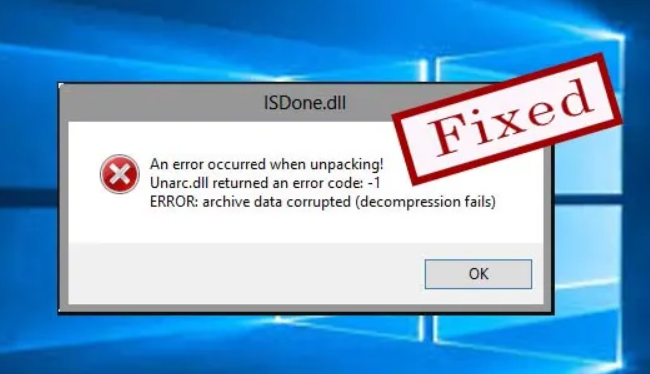
Understanding the "unarc.dll" Error
What is unarc.dll and Its Function?
unarc.dll is a Windows Dynamic Link Library file used primarily to handle data unpacking and extraction during software installations, particularly for compressed installers or archive files. It is often part of third-party installation packages, like WinRAR or other archive extractors, that support compressed or archived installation files. When a program installer encounters this DLL, it relies on it to decompress archives correctly and execute the installation smoothly.
Common Causes of the Error
The error "An error occurred when unpacking unarc.dll" typically arises due to issues such as corruption, missing files, or compatibility problems. The most common causes include:
- Corrupted unarc.dll file: The DLL could be damaged due to disk errors, malware infection, or improper system shutdowns.
- Missing or misplaced DLL: The file might be missing from its expected folder or moved accidentally.
- Antivirus interference: Antivirus software might mistakenly quarantine or delete the DLL.
- Software incompatibility: Older or incompatible software versions may not properly work with current system configurations.
- Registry errors: Invalid or corrupt registry entries related to the DLL can cause it to malfunction.
Common Causes and Symptoms
Symptoms of unarc.dll Errors
Identifying the problem early can save you significant troubleshooting time. Typical symptoms include:
- Error message appears during software installation:
"An error occurred when unpacking unarc.dll". - Installer fails to load or crashes midway.
- Software that depends on unarc.dll refuses to start.
- Windows displays a message stating that unarc.dll is missing, corrupted, or not found.
- System slowdowns or freezes during installation or runtime.
Possible Underlying Causes
Besides file corruption, other systemic issues can contribute to this error:
- File corruption due to malware or viruses
- Hard drive errors or bad sectors
- Faulty system or outdated Windows components
- Incomplete or interrupted software downloads or updates
- Registry issues or invalid entries
Step-by-Step Troubleshooting and Fixes
The following steps are designed to help you resolve the "unarc.dll" error practically and efficiently.
1. Reinstall the Affected Software
Often, a simple reinstallation can replace corrupted or missing DLL files:
- Uninstall the software that prompts the error via Control Panel.
- Download the latest installer from the official source.
- Install the software as an administrator (right-click > Run as administrator).
- Restart your computer and check if the error persists.
2. Run System File Checker (SFC) and DISM Commands
Corrupted system files can cause DLL errors. Use Windows built-in tools to repair them: Run SFC:
- Open Command Prompt as administrator.
- Type:
sfc /scannowand press Enter. -
Wait for the scan to complete; it will repair any corrupted system files automatically. Run DISM:
-
Open Command Prompt as administrator.
- Type:
DISM /Online /Cleanup-Image /RestoreHealthand press Enter. - Allow the process to finish, then restart your computer.
3. Manual DLL Replacement or Registration
If the DLL file is missing or corrupted, you can manually replace or register it:
- Download a trusted version of unarc.dll from reputable sources (be cautious to avoid malware).
- Copy the file into the software's installation folder or the system directory (
C:\Windows\System32for 64-bit orC:\Windows\SysWOW64for 32-bit systems). - To register the DLL:
- Open Command Prompt as administrator.
- Type:
regsvr32 unarc.dlland press Enter. - Restart your PC and verify if the error is resolved.
4. Use DLL Repair Tools
There are third-party tools designed to detect and repair DLL issues:
- Download reliable DLL repair utilities like DLL-files.com Client or Restoro.
- Run the tool and follow the instructions to scan and fix DLL errors.
- Keep in mind third-party tools' compatibility and reputation; use trustworthy sources.
Prevention Tips and Best Practices
Maintaining your system’s DLL integrity is vital to prevent recurring errors. Here are some proactive measures:
Keep Your Windows Updated
- Regularly install Windows updates to patch bugs and improve system stability.
- Enable automatic updates for convenience.
Regular Antivirus Scans
- Use reputable antivirus software.
- Schedule regular scans to detect and remove malware that could corrupt DLL files.
Proper Software Installation Procedures
- Always download software from official sources.
- Avoid downloading cracked or unofficial versions.
- Run installers as administrator to ensure proper setup.
- During installation, choose custom or advanced options to verify files are correctly placed.
Additional Maintenance Tips
- Regularly clean temporary files using built-in tools like Disk Cleanup.
- Check your hard drive for errors with tools like CHKDSK.
- Backup your system periodically to restore quickly if issues arise.
Conclusion
The "An error occurred when unpacking unarc.dll" is a common but manageable problem. By understanding its causes—from corrupted DLL files to system or software incompatibilities—you can apply targeted solutions like reinstalling software, repairing system files, or manually replacing the DLL. Regular maintenance practices such as keeping your Windows updated and running antivirus scans are essential to prevent similar issues. If you follow the troubleshooting steps outlined in this guide but still encounter problems, don’t hesitate to consult professional technical support for advanced assistance. Restoring the integrity of your system will ensure smooth software operation and protect your system from future errors.
Take Action Today: Regularly update your system, practice safe downloading habits, and perform routine maintenance. A healthy Windows environment is the best defense against DLL-related errors like the "unarc.dll" unpacking problem.