Are you encountering frustrating errors related to d3d9.dll? If you’re a gamer, a multimedia enthusiast, or someone who relies on Windows-based applications, you’ve probably faced messages such as "d3d9.dll is missing," "Failed to load d3d9.dll," or similar notifications. These errors can disrupt your experience, cause crashes, or prevent essential programs from running smoothly. In this comprehensive guide, we’ll delve into what d3d9.dll is, why errors happen, how to identify signs of issues, and most importantly, how to effectively troubleshoot and fix them. Whether you're a casual user or an IT professional, our step-by-step solutions will help restore system stability and optimize your software performance.
Understanding d3d9.dll and Its Role
What is d3d9.dll?
d3d9.dll is a Dynamic Link Library (DLL) file that belongs to Microsoft’s DirectX suite, specifically DirectX 9. Its primary role is to facilitate communication between Windows and graphics hardware, enabling smooth rendering of graphics in games and multimedia applications. Essentially, it provides essential API (Application Programming Interface) functions that allow programs to leverage hardware acceleration for 3D graphics.
Importance in Gaming and Multimedia
For gamers, multimedia creators, and 3D design software users, d3d9.dll is crucial. Missing or corrupted d3d9.dll can result in errors that prevent games from launching, cause graphical glitches, or lead to application crashes. Since many older and even some current titles are built on DirectX 9, this DLL remains vital for ensuring optimal performance and visual fidelity.
Common Causes of Errors
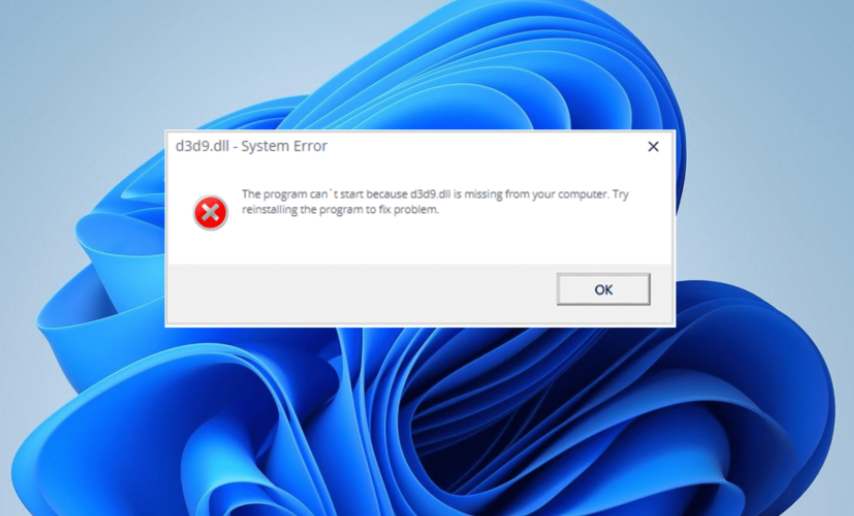
Errors related to d3d9.dll typically occur due to:
- Corruption or deletion of the DLL file
- Outdated or incompatible drivers
- Corrupted or incomplete DirectX installations
- Malware infections
- Software conflicts or incorrect system updates
- Hardware failures or incompatible hardware configurations Understanding these root causes is essential for effective troubleshooting.
Identifying d3d9.dll Errors
Common Error Messages and Symptoms
Users often encounter specific error messages indicating problems with d3d9.dll, such as:
- “The program can’t start because d3d9.dll is missing from your computer.”
- “Failed to load d3d9.dll.”
- “This application failed to initialize because d3d9.dll was not found.”
- “Error loading d3d9.dll.” In addition to these pop-up messages, symptoms include application crashes, graphical glitches, or game stuttering.
Signs of d3d9.dll Issues in Applications
- Applications or games crash immediately upon launch
- System or application logs report DLL load failures
- Visual artifacts or distorted graphics during program execution
- Unexpected system errors related to DirectX or graphics drivers Recognizing these signs promptly enables faster diagnosis and resolution.
Common Causes Behind d3d9.dll Errors
Understanding why d3d9.dll errors occur guides effective troubleshooting. Here are the leading causes:
Corrupted or Missing Files
Accidental deletion, incomplete updates, or malware can corrupt or remove the DLL, causing error messages.
Dependency Conflicts
Other system files or software that rely on d3d9.dll may conflict with its functionality, leading to errors.
Outdated DirectX or Drivers
Using outdated graphics card drivers or a stale DirectX version often results in incompatibility and errors.
Software Conflicts and Incompatibility
Installing incompatible software or recent Windows updates can interfere with DirectX components.
Step-by-Step Methods to Fix d3d9.dll Errors
Now let’s explore practical solutions. These methods range from simple fixes to advanced repair techniques.
1. Reinstall or Update DirectX
Since d3d9.dll is part of DirectX 9, updating or reinstalling DirectX can resolve many issues.
- Visit the Microsoft DirectX Download Center
- Download the latest DirectX End-User Runtime Web Installer
- Run the installer and follow on-screen prompts
- Restart your system and check if the issue persists Tip: Always ensure you're downloading from official sources to avoid malware.
2. Manually Replace d3d9.dll
If the DLL is missing or corrupted, replacing it manually is an option:
- Download a trusted copy of d3d9.dll from reputable sources such as DLL-files.com
- Place the file into the application's directory (where the executable is located)
- Alternatively, copy it to C:\Windows\System32 (for 32-bit systems) or C:\Windows\SysWOW64 (for 64-bit systems)
- Register the DLL using Command Prompt:
regsvr32 d3d9.dll
- Restart your computer and test the application Note: Be cautious and ensure files are genuine; downloading DLLs from unofficial sites can pose security risks.
3. Register the DLL with RegSvr32
Proper registration helps Windows recognize and load the DLL correctly:
- Open Command Prompt as Administrator
- Run the command:
regsvr32 /u d3d9.dll
regsvr32 d3d9.dll
- Restart your system afterward
4. Update Graphics Drivers
Outdated drivers are a common cause of d3d9.dll errors:
- Identify your graphics card model
- Visit the manufacturer’s website (NVIDIA, AMD, Intel)
- Download and install the latest driver
- Reboot your system and verify if the error persists
5. Run System File Checker (SFC) and DISM
Corrupted system files can interfere with DLLs. Running Windows built-in tools can repair them:
- Open Command Prompt as Administrator
- Run SFC:
sfc /scannow
- After completion, run DISM:
DISM /Online /Cleanup-Image /RestoreHealth
- Restart and check for improvements
6. Perform System Restore
If errors started after recent updates or software installations:
- Open System Restore from Control Panel
- Choose a restore point before issues began
- Follow prompts to restore Windows to previous state
- Verify if d3d9.dll errors are resolved
Preventing Future d3d9.dll Errors
Prevention is better than cure. Here's how to maintain a healthy system environment:
Keep DirectX and Drivers Updated
Regularly check for Windows updates and driver updates to ensure compatibility.
Run Antivirus Scans
Malware infections can corrupt DLL files. Use reputable antivirus software to scan your system periodically.
Proper Software Installation Procedures
Always install software from official sources, and regularly uninstall unused programs to reduce system clutter and conflicts.
Backup Critical Files
Maintain backups of important DLLs and system configurations, aiding quick recovery from corruption.
Conclusion
d3d9.dll plays an essential role in delivering seamless graphics and multimedia experiences on Windows systems. When errors occur, they can be disruptive but are typically fixable through targeted troubleshooting steps. From updating DirectX and drivers to manually replacing DLL files or running system repair tools, multiple solutions are available to restore stability. By understanding the common causes and adopting preventive practices—such as regular updates, antivirus scans, and cautious software management—you can minimize the risk of d3d9.dll errors in the future. Stay proactive, keep your system well-maintained, and enjoy smooth, error-free gaming and multimedia experiences. If you encounter persistent issues despite these fixes, consider consulting with a professional or seeking support from relevant forums and tech communities.
Take control of your system’s graphics stability today! Keep your drivers updated, run routine maintenance, and enjoy flawless performance.