Are you encountering the notorious 'd3dx9_43.dll missing' error while trying to launch your favorite game or software? If so, you're not alone. This common DLL (Dynamic Link Library) error can abruptly interrupt your gaming experience or hinder software operation, leading to frustration and wasted time. Luckily, understanding its causes and applying the right repair methods can restore your system's stability and get you back on track quickly.
In this comprehensive guide, we'll explore what causes the 'd3dx9_43.dll' error, how to troubleshoot it effectively, and detailed, step-by-step solutions—from manual fixes to preventive tips—to resolve the issue safely and efficiently.
Understanding the 'd3dx9_43.dll' Error
What is d3dx9_43.dll?
The d3dx9_43.dll file is part of Microsoft's DirectX collection—specifically, it’s a component of DirectX 9, a set of APIs crucial for rendering multimedia content and gaming graphics on Windows PCs. This DLL provides essential functions that enable smooth gameplay, high-quality video playback, and advanced visual effects.
Common scenarios leading to the error
You might encounter the 'd3dx9_43.dll is missing' error during activities like:
- Launching a PC game that relies on DirectX 9 features
- Running graphic-intensive software or 3D applications
- Installing or updating Windows or specific drivers
- Starting a software that depends on legacy DirectX components
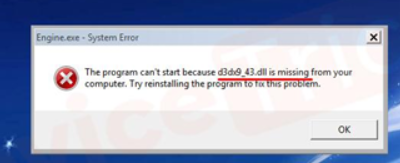
Typically, this error manifests as a popup message stating:
"The program can't start because d3dx9_43.dll is missing from your computer. Try reinstalling the program to fix this problem."
Common Causes of the 'd3dx9_43.dll' Missing Error
Understanding why this DLL error occurs helps in choosing the most effective fix. The primary reasons include:
1. Corrupted or Missing DLL Files
The d3dx9_43.dll file may become corrupted due to improper shutdowns, malware infections, or accidental deletion. If Windows cannot locate or load this file, the error will occur.
2. Outdated or Incompatible DirectX Components
Over time, your DirectX files may become outdated, incompatible with recent software, or partially corrupted—especially if updates failed or were interrupted. Running older versions leads to missing dependencies like d3dx9_43.dll.
3. Registry Issues and System File Corruption
Problems with Windows registry entries or overall system file damage can prevent DLLs from loading correctly. Rarely, conflicts between different software or incomplete installations may also contribute.
Step-by-Step Manual Repair Methods
Fixing the error manually involves several precise steps. These methods are effective for most users comfortable with system tweaks and file management.
1. Official Download of d3dx9_43.dll
The safest way to replace a missing DLL is downloading it from a trusted source, such as the official Microsoft DirectX redist package.
- Visit the Microsoft DirectX End-User Runtime Web Installer page: Official Microsoft Download
- Download and install this package. Doing so ensures all necessary DirectX 9 components, including d3dx9_43.dll, are correctly installed on your system. Note: Avoid downloading DLL files from third-party websites to prevent malware risks.
2. Manual Replacement of DLL Files
If you already have a copy of d3dx9_43.dll, you can manually replace and register it:
- Step 1: Download the DLL file from a reputable source and save it to your Desktop.
- Step 2: Copy the file into the directory where the error occurs, usually:
C:\Windows\System32(for 64-bit Windows)C:\Windows\SysWOW64(for 32-bit Windows)- Step 3: Register the DLL using Command Prompt as administrator:
- Press Win + R, type cmd, and press Enter.
- For 64-bit systems, type:
regsvr32 C:\Windows\System32\d3dx9_43.dll -
For 32-bit systems, replace the path accordingly.
-
Step 4: Restart your PC and check if the error persists.
3. Using System File Checker (SFC) and DISM
These built-in Windows tools scan and repair corrupted system files:
- Run SFC:
- Open Command Prompt as administrator.
- Enter:
sfc /scannow -
Wait for the process to complete. Restart your PC afterward.
-
Run DISM (Deployment Image Servicing and Management):
- In Command Prompt, enter:
DISM /Online /Cleanup-Image /RestoreHealth - Let the process complete, then rerun sfc /scannow. This approach often repairs underlying issues causing the DLL error.
Troubleshooting Tips and Best Practices
Even after manual fixes, some preventive steps ensure the error stays resolved:
1. Updating Graphics Drivers
Outdated or corrupted graphics drivers frequently cause DLL errors. To update:
- Visit your GPU manufacturer's site (NVIDIA, AMD, Intel).
- Download and install the latest drivers compatible with your GPU.
2. Running Virus and Malware Scans
Malware can damage or delete crucial DLL files:
- Use reputable antivirus software.
- Perform full system scans and quarantine any threats.
3. Performing System Restore
If the error appeared after recent changes, restoring your system to a previous healthy state can help:
- Search for System Restore in the Windows search bar.
- Follow the prompts to select a restore point before the error started.
Preventive Measures and When to Seek Professional Help
1. Maintain System Security and Stability
- Regularly update Windows and drivers.
- Use strong, updated antivirus software.
- Avoid downloads from untrusted sources.
2. Avoid Manual Errors During Repair
- Always back up important data before making system changes.
- Use official or trusted tools for DLL replacement.
3. When to Seek Expert Assistance
If the error persists despite your efforts, or if you're unsure about manual procedures:
- Contact a professional technician.
- Consider reinstalling Windows as a last resort if system files remain stubbornly corrupted.
Conclusion
The 'd3dx9_43.dll is missing' error can be disruptive but is often straightforward to resolve with the right approach. Ensuring your DirectX components are up-to-date via official channels, replacing missing DLL files carefully, and maintaining system health through regular updates and scans are effective strategies. Remember, patience and caution are key—never download DLL files from dubious sites, and always back up your data before making significant system modifications. By following this complete repair guide, you can confidently troubleshoot and fix the error, allowing you to enjoy seamless gaming and software performance once again. Keep your system updated, stay vigilant against malware, and don’t hesitate to seek professional help if needed. Happy gaming and troubleshooting!
If you found this guide helpful, share it with fellow gamers and tech enthusiasts. Have questions or success stories? Drop them in the comments below!