Introduction
If you're an avid PC gamer or a Windows user, chances are you've encountered frustrating errors related to xinput1_3.dll. This crucial Dynamic Link Library (DLL) file is often associated with gaming controllers, DirectX operations, and various Windows applications. When xinput1_3.dll goes missing, becomes corrupted, or encounters version conflicts, it can lead to a range of issues—from game crashes to application startup failures. Understanding and resolving these errors is vital not only to restore smooth gaming performance but also to ensure your system remains stable and functional. In this comprehensive guide, we'll walk you through the causes of xinput1_3.dll errors, effective troubleshooting methods, and preventative tips to keep your Windows environment healthy.
Understanding xinput1_3.dll Errors
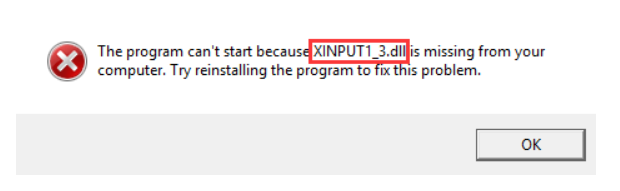
What is xinput1_3.dll?
xinput1_3.dll is a component of the DirectX library—specifically, DirectX 9.0c—that provides support for Xbox controllers and other gaming peripherals on Windows. It facilitates communication between games and input devices, ensuring seamless gameplay experiences. Given its integral role, any issues with this DLL can impair gaming and even cause system errors.
Common Error Messages
Users often encounter error messages such as:
- "The program can't start because xinput1_3.dll is missing"
- "Xinput1_3.dll Not Found"
- "Failed to load xinput1_3.dll"
- "Entry Point Not Found: The procedure entry point could not be located" These messages typically indicate that the DLL file is either absent, corrupted, or incompatible, preventing applications from functioning correctly.
When Does This Error Happen?
xinput1_3.dll errors can occur in various scenarios:
- Game installation or update: When a new game is installed or an update is applied, the required DLL may be missing or not properly registered.
- Windows system updates: Sometimes, system updates introduce compatibility issues or replace DLL files with incompatible versions.
- Corruption due to malware or disk errors: Malicious software can damage DLL files, or hardware issues can cause file corruption.
- Manual file deletion or misplaced files: Accidental deletion or incorrect modifications may remove or alter the DLL.
Troubleshooting xinput1_3.dll Errors
Effective troubleshooting begins with systematic diagnosis. Here are initial steps to identify and fix the root cause.
Initial Diagnosis
- Note the exact error message: It helps determine whether the problem is missing, corrupted, or incompatible DLL.
- Identify affected applications: Check if the error occurs in specific games or software.
- Check recent changes: Review recent system updates or software installations that might have triggered the error.
Checking System Compatibility
Ensure your Windows version is compatible with the required DirectX and runtime files:
- Verify Windows updates: Keep your OS up-to-date by running Windows Update.
- Check DirectX version: Confirm that your system has the latest supported DirectX version installed.
Verifying DLL File Presence
- Navigate to
C:\Windows\System32and locatexinput1_3.dll. - If the file is missing, corrupted, or replaced, you’ll need to repair or replace it.
Manual Repair Methods for xinput1_3.dll Issues
When easy fixes are insufficient, manual intervention might be necessary.
Manual Replacement of DLL
- Obtain a clean copy of
xinput1_3.dllfrom a reliable source such as a working Windows installation or official Microsoft package. -
Copy the DLL file to:
-
C:\Windows\System32(for 64-bit systems, also place a copy inC:\Windows\SysWOW64) -
Register the DLL using the Command Prompt:
-
Open Command Prompt as Administrator.
- Enter:
regsvr32 xinput1_3.dll - Restart your computer and check if the error persists.
Using Command-Line Tools
- System File Checker (SFC): Diagnoses and repairs corrupted system files.
- Run Command Prompt as Administrator.
- Enter:
sfc /scannow - Wait for the process to complete and follow any prompts.
- Deployment Image Servicing and Management (DISM): Fixes Windows image issues.
- Run Command Prompt as Administrator.
- Enter:
DISM /Online /Cleanup-Image /RestoreHealth
Using Official Runtime Packages and Download Sources
Many xinput1_3.dll issues stem from outdated or missing runtime libraries. Here’s how to fix them safely:
Downloading from Official Sources
- Never download DLL files from unofficial websites to avoid malware.
- Use official Microsoft resources or trusted links, such as the Microsoft Download Center.
Reinstalling DirectX
- Download the latest DirectX End-User Runtime Web Installer from Microsoft.
- Run the installer and follow prompts to update or repair DirectX, restoring missing DLL files.
Installing Visual C++ Redistributables
- Many games and applications require Visual C++ redistributables.
- Download and install the latest supported versions from Microsoft's official site.
- This often fixes missing DLL errors associated with
xinput1_3.dll.
Prevention and Additional Tips
Maintaining system health prevents future DLL errors. Consider these preventive measures:
Regular System Maintenance
- Keep Windows and device drivers updated.
- Regularly run Windows Defender or third-party antivirus scans.
- Use disk cleanup and file check tools periodically.
Performing System Restore
- Before major updates or changes, create a system restore point.
- If issues arise, revert to an earlier stable system state.
Avoiding Unsafe Downloads
- Only download DLL files or software from official or reputable sources.
- Be cautious of bundled installers, fake updates, or unverified websites.
Conclusion
xinput1_3.dll errors can be frustrating, especially when gaming or critical applications fail to run. However, with a systematic approach—diagnosing the specific issue, manually repairing or replacing DLL files, updating runtime packages, and maintaining good system hygiene—you can effectively resolve these problems. Remember, keeping your Windows system and drivers updated is the best way to prevent future DLL errors, ensuring that your games and applications run smoothly and reliably. Always back up your system before making significant changes, and when in doubt, seek assistance from trusted IT professionals or official support channels.
By following this guide, you'll be well-equipped to troubleshoot and fix xinput1_3.dll issues efficiently, restoring your Windows environment to peak performance.