Dealing with DLL errors can be frustrating, especially when they interfere with your daily use of Windows or gaming experiences. Among these, errors related to dsound.dll are particularly common and perplexing for many users. This DLL, short for DirectSound DLL, plays a pivotal role in managing sound functions within Windows and multimedia applications. When issues arise—such as missing or corrupted dsound.dll files—they can cause error messages, crashes, or failure of sound features in your system.
This comprehensive guide will walk you through understanding what dsound.dll is, common causes of errors, troubleshooting strategies, manual repair techniques, and preventative measures. Whether you're a gamer, developer, or everyday Windows user, this resource aims to equip you with practical solutions to resolve dsound.dll-related problems effectively and restore your system's sound functionality.
Understanding dsound.dll and Its Function
What is dsound.dll?
dsound.dll is a Dynamic Link Library file integral to Microsoft's DirectSound API, a core component for handling audio in Windows environments. It acts as a bridge between hardware sound devices and multimedia applications, allowing programs to output high-quality sound, manage audio buffers, and perform complex sound effects.
Role of dsound.dll in Multimedia and Gaming
In gaming and multimedia applications, dsound.dll enables virtual sound channels, spatial sound positioning, and high-performance audio output. Whether you're playing a game, watching a video, or running audio editing software, this DLL facilitates smooth and immersive sound experiences. Errors related to dsound.dll typically impair these functions, leading to distorted audio, crashes, or an inability to launch audio-dependent programs.
Common Errors Related to dsound.dll
Error Messages and Symptoms
Several typical error messages signal problems with dsound.dll, including:
- "Missing dsound.dll": Windows cannot locate the DLL file.
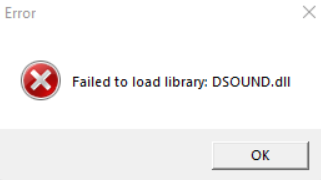
- "Failed to Load dsound.dll": System tried to access the DLL but failed due to corruption or absence.
-
"Entry Point Not Found": A specific function in dsound.dll is missing or incompatible. These errors often occur when:
-
Installing or updating software, especially games
- Booting up Windows after system changes
- Running applications that rely on DirectSound
Impact on System and Applications
Encountering dsound.dll errors can lead to:
- Inability to play sounds or music
- Crashes during game launch or operation
- Errors during software installation or execution
- System instability or freezes Understanding these symptoms helps target the troubleshooting process effectively.
Step-by-Step Troubleshooting Procedures
Before diving into complex fixes, start with basic troubleshooting steps:
Basic Troubleshooting Steps
- Restart Your Computer: Simple but effective; sometimes, a reboot can resolve temporary glitches.
- Update Windows: Ensure your system is fully updated. Go to Settings > Update & Security > Windows Update.
- Reinstall the Affected Application or Game: Corrupted files within programs can cause DLL errors; reinstalling may fix missing or corrupted DLLs.
- Check for Windows Updates: Sometimes, DLL issues are resolved through system updates that include necessary fixes.
Checking for Virus or Malware
Malware can disguise itself as system DLLs or corrupt them:
- Run a full system scan using Windows Defender or a trusted third-party antivirus program.
- Remove any detected threats, then restart your PC and test again.
Manual Repair Methods for dsound.dll Issues
If basic steps don’t resolve the problem, manual interventions may be required. Here's how to approach it:
Reinstalling Driver and Runtime Packages
- Update or Reinstall Sound Drivers:
- Go to Device Manager (Win + X > Device Manager).
- Expand "Sound, video, and game controllers."
- Right-click your sound device and select "Update driver" or "Uninstall device" (then restart to reinstall automatically).
- Reinstall DirectX:
- Download the latest DirectX End-User Runtime Web Installer from the official Microsoft site.
- Follow installation prompts, which often restore or update essential DLL files.
Manual DLL Replacement
- Download the DLL from a Trusted Source:
- Visit the official Microsoft website or the official system update component.
- Never download DLL files from third-party or unofficial sites to avoid malware.
- Replace the DLL in System Folder:
- Copy the downloaded dsound.dll.
- Navigate to C:\Windows\System32 (or SysWOW64 for 64-bit).
- Replace the existing file (preferably after backing it up).
- Register the DLL:
- Open Command Prompt as Administrator.
- Enter:
regsvr32 dsound.dll - Press Enter and wait for confirmation.
Using System File Checker (SFC) and DISM
- System File Checker:
- Open Command Prompt as Administrator.
- Type:
sfc /scannow - Wait for Windows to scan and repair corrupted system files, including DLLs.
- DISM Tool:
-
In the same Command Prompt window, enter:
DISM /Online /Cleanup-Image /RestoreHealth -
This repairs the Windows image, potentially fixing DLL issues.
Using Repair Tools and Official Downloads
Recommended Repair Tools
- Microsoft’s System File Checker (SFC) and Deployment Image Servicing and Management (DISM) are built-in options.
- Third-party DLL fixer tools can automate some repairs, but only use trusted utilities to avoid malware.
Official Runtime and DLL Downloads
- Download DirectX Runtime from Microsoft’s official website.
- Update your Windows OS, as updates often include necessary DLL files.
- For specific DLL replacements, rely on the Microsoft Update Catalog or Windows Update.
Preventative Measures and Best Practices
The most effective way to avoid dsound.dll errors is through proper system maintenance:
Driver Updates
- Regularly update your sound card drivers via Device Manager or the manufacturer’s website.
- Use reliable driver update tools (e.g., Driver Booster) cautiously to keep drivers current.
System Backup and Restore
- Create regular system restores points to revert to a healthy state if problems occur.
- Use Windows Backup to safeguard your data and system configuration.
Security and Maintenance
- Keep your Windows OS and antivirus software up-to-date.
- Avoid downloading files or software from untrusted sources.
- Perform regular system scans and cleanups.
Conclusion
Dealing with dsound.dll errors requires a combination of understanding the underlying causes and applying systematic troubleshooting methods. From basic updates and virus scans to manual DLL replacement and system repairs, there are multiple approaches to resolving these issues. Remember, always rely on official sources for DLL files and system updates to avoid further complications. Proactive maintenance—such as keeping drivers updated, backing up your system, and staying vigilant against malware—can prevent dsound.dll errors from recurring. By following this comprehensive guide, you can restore your system’s sound capabilities efficiently and enjoy a smooth, error-free multimedia experience.
If you encounter persistent problems after trying these solutions, consider seeking professional technical support to diagnose deeper system issues. Your audio experience is vital for both leisure and productivity—taking care of your system ensures it stays sound—literally and figuratively!
Need further assistance? Feel free to leave a comment or contact a tech expert for tailored support.