Introduction
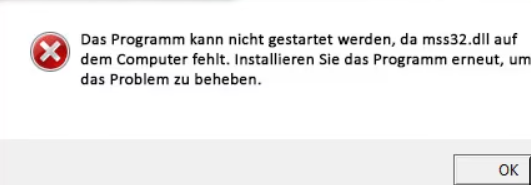
For PC gamers and software enthusiasts, encountering errors related to DLL files can be both frustrating and disruptive. One of the most common and notorious DLL files that often cause headaches is mss32.dll. This file plays a crucial role in delivering audio and multimedia functionalities for many popular games and applications. When issues arise—such as missing, corrupted, or failed to load errors—they can significantly impair system stability and user experience. Timely and effective troubleshooting of mss32.dll errors is essential to restoring smooth gaming sessions and ensuring your software runs seamlessly. In this comprehensive guide, we will explore what mss32.dll is, why errors occur, how to identify specific error messages, and most importantly, practical steps to fix and prevent these issues. Armed with this knowledge, you'll be better positioned to troubleshoot efficiently and maintain optimal system health.
Understanding mss32.dll and Its Role
What is mss32.dll?
mss32.dll is a dynamic link library (DLL) file associated with the Miles Sound System, developed by RAD Game Tools. It is primarily responsible for handling multimedia audio processing in various gaming titles and multimedia applications. Think of it as the audio engine that makes sound effects, music, and voice communications work smoothly within certain software environments. This DLL acts as an essential component that enables games to deliver immersive sound experiences by managing audio playback, encoding, decoding, and streaming tasks.
Common Usage Scenarios
- Video Games: Many classic and modern games—especially those using Miles Sound System—rely on mss32.dll to handle audio functions.
- Multimedia Applications: Some media players or audio editing tools may also depend on this DLL.
- Older Software: Legacy applications designed to work with Miles' audio technology may invoke mss32.dll during operation.
Why DLL Errors Happen
Despite its importance, mss32.dll errors are common and can arise from various reasons, including:
- Corrupted or Missing DLL Files: Accidental deletion, disk errors, or malware infections can damage or remove mss32.dll.
- Software Conflicts or Incompatibilities: Conflicting applications or outdated drivers can cause the DLL to malfunction.
- Faulty Software Installations or Updates: Incomplete or corrupted installation/update processes may leave the DLL in an unusable state.
- System File Corruption: Broader Windows system issues can corrupt DLL files, including mss32.dll. Understanding these causes helps in choosing the right troubleshooting approach.
Common mss32.dll Error Messages
When mss32.dll encounters problems, Windows may display various error messages, such as:
Error Description and Symptoms
-
"The program can't start because mss32.dll is missing from your computer."
Indicates that the DLL file is not present, likely deleted or misplaced. -
"There was a problem starting [Application Name]. The specified module could not be found."
A common message when mss32.dll is corrupt or absent. -
"mss32.dll is missing or not found."
Signifies the need for DLL reinstallation or repair. -
"Failed to load mss32.dll."
Usually suggests a corrupted or incompatible DLL file. -
"Entry Point Not Found": The procedure entry point [Function Name] could not be located in the DLL.
Implies version mismatch or corruption.
Impact on System Performance
These errors can cause applications to crash, freeze, or not launch at all. Persistent DLL issues may lead to overall system instability, affecting gaming performance and software reliability.
Effective Troubleshooting and Fixes
Resolving mss32.dll errors involves a combination of careful diagnosis and step-by-step fixes. Below are the most effective remedies:
Manual Replacement of mss32.dll
Step 1: Download the Correct DLL Obtain a trusted version of mss32.dll from reputable sources like DLL-files.com or official game repositories. It’s crucial to ensure the DLL version matches your application's requirements. Step 2: Place the DLL
- Copy the downloaded mss32.dll into the application's installation directory where the executable resides.
- Alternatively, place it in the Windows System32 folder:
C:\Windows\System32(for 64-bit Windows, also consider the SysWOW64 folder:C:\Windows\SysWOW64). Step 3: Register the DLL (if necessary) Open Command Prompt as an administrator and run:
regsvr32 mss32.dll
This command registers the DLL with Windows, enabling proper system recognition. Note: Manual replacement should be done cautiously; ensure the source is trustworthy to avoid malware risks.
Reinstalling Problematic Applications or Games
Sometimes, DLL errors are due to corrupted installation files. Reinstalling the application ensures all files, including mss32.dll, are properly placed and configured. Steps: 1. Uninstall the affected game or software. 2. Restart your computer. 3. Download the latest installer from official sources. 4. Reinstall the application, preferably choosing a custom installation to monitor files.
Updating Drivers and Runtime Components
Ensure your system is equipped with the latest drivers, DirectX, and Visual C++ Redistributables, which can influence DLL stability. Recommended Actions:
- Update your audio drivers through the official manufacturer's website.
- Download and install the latest DirectX runtime files from Microsoft's official site.
- Update Microsoft Visual C++ Redistributables via Windows Update or directly from Microsoft. Regularly updating these components minimizes conflicts and compatibility issues affecting mss32.dll.
Using System File Checker (SFC) and Deployment Image Servicing and Management (DISM)
Windows offers built-in tools to scan and repair system files that might be causing DLL problems. Run SFC: 1. Open Command Prompt as administrator. 2. Enter:
sfc /scannow
- Wait for the process to complete. The tool will repair or replace corrupted system files automatically. Run DISM (if SFC finds errors it cannot repair):
DISM /Online /Cleanup-Image /RestoreHealth
followed by another sfc /scannow to finalize repairs.
These tools can fix broader system issues impacting mss32.dll.
Reinstalling or Repairing Affected Software
If specific software consistently throws mss32.dll errors:
- Use the application's repair option via Control Panel or Settings.
- Follow the reinstallation process outlined above.
- Confirm that no antivirus software is blocking or quarantining mss32.dll.
Conclusion
Dealing with mss32.dll errors may seem daunting at first, but with a systematic approach, most issues can be resolved promptly. The key steps include understanding the role of mss32.dll, correctly identifying error messages, and employing targeted fixes such as manual replacement, reinstallation, updates, and system repairs. Remember, maintaining your system's health through regular updates, reliable software management, and security practices is vital to prevent recurrence of these errors. If problems persist despite following these troubleshooting steps, consulting a professional IT technician can provide additional support. By proactively managing mss32.dll and associated components, you can enjoy seamless gaming experiences and stable software performance—keeping your PC running smoothly and efficiently.
Stay proactive, keep your system updated, and happy gaming!