Dealing with DLL errors can be incredibly frustrating, especially when they disrupt your gaming experience. One common file that often causes headaches for Steam users is steamclient64.dll. This crucial Dynamic Link Library (DLL) file is integral to Steam’s operation and gameplay launching process. When errors occur related to this file, gamers may face error messages such as "missing," "failed to load," or "corrupted," which can prevent games from starting properly. If you’re experiencing issues with steamclient64.dll, don’t worry. This comprehensive troubleshooting guide will walk you through understanding the file's role, common errors, and step-by-step solutions to resolve these problems efficiently. By the end, you’ll be equipped with expert tips to restore your gaming environment quickly and prevent future DLL errors.
Understanding steamclient64.dll and Its Importance
What is steamclient64.dll?
steamclient64.dll is a vital component of Steam’s runtime environment on 64-bit Windows systems. It serves as an interface between Steam and the games that rely on the platform’s infrastructure. This DLL handles authentication, game launching, updates, DRM (Digital Rights Management), and various backend processes required for smooth gameplay. If this file is missing, damaged, or corrupted, Steam may be unable to validate or launch games properly, resulting in errors and interrupted gameplay.
Common causes of DLL errors
DLL errors involving steamclient64.dll can stem from a variety of issues, including:
- Corrupted or damaged DLL files due to improper updates, malware, or system crashes.
- Incomplete or failed Steam installations or updates.
- Conflicts caused by outdated or incompatible drivers, especially graphics or sound drivers.
- Malware infections that damage or replace essential system DLLs.
- Hardware issues, such as disk errors or failing storage devices. Understanding these causes helps target the root of the problem more effectively during troubleshooting.
Common Errors Related to steamclient64.dll
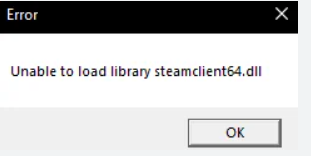
Error messages overview
Users often encounter specific error messages when steamclient64.dll issues arise. Some of the most common include:
- "The program can't start because steamclient64.dll is missing from your computer."
- "Failed to load steamclient64.dll."
- "This application failed to start because steamclient64.dll was not found."
- "steamclient64.dll is corrupted." These messages generally indicate that the game or Steam itself cannot access the DLL file needed for proper operation.
Impact on gameplay
The immediate consequence is that games won't launch, or Steam may crash or freeze during operation. Persistent DLL errors can also lead to instability, degraded performance, or potential security vulnerabilities if caused by malware. Timely troubleshooting prevents prolonged disruptions and preserves your gaming experience.
Troubleshooting and Fixing steamclient64.dll Errors
Addressing DLL errors involves systematic steps aimed at identifying and resolving the root cause. Here’s a detailed guide on how to do it:
Initial troubleshooting steps
1. Restart Your Computer
Sometimes, a simple reboot can fix temporary glitches affecting DLL files. Always start with restarting your system to clear residual errors.
2. Run Steam as Administrator
Right-click the Steam shortcut and select "Run as administrator." Elevated permissions can resolve issues caused by insufficient access rights.
3. Check for Windows Updates
Ensure your Windows OS is up to date, as updates often include critical security patches and driver improvements compatible with DLL files.
Manual repair procedures
4. Verify the Integrity of Game Files
Most Steam games include an option to verify and repair missing or corrupted files:
- Open Steam, navigate to your Library.
- Right-click on the game experiencing issues, select Properties.
- Go to Local Files and click Verify Integrity of Game Files. This process can replace missing or damaged DLL files within the game directory.
5. Reinstall or Repair Steam
If DLL errors persist:
- Uninstall Steam via Control Panel > Programs > Uninstall a program.
- Download the latest Steam installer from the official Steam website.
- Reinstall Steam, ensuring a clean setup. This often replaces corrupted files, including steamclient64.dll.
6. Scan for Malware
Malware infections can cause DLL corruption. Use reputable antivirus software such as Windows Defender, Malwarebytes, or Norton to perform a full system scan. Remove any threats detected.
Using official runtime downloads
Sometimes, replacing steamclient64.dll manually can help, especially if the file is missing:
- Visit official resources or trusted DLL download sites.
- Download the steamclient64.dll from authoritative sources.
- Place the DLL in the appropriate folder, typically:
C:\Program Files (x86)\Steam\bin\
Note: Exercise caution with third-party DLL downloads; prefer official or Steam-sourced files to avoid security risks.
Preventive Measures and Best Practices
Maintaining a healthy system prevents most DLL-related issues. Follow these tips:
Regular system updates
- Keep Windows OS and drivers up to date.
- Enable automatic updates to ensure your system benefits from the latest security patches and bug fixes.
Security practices
- Run reputable antivirus and anti-malware scans regularly.
- Avoid downloading files or software from untrusted sources.
Routine maintenance
- Use disk cleanup tools to remove unnecessary files.
- Run system file checker to repair corrupt system files:
sfc /scannow
- Check your disk for errors using chkdsk:
chkdsk /f /r
Backup and restore points
Create system restore points before significant updates or installations. This makes it easier to revert changes if problems arise.
Conclusion
DLL errors involving steamclient64.dll can be disruptive, but with a structured approach, you can troubleshoot and resolve them effectively. Whether it's verifying game files, updating drivers, repairing Steam, or scanning for malware, each step helps restore your system's stability and ensures smooth gameplay. Remember, prevention is key—keep your system updated, run regular maintenance, and avoid suspicious downloads. If issues persist despite these efforts, consult official Steam support resources or reputable tech forums for further assistance. By maintaining a healthy system environment and staying proactive, you'll minimize DLL errors and enjoy a seamless gaming experience.
Stay Up-to-Date and Safe!
Don’t let DLL errors ruin your gaming sessions. Regularly check for system updates, maintain your security setup, and keep backups. For ongoing support, visit the official Steam Support or trusted tech communities.
Happy gaming!
Keywords: steamclient64.dll, fix steamclient64.dll errors, DLL error troubleshooting, Steam game issues, Windows DLL repair