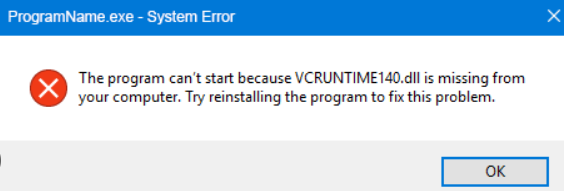
If you're an everyday Windows user, gamer, or professional working with applications that rely heavily on runtime libraries, encountering errors related to vcruntime140.dll can be frustrating. These errors often manifest as messages saying the DLL file is missing, failed to load, or cannot be found, disrupting your workflow or gaming experience. Fortunately, understanding the root causes and following targeted solutions can help you resolve these issues efficiently. This comprehensive guide discusses what vcruntime140.dll is, why errors happen, and step-by-step methods to fix download errors so your system and software can run smoothly again.
Understanding vcruntime140.dll and Its Importance
What is vcruntime140.dll?
vcruntime140.dll is a dynamic link library (DLL) file associated with Microsoft Visual C++ Redistributable packages. These packages install crucial runtime components that enable C++ programs to run correctly on Windows. Essentially, vcruntime140.dll contains shared functions and resources that many applications, including games, development tools, and third-party software, depend on to operate.
Why is it crucial for applications?
Most modern software, especially those built using C++, requires specific runtime libraries to function. When you launch an application that depends on vcruntime140.dll, Windows loads this file to ensure that the executable has all the necessary code to run smoothly. Without it, applications will not start or will crash unexpectedly.
How DLL errors affect system and software performance
When vcruntime140.dll is missing, corrupted, or cannot be loaded, you may experience:
- Application crashes or failure to launch
- Error messages such as "The code execution cannot proceed because vcruntime140.dll was not found" or "failed to load vcruntime140.dll"
- System instability and reduced performance Promptly fixing DLL errors is essential not only for functionality but also to maintain the overall stability of your Windows system and ensure a trouble-free user experience.
Common Causes of vcruntime140.dll Errors
Understanding what causes these errors can help you avoid similar issues in the future and choose the most effective repair steps.
Missing or Not Found errors
Typically, DLL files like vcruntime140.dll may be missing due to:
- Accidental deletion
- Corrupted installation or updates
- Disk errors or hardware failures
- Incomplete application installation
Failed to Load issues
This occurs when Windows recognizes the DLL but encounters issues loading it, which can be caused by:
- Outdated or corrupted Visual C++ Redistributable packages
- Conflicts with other software
- Malware infections that tamper with system files
Corruption and Dependency problems
Corruption of vcruntime140.dll can happen due to:
- System crashes
- Improper shutdowns
- Malware alterations
- Updates that go awry Additionally, dependency conflicts or missing related files can prevent DLL loading, leading to application errors.
Step-by-Step Solutions to Fix vcruntime140.dll Download Errors
Now, let's explore practical, effective methods to resolve vcruntime140.dll errors. Follow these instructions carefully to restore system stability and ensure applications run without issues.
1. Downloading the Official vcruntime140.dll
Important: Always obtain DLL files from official or trusted sources to avoid malware.
- Visit the Microsoft Download Center to download the latest Visual C++ Redistributable packages.
- Choose and install the version compatible with your system (most modern systems require the Visual C++ 2015-2022 Redistributable).
- After installation, restart your computer and check if the DLL error persists.
2. Reinstalling Visual C++ Redistributable Packages
Since vcruntime140.dll is part of Visual C++ Redistributable, reinstalling these packages often resolves missing or corrupted DLL errors. Steps:
- Open Control Panel > Programs and Features.
- Locate any existing Visual C++ Redistributable entries.
- Uninstall all outdated or suspicious versions.
- Download the latest supported versions from the official Microsoft site (for 64-bit systems) or the x86 version.
- Install the downloaded package(s).
- Restart your computer and test the application again.
3. Using System File Checker (SFC) and Deployment Image Servicing and Management (DISM)
These built-in Windows tools can repair corrupted system files that may cause DLL errors.
Run SFC:
1. Open Command Prompt as Administrator.
2. Type: sfc /scannow
3. Press Enter and wait for the scan to complete.
4. If errors are fixed, restart your PC and verify if the DLL error is resolved.
Run DISM:
1. Open Command Prompt as Administrator.
2. Enter: DISM /Online /Cleanup-Image /RestoreHealth
3. Press Enter and wait for the process to complete.
4. Run the sfc /scannow command again to ensure all issues are fixed.
4. Manual DLL Replacement
If the above methods fail, you can manually replace vcruntime140.dll. Steps:
- Download the DLL file from a trusted source or extract it from a clean, new Visual C++ Redistributable installation.
- Place the original vcruntime140.dll file into the relevant folder:
- For 64-bit Windows:
C:\Windows\System32 - For 32-bit Windows:
C:\Windows\SysWOW64 - Register the DLL:
- Open Command Prompt as Administrator.
- Run:
regsvr32 vcruntime140.dll - Restart your computer and test again. Note: Manually replacing DLL files can be risky; always back up your system beforehand.
5. Additional Troubleshooting Tips
- Update Windows to ensure you have the latest system files and security patches.
- Perform a full virus scan with reputable antivirus software to eliminate malware interference.
- Check for software conflicts—disable or uninstall recently added programs causing issues.
- Restore your system to a previous restore point if the error appeared after recent changes.
Preventative Measures and Best Practices
Prevention is better than cure. Follow these best practices to minimize the risk of future vcruntime140.dll errors:
1. Regular Windows Updates
Keeping Windows up-to-date ensures you have the latest security patches and system files, reducing vulnerabilities that lead to DLL corruption.
2. Installing Official Runtime Files
Always download Visual C++ Redistributable packages directly from Microsoft. Avoid unofficial sources to prevent malware infection or incompatible files.
3. Avoiding Unofficial DLL Sources
Downloading DLL files from third-party sites might seem convenient but pose security threats and stability issues. Instead, use official installers or repair tools.
4. Running Virus Scans Regularly
Schedule regular scans with trusted antivirus solutions to catch malware early, which may tamper with DLL files or corrupt system components.
Conclusion
Encountering errors related to vcruntime140.dll can disrupt your Windows applications and overall system stability. However, by understanding what this DLL does, identifying common causes, and applying specific repair strategies—including updating or reinstalling Visual C++ Redistributables, repairing system files, and cautious manual replacements—you can effectively resolve these errors. Remember: Always use official sources for downloads and exercise caution when manipulating system files. Regular maintenance, updates, and security practices will help prevent similar issues in the future. If you found this guide helpful, feel free to share your feedback or ask questions in the comments. Your proactive approach ensures a smoother computing experience!
Keywords: vcruntime140.dll download, DLL error fix, Visual C++ Redistributable, Windows DLL troubleshooting, system file repair