Introduction
DLL errors are a common headache for Windows users, especially when they disrupt the normal operation of applications or even compromise system stability. Among these, wpcap.dll is a critical file associated with network packet capturing, commonly used by diagnostic tools, security software, and network analysis applications. When issues arise with wpcap.dll—manifesting as errors like “Missing,” “Not Found,” or “Failed to Load”—it can result in application crashes, startup failures, or network connectivity problems. Understanding the role of wpcap.dll and knowing how to troubleshoot its errors is essential for IT professionals, gamers, developers, and everyday users alike. This guide provides a detailed overview of what wpcap.dll is, why errors happen, and step-by-step solutions to effectively resolve these issues, ensuring your Windows system remains healthy and your applications function seamlessly.
What is wpcap.dll and Why It Matters
Functionality and Purpose
The wpcap.dll file is a dynamic link library that serves as a core component of WinPcap and Npcap, two popular packet capturing libraries for Windows. These libraries enable programs to intercept, analyze, and log network traffic by providing an interface between user applications and network hardware. In essence, wpcap.dll allows applications like Wireshark, TCPdump, and network monitoring tools to perform low-level network analysis and troubleshooting. It handles the complex task of capturing raw packets transmitted over the network, a process invaluable for network diagnostics, security assessments, and research.
Common Applications Using wpcap.dll
- Wireshark: The world’s leading network protocol analyzer relies heavily on wpcap.dll for capturing data packets.
- Nmap/Zenmap: These security and network scanning tools use it for detailed network insights.
- Network monitoring software: Applications like Nagios, PRTG, or custom-developed tools depend on wpcap.dll to record network activity.
- Security applications: Many firewalls and intrusion detection systems integrate with WinPcap/Npcap to monitor network behavior. Given its widespread use, a corrupt or missing wpcap.dll can significantly impact network analysis capabilities and overall system stability.
Common Errors and Symptoms Associated with wpcap.dll
Typical Error Messages
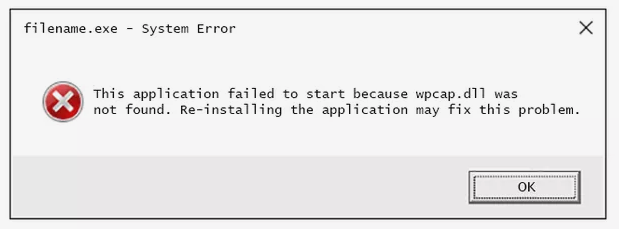
When wpcap.dll encounters issues, Windows often displays error messages such as:
- "wpcap.dll is missing"
- "The specified module could not be found"
- "wpcap.dll failed to load"
- "Error loading wpcap.dll"
- "wpcap.dll could not be registered" These errors usually surface during application startup, system boot, or when attempting to run specific network tools.
Impact on System and Applications
Such errors can lead to:
- Application crashes or failure to launch network tools.
- Loss of network packet capturing and monitoring capabilities.
- System instability or crashes if the DLL is critical for certain drivers.
- Network troubleshooting disruptions, complicating diagnosis and remediation efforts. Timely troubleshooting is vital to restore full functionality and prevent potential security vulnerabilities due to compromised tools.
Root Causes of wpcap.dll Errors
Understanding why these errors occur helps in choosing the most effective fix. The main causes include:
File Corruption and Deletion
Corruption can result from abrupt system shutdowns, disk errors, or malware infections that delete or modify wpcap.dll.
Version Conflicts and Compatibility Issues
Using incompatible versions of WinPcap/Npcap or improperly updating them can conflict with existing system software, leading to DLL errors.
Registry and System File Problems
Invalid registry entries or broken links related to wpcap.dll can prevent the OS from locating or loading the DLL properly.
Malware Infections
Malicious software may delete or corrupt DLL files to disrupt system operations or to hide malicious activities.
Step-by-Step Manual Repair Guides for wpcap.dll Errors
Reinstalling WinPcap/Npcap
The simplest and most effective method often involves reinstalling the packet capturing library: 1. Visit the official WinPcap or Npcap website. 2. Download the latest compatible version for your Windows OS. 3. Uninstall any existing version via Control Panel > Programs and Features. 4. Restart your computer. 5. Install the freshly downloaded package, following on-screen instructions. 6. Restart again and check if the error persists.
Manual Replacement of wpcap.dll
If you have a clean source of the correct DLL file: 1. Download a trusted version of wpcap.dll from a reputable source. 2. Navigate to C:\Windows\System32 (for 64-bit, also consider SysWOW64). 3. Backup the existing wpcap.dll by copying it to another folder. 4. Replace the corrupted DLL with the fresh copy. 5. Register the DLL (see next step).
Registering DLL with RegSvr32
- Open Command Prompt with administrator privileges.
- Type:
regsvr32 C:\Windows\System32\wpcap.dll
and press Enter. - You should receive a success message indicating registration is complete.
- Restart your system and verify if the issue is resolved.
Running SFC and DISM Tools
Corruption in system files can affect DLLs. Running built-in utilities can repair Windows files:
-
System File Checker (SFC):
sfc /scannow
Run in Command Prompt as administrator. It will scan and automatically fix corrupted system files. -
Deployment Image Servicing and Management (DISM):
DISM /Online /Cleanup-Image /RestoreHealth
This command repairs the Windows image, which can resolve deeper system issues affecting DLLs.
Using Tools and Software for Automated Repair
Leading DLL Repair Tools
For users seeking a more straightforward approach, various tools can scan, repair, and replace missing or corrupted DLL files:
- DLL-files.com Client: Offers official DLL files and automatic repair options.
- Wise Registry Cleaner: Cleans invalid registry entries related to DLL issues.
- System Mechanic: Combines registry cleaning with system optimization features.
How to Use These Tools Effectively
- Download and install the chosen utility from reputable sources.
- Run the scan to identify DLL errors, including wpcap.dll issues.
- Use the repair or restore function, following on-screen prompts.
- Restart your computer to apply changes and verify if errors persist. Note: Always back up your system before using third-party repair tools to avoid unintended consequences.
Conclusion
Dealing with wpcap.dll errors can be daunting, but thorough troubleshooting and proper maintenance make it manageable. Recognizing the importance of wpcap.dll in network analysis tools helps you understand why its failure impacts system performance and application functionality. By following the step-by-step manual repair methods—such as reinstalling WinPcap/Npcap, manually replacing the DLL, or registering it—you can often resolve these issues quickly. For persistent problems, leveraging reliable DLL repair tools offers an effective solution. Remember, regular system updates, malware scans, and maintaining current versions of network capture libraries will help prevent future DLL errors. Addressing wpcap.dll problems promptly not only restores your system’s network capabilities but also safeguards your computing environment against potential security vulnerabilities. Take action today to keep your Windows system running smoothly and your network diagnostics accurate!