Overview:
If you’re a Windows user, you’ve likely encountered errors related to missing or corrupted DLL files at some point. One common culprit is the vcruntime140.dll, a vital component for running many applications, especially those built with Visual C++. Errors related to this DLL—such as "Missing vcruntime140.dll," "Failed to load vcruntime140.dll," or application crashes—can be frustrating and hinder your system’s stability. Fortunately, understanding how to download and fix vcruntime140.dll (64-bit) errors can resolve these issues efficiently. This guide provides a clear, step-by-step approach to troubleshoot and eliminate DLL errors, ensuring your software operates smoothly.
Understanding vcruntime140.dll and Its Importance
Role in Applications
vcruntime140.dll is part of the Microsoft Visual C++ Redistributable package. It acts as a shared library that contains routines and functions used by Windows applications written in C++. When you install software or games that rely on Visual C++, this DLL is critical for their execution. Without it, many programs will refuse to start or function improperly.
Common errors related to the DLL
Common issues include:
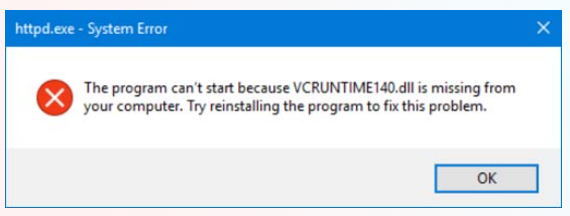
- "The program can't start because vcruntime140.dll is missing."
- "Failed to load vcruntime140.dll."
- Application crashes or error messages during startup. These errors typically indicate that the DLL file is either missing, corrupted, or incompatible with your system.
Common Causes of vcruntime140.dll Errors
Missing DLL file
Sometimes, the DLL file is deleted accidentally or becomes orphaned after uninstallation or incomplete updates.
Corrupted DLL file
Damaged or corrupted DLLs can occur due to malware infections, improper shutdowns, or disk errors.
Version conflicts
Installing incompatible versions of Visual C++ Redistributables or multiple conflicting software packages can lead to DLL version mismatches.
Other causes include:
- System file corruption
- Incomplete software installation or updates
- Malware infections that corrupt system files
- Problems with Windows registry entries
How to Download vcruntime140.dll for 64-bit Systems
Step 1: Use Official Sources
Avoid downloading DLL files from unverified websites, which may bundle malware or provide outdated versions. Always obtain the DLL from official or trusted sources:
- Download the latest Microsoft Visual C++ Redistributable for Visual Studio from the official Microsoft website.
Step 2: Check Your System Architecture
Ensure you are downloading the correct version:
- For 64-bit Windows, install the x64 version of the Visual C++ Redistributable.
- To confirm your system type, press Win + R, type
msinfo32, and check System Type.
Step 3: Download and Install the Redistributable
- Navigate to the official Microsoft download page.
- Select the latest Visual C++ Redistributable 2015-2022 (or the specific version required).
- Download the
vc_redist.x64.exefile. - Run the installer and follow the prompts to complete the installation.
Step 4: Manually Replace the DLL (if necessary)
If a specific application still reports a missing DLL after installing the redistributable:
- Locate the
vcruntime140.dllfile in the following folder: C:\Windows\System32\for 64-bit DLLs- If the DLL is missing or corrupted:
- Download a fresh copy from the official source.
- Copy it into the
System32folder. - Important: You will need administrator privileges to do this. Right-click on the Command Prompt and select "Run as administrator."
Step 5: Register the DLL (optional)
Open Command Prompt as administrator and run:
regsvr32 vcruntime140.dll
This registers the DLL and can resolve certain loading issues.
Troubleshooting vcruntime140.dll Errors
Step 1: Use System File Checker (SFC)
System File Checker scans for and repairs corrupted system files, including DLLs:
- Open Command Prompt as administrator.
-
Enter:
sfc /scannow -
Wait for the process to complete and follow any on-screen instructions.
Step 2: Use Deployment Image Servicing and Management (DISM)
DISM repairs Windows image corruption that might affect DLL files:
-
In the elevated Command Prompt, run:
DISM /Online /Cleanup-Image /RestoreHealth -
Restart your computer afterward.
Step 3: Reinstall Visual C++ Redistributables
Sometimes, reinstalling the latest versions of Visual C++ Redistributables can resolve compatibility issues:
- Uninstall existing versions via Control Panel > Programs > Programs and Features.
- Download the latest redistributables from the Microsoft website.
- Install and restart your system.
Step 4: Scan for Malware
Malware infections can corrupt DLL files:
- Use reputable antivirus or antimalware tools (like Windows Defender, Malwarebytes).
- Perform a full system scan.
- Remove any detected threats.
Preventative Measures and Best Practices
Security best practices
- Always update Windows regularly.
- Keep your antivirus software active and up to date.
- Avoid downloading DLLs from shady websites.
Regular system updates
- Install all Windows updates promptly, as they often include important security patches and system repairs.
Use reliable DLL repair tools
- Tools like DLL-files.com Fixer or CCleaner can sometimes help repair or replace missing DLL files safely, but ensure you use reputable ones.
Maintain system health
- Create system restore points regularly.
- Back up important data before making major changes.
Conclusion
Resolving vcruntime140.dll (64-bit) errors is straightforward with the right approach. Always prioritize downloading DLL files from official sources, keep your system updated, and regularly scan for malware. If problems persist, reinstalling the latest Visual C++ Redistributables and running system repair tools can often resolve lingering issues. Remember, maintaining system health and security best practices reduces the likelihood of encountering DLL errors. Should the problem continue despite these efforts, consulting with a professional technician is advisable to ensure comprehensive resolution. By following these steps, you can ensure your Windows system and applications run smoothly, without runtime errors disrupting your experience.
Take action now:
Ensure your system is up-to-date, and if you're facing specific DLL issues, follow these steps diligently to fix them efficiently. For ongoing issues, professional support can provide tailored assistance. Keep your software updated for the best performance and stability!