When gaming on Steam, encountering error messages can be frustrating, especially when they disrupt your favorite sessions. One common issue many gamers face is the 'steam_api.dll not found' error, which prevents the game from launching properly. This DLL (Dynamic Link Library) error can be caused by various reasons, from missing or corrupted files to system conflicts.
The good news is that this problem is generally fixable with straightforward troubleshooting steps. In this comprehensive guide, we will explain what causes the 'steam_api.dll not found' error, walk you through effective solutions, and offer tips to prevent future issues. Whether you're a beginner or an experienced user, following the instructions here will help you restore smooth gaming experiences quickly and securely.
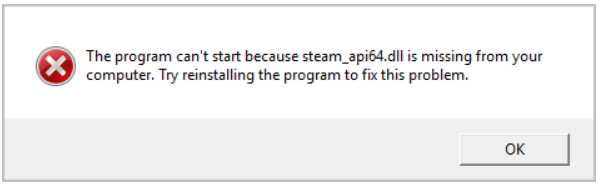
Understanding the 'steam_api.dll not found' Error
What is steam_api.dll?
The steam_api.dll file is an essential component used by many Steam-integrated games. It acts as a bridge facilitating communication between the game and Steam's platform, managing features such as multiplayer, achievements, and licensing. When this DLL file is missing, corrupted, or inaccessible, the game cannot access crucial functions, leading to an error message preventing gameplay.
Common causes of missing or not found DLL errors
Several issues can cause the steam_api.dll error, including:
- Corrupted or Deleted Files: Accidental deletion or corruption due to power failures or disk errors.
- Incomplete Game or Steam Installation: Files may be missing if the installation was interrupted or incomplete.
- Malware or Virus Infection: Malicious software can delete or damage DLL files.
- System Conflicts: Conflicting software, outdated drivers, or Windows registry errors.
- Third-party Software Interference: Antivirus or security programs may quarantine or block DLL files. Understanding these causes is crucial for choosing the right troubleshooting method to fix the error effectively.
Troubleshooting Methods to Fix the Error
Here’s a step-by-step guide to diagnosing and resolving the 'steam_api.dll not found' error. Proceed through the methods in order, starting from the easiest solutions to more advanced fixes.
1. Verify Integrity of Game Files via Steam
One of the most common and straightforward solutions is verifying your game's files through Steam to ensure nothing is missing or corrupted.
Step-by-step:
1. Open Steam and go to your Library.
2. Right-click the game generating the DLL error and select Properties.
3. Navigate to the Local Files tab.
4. Click Verify Integrity of Game Files.
Steam will scan your game files and automatically repair or replace corrupted or missing files, including steam_api.dll. This process may take a few minutes.
2. Reinstall or Repair Steam
If verifying individual game files doesn't resolve the issue, consider reinstalling Steam, as the problem might stem from Steam's core files.
Steps:
1. Exit Steam completely.
2. Go to Control Panel > Programs > Programs and Features (or Settings > Apps & Features in Windows 10/11).
3. Find Steam, choose Uninstall, and follow the prompts.
4. Download the latest version of Steam from the official website and install it.
Note: To prevent data loss, back up your game folders before uninstalling Steam. You can do this by copying the SteamApps folder located in your Steam directory (usually C:\Program Files (x86)\Steam\) to a safe location.
3. Update System Drivers and Windows
Outdated drivers or Windows system files can cause DLL errors. How to update:
- Update Windows:
- Go to Settings > Update & Security > Windows Update.
- Click Check for updates and install any available updates.
- Update drivers:
- Visit your hardware manufacturer’s website (e.g., NVIDIA, AMD, Intel).
- Download and install the latest GPU, sound card, and motherboard drivers. Keeping your system fresh helps prevent DLL conflicts and ensures optimal game performance.
4. Run Malware and Virus Scans
Malware infections can delete or corrupt DLL files like steam_api.dll.
Recommended actions:
- Use reputable antivirus or anti-malware software (e.g., Windows Defender, Malwarebytes).
- Run a full system scan.
- Quarantine or delete detected threats. Regular malware scans are part of good system maintenance and help avoid recurring DLL errors.
5. Manual Replacement of steam_api.dll
If the error persists, you might consider manually replacing the steam_api.dll file.
Steps:
1. Search for a clean, official copy of steam_api.dll. Note: Be cautious—avoid downloading DLL files from unreliable sources, as they may contain malware.
2. Alternatively, copy the DLL file from a working installation of the same game.
3. Place the steam_api.dll file into your game’s installation directory, usually under the game’s main folder.
4. Restart your game.
Warning: Always ensure files are from trustworthy sources; otherwise, this could cause further issues or security risks.
Preventive Measures and Best Practices
To avoid encountering the 'steam_api.dll not found' error again, adopt these best practices:
Keep your system and drivers updated
Regular updates prevent software conflicts and security vulnerabilities, reducing the likelihood of DLL errors.
Use software from official sources
Download games, drivers, and Windows updates directly from official websites to avoid corrupted or malicious files.
Regularly scan for malware
Frequent antivirus scans and safe browsing habits help protect your DLL files from infections that could cause errors.
Back up critical files
Create regular backups of your game data and important system files, especially before major updates or modifications.
Conclusion
The 'steam_api.dll not found' error can be a frustrating barrier to enjoying your favorite Steam games, but it's typically manageable with methodical troubleshooting. Remember to verify your game files through Steam, keep your system and drivers updated, and scan regularly for malware. If needed, reinstall Steam or manually replace the DLL file—always sourcing files from official or trustworthy sources. By following these steps, you not only resolve current DLL issues but also establish good practices to prevent similar problems in the future. Happy gaming!
Disclaimer: Be cautious when downloading DLL files from third-party websites. Always prefer official sources or original game files to avoid security risks.
If you continue experiencing issues, consider reaching out to Steam Support or your game’s official community forums for tailored assistance.