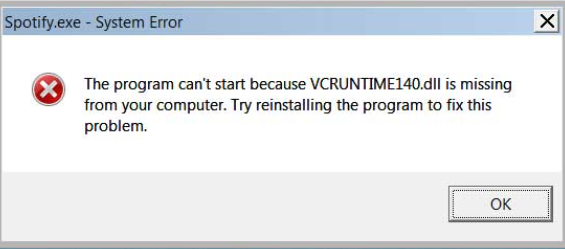
Running into a msVCP140.dll missing error can be a frustrating experience for Windows users. This DLL (Dynamic Link Library) file is essential for many applications to function correctly, especially those built with Microsoft Visual C++ libraries. When this file is missing, corrupted, or incompatible, your system or programs may crash, throw error messages, or refuse to launch altogether. Whether you're a gamer, casual user, or IT professional, understanding how to resolve this issue swiftly can save you time and frustration. In this comprehensive guide, we'll explore what the msVCP140.dll file is, why errors related to it happen, and most importantly, how to troubleshoot and repair the problem effectively. From simple updates to manual fixes, this guide ensures you have all the tools needed to restore your system's stability.
Understanding msVCP140.dll and Its Role
What is msVCP140.dll?
The msVCP140.dll file is part of the Microsoft Visual C++ Redistributable package, specifically linked to Visual C++ 2015, 2017, and 2019 libraries. These libraries provide essential runtime components that applications built with Visual C++ depend on to run properly. Think of msVCP140.dll as a helper file that supplies specific functions or operations that applications call upon during execution. If this DLL is missing or damaged, applications that rely on it can't access the necessary functions, resulting in errors such as:
"The program can't start because msVCP140.dll is missing from your computer."
Why does this DLL error occur?
Errors related to msVCP140.dll typically arise due to issues like file corruption, accidental deletion, or software conflicts. Sometimes, updating Windows or installing new applications can inadvertently remove or replace this file with incompatible versions. Malware infections and system file corruption are also common culprits behind DLL errors.
Common Causes of msVCP140.dll Errors
1. Corrupted System Files
Over time, Windows system files can become corrupted due to improper shutdowns, failed updates, or disk errors. Such corruption may extend to DLL files like msVCP140.dll, rendering them unusable.
2. Accidental Deletion
Sometimes, during cleaning routines or manual file management, users inadvertently delete DLL files. Since DLLs are shared across multiple applications, their removal can have widespread issues.
3. Malware Infection
Malicious software can tamper with system files, including DLLs. Malware may delete, corrupt, or replace DLL files with malicious versions to compromise system stability or hide traces.
4. Incomplete or Faulty Software Updates
Applying incomplete or corrupted updates, especially for Visual Studio or related components, can cause mismatched DLL versions or missing files.
5. Software Conflicts
Conflicts between applications or incompatible third-party software can overwrite or interfere with DLL files, leading to errors.
Effective Troubleshooting and Repair Methods
Before diving into manual file replacements, try following these recommended troubleshooting steps. They are designed to fix common causes of msVCP140.dll errors safely and efficiently.
1. Check for Windows Updates
Keeping Windows up to date ensures your system has the latest fixes and supports necessary runtime files.
- Go to Settings > Update & Security > Windows Update
- Click Check for updates and install any available updates
- Restart your computer after updates are installed
2. Run System File Checker (SFC) and Deployment Image Servicing and Management (DISM)
These built-in tools scan and repair corrupted system files that could be causing DLL errors. Steps:
- Open Command Prompt as Administrator
- Run the following command to scan for system corruption:
sfc /scannow
- Once completed, run DISM to repair the system image:
DISM /Online /Cleanup-Image /RestoreHealth
- Restart your computer and check if the error persists
3. Reinstall Visual C++ Redistributable Packages
Since msVCP140.dll is part of the Visual C++ Redistributable, reinstalling these packages can fix missing or corrupted DLL files.
-
Visit the official Microsoft download page: Download Visual C++ Redistributable
-
Download and install the latest versions compatible with your system (both x86 and x64 if applicable)
- Restart your PC and verify if the error is resolved
Manual Repair Steps for msVCP140.dll Errors
If troubleshooting doesn't resolve the issue, you may need to manually replace or register the DLL file. This method involves downloading the DLL from a trusted source and registering it with Windows.
1. Download the DLL Safely
- Avoid using third-party sites that offer DLL downloads—these can be unsafe
- Instead, obtain msVCP140.dll from the official Microsoft sources or by reinstalling the appropriate Visual C++ Redistributable as outlined above
2. Place the DLL in the Correct Directory
- Copy the downloaded msVCP140.dll file
- Paste it into the application's directory issuing the error, often located in:
C:\Program Files\(Your Application)\
or
C:\Windows\System32
- For 64-bit systems, also copy to:
C:\Windows\SysWOW64
3. Register the DLL Using RegSvr32
- Open Command Prompt as Administrator
- Register the DLL with the command:
regsvr32 msVCP140.dll
-
You should see a success message. If not, verify the path or re-download the DLL Precautions:
-
Always back up your system before manual modifications
- Ensure that the DLL is compatible with your Windows version and architecture
Prevention and Best Practices
Avoiding DLL errors, including msVCP140.dll missing issues, involves maintaining good system hygiene.
1. Keep Your System and Software Updated
Regularly check for Windows updates and keep your applications, especially development tools like Visual Studio, current.
2. Run Antivirus and Anti-Malware Scans
Schedule routine scans to detect and eliminate malware that could infect or delete DLL files.
3. Use Reliable Software Sources
Install applications from reputable sources to minimize the risk of software conflicts or corrupted files.
4. Maintain Backup Copies
Create restore points and keep backup copies of critical system files and DLLs to facilitate quick recovery.
5. Avoid Manual Deletions
Be cautious when cleaning or managing files on your system to prevent accidental deletion of shared DLL files.
Conclusion
Facing a msVCP140.dll missing error can disrupt your workflow, but with the right troubleshooting approach, it's often fixable without much hassle. Remember to always prioritize safety—download DLL files only from official sources, run system scans regularly, and keep your Windows environment updated. By following the step-by-step methods outlined in this guide, you can restore application functionality, prevent future issues, and keep your Windows system running smoothly. Proactive maintenance not only fixes current errors but also reduces the likelihood of encountering similar DLL problems down the road. If issues persist even after trying these solutions, seeking professional technical support might be necessary to diagnose more complex system problems.
Stay proactive, keep your system healthy, and enjoy seamless Windows experience!