Introduction
Encountering a kernelbase.dll error on Windows 11 can be frustrating, as it often disrupts your system’s stability and hampers normal operations. This DLL (Dynamic Link Library) error can manifest in various ways, such as application crashes, system freezes, or error messages during startup. Addressing this issue promptly is crucial to maintaining your PC’s performance, preventing data loss, and avoiding more severe system problems. In this comprehensive guide, you'll learn about the causes behind the kernelbase.dll error, effective troubleshooting strategies, manual repair methods, and tools to restore your system's health. Whether you're a regular Windows 11 user, an IT support technician, or a tech enthusiast, these practical solutions will help you resolve kernelbase.dll errors efficiently.
Understanding kernelbase.dll and Its Role in Windows 11
What is kernelbase.dll?
Kernelbase.dll is a core component of the Windows operating system, part of the Windows NT kernel library that provides essential functions for application and system operation. It acts as a bridge between user-mode applications and the kernel, facilitating communication and control between software and hardware resources.
Common functions and dependencies
This DLL handles numerous critical tasks such as memory management, process and thread creation, and system error handling. Many Windows applications depend on kernelbase.dll to run smoothly. Consequently, if this file becomes corrupted, missing, or incompatible, it can cause various errors, ranging from application crashes to system instability.
Why it causes errors
Errors related to kernelbase.dll usually stem from issues like file corruption, conflicting software, device driver problems, or malware infections. Since it plays such an integral role, even minor issues can trigger significant system errors, disrupting daily tasks and rendering your PC unstable.
Common Causes of kernelbase.dll Errors on Windows 11
System file corruption
Corrupt system files can occur due to improper shutdowns, failed updates, or malware infections, damaging the kernelbase.dll or associated files.
Driver conflicts
Outdated, incompatible, or corrupted device drivers may conflict with kernelbase.dll, leading to runtime errors.
Malware infections
Malware can infect or delete DLL files, including kernelbase.dll, intentionally causing system malfunctions or as a side effect of malware activity.
Windows update issues
Incomplete or failed Windows updates may lead to mismatched or missing DLL files, including kernelbase.dll, causing errors at startup or during application execution.
Effective Troubleshooting Steps for kernelbase.dll Errors
Step 1: Initial troubleshooting in Safe Mode
Boot your Windows 11 into Safe Mode to prevent third-party services or drivers from interfering with your troubleshooting efforts.
How to Boot into Safe Mode:
- Press Win + R, type
msconfig, and hit Enter. - Navigate to the “Boot” tab and select “Safe Boot,” then click OK and restart your PC.
- Alternatively, interrupt the normal boot process three times to trigger Windows Recovery, then choose “Advanced options” > “Startup Settings” > “Restart” and select “Safe Mode.”
Step 2: Running System File Checker (SFC)
The SFC tool scans and repairs corrupted system files, including DLL files.
How to run SFC:
- Open Command Prompt as administrator by pressing Win + X and selecting “Windows Terminal (Admin)” or “Command Prompt (Admin).”
- Type
sfc /scannowand press Enter. - Wait for the scan to complete and follow any on-screen instructions.
Step 3: Using Deployment Image Servicing and Management (DISM)
DISM repairs the Windows image, fixing issues that SFC cannot resolve.
How to run DISM:
- In the same admin Command Prompt, execute:
DISM /Online /Cleanup-Image /RestoreHealth - This process may take several minutes. Restart your PC afterward.
Step 4: Performing System Restore
If the error started after recent changes, returning to a previous restore point can resolve the issue.
How to perform System Restore:
- Search for “Create a restore point” in Windows Search and open it.
- Select “System Restore,” then choose a restore point from before the error appeared.
- Follow the prompts to restore the system.
Manual Repair Methods
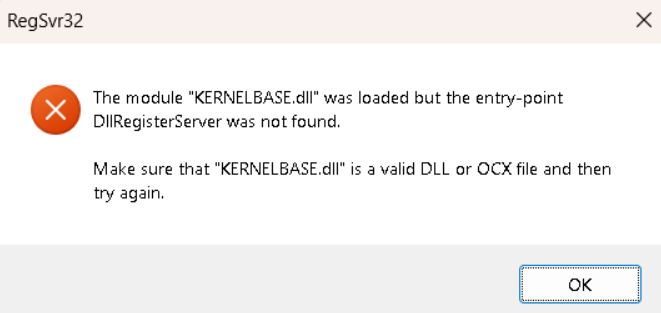
Re-registering kernelbase.dll with RegSvr32
Manually registering the DLL can fix registration issues hindering its proper functioning.
Steps to re-register:
- Open Command Prompt as administrator.
- Type
regsvr32 /u kernelbase.dlland press Enter to unregister. - Then, execute
regsvr32 /i kernelbase.dllto register again. - Restart your PC and check if the error persists.
Manual DLL replacement
In some cases, replacing a corrupted kernelbase.dll with a healthy copy can resolve errors.
Precautions:
- Backup your current DLL before replacing.
-
Download the DLL from a reliable source or extract it from a known good Windows installation image.
Replacement process: -
Boot into Safe Mode.
- Locate
C:\Windows\System32\and replace the existing kernelbase.dll with the clean copy. - Ensure the file has appropriate permissions and is not in use before replacing.
Restoring from Backup
If you have a recent system backup or system image, restoring it can quickly revert your system to a stable state.
- Use Windows Backup and Restore tools or third-party imaging software to initiate the restore.
Advanced Solutions and Tools
Using DLL repair tools
Specialized software like “DLL-files.com Client” or “Restoro” can scan and repair corrupted DLL files, including kernelbase.dll.
How to use:
- Download and install a reputable DLL repair tool.
- Run a full system scan and follow the prompts to fix issues detected.
Official runtime downloads from Microsoft
Download Visual C++ Redistributables and other runtime components directly from Microsoft’s official website, ensuring compatibility and stability.
Best practices:
- Install all recommended updates and runtime libraries to prevent missing dependencies.
When to seek professional help
If troubleshooting steps fail or if your system exhibits persistent issues, consulting a professional IT support technician is advisable. They can perform in-depth diagnostics, trace underlying hardware or software conflicts, and perform safe repairs.
Conclusion
Dealing with a kernelbase.dll error on Windows 11 requires a systematic approach, combining initial troubleshooting, system file repairs, manual interventions, and the use of specialized tools. Regular system maintenance—such as keeping Windows up-to-date, running malware scans, and maintaining backups—can prevent future DLL errors. By following the steps outlined in this guide, you can enhance your PC’s stability, resolve kernelbase.dll errors efficiently, and ensure smooth operation. Remember, proactive maintenance and timely troubleshooting are the best defenses against system disruptions and DLL-related issues.
Stay proactive, keep your system updated, and perform regular maintenance to avoid encountering critical DLL errors like kernelbase.dll on Windows 11.